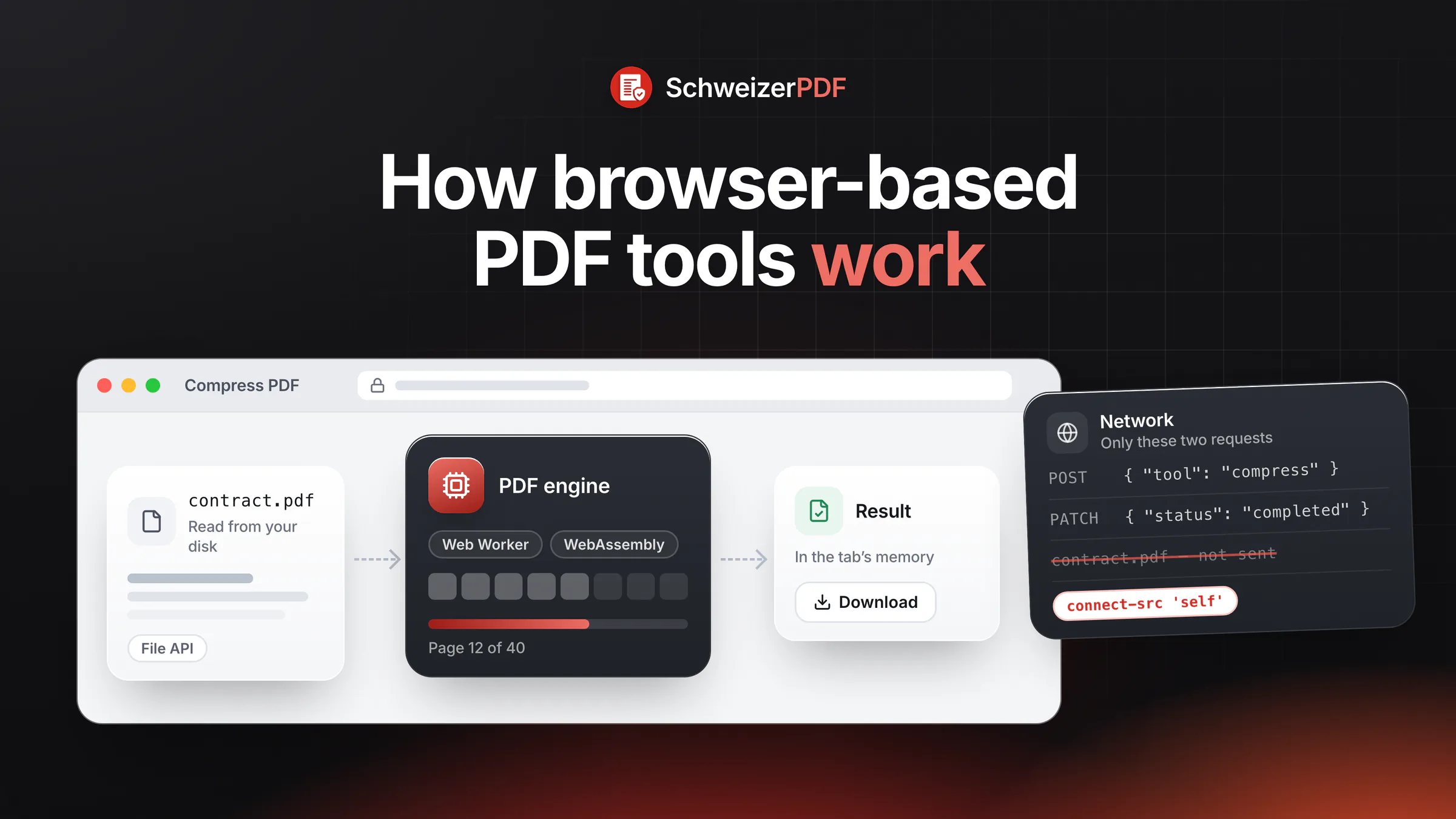
Browser-based PDF tools work by bringing the software to the file instead of the file to the software. When you open a tool in SchweizerPDF, your browser loads the PDF engine — JavaScript and WebAssembly — from our server and runs it in background threads on your device. The file is read from your disk into the tab's memory, processed there and offered back to you as a download.
Our server takes part in two ways only: it delivers the engine, as the same static files for every user, and it counts the run — it receives the tool id when a run starts and the outcome when it ends. Why this matters for confidential documents is covered in why your PDF tool shouldn't see your documents.
What happens when you run a PDF tool in the browser
- 1
The page loads the engine
When you open a tool, the browser fetches the engine's code and data from our own server — versioned files that are identical for everyone. Nothing about your documents is part of these requests.
- 2
You choose a file
You drop a file onto the page or pick it in the file dialog. The browser's File API hands the page the bytes of that file — and only of the files you chose, never anything else on your disk.
- 3
The run is counted
Before processing starts, the page tells our server which tool is starting, so that the operation counts towards your plan.
- 4
A worker does the work
The bytes are passed to a web worker, a background thread of the browser, where the engine merges, compresses, protects or recognises text.
- 5
The result is offered as a download
The result comes back to the tab as a file in memory. You save it to your disk, or pass it straight to the next tool without saving it first.
- 6
The outcome is reported
At the end, the page reports whether the run completed, failed or was cancelled. Failed and cancelled runs are not counted.
The engine: JavaScript and WebAssembly in web workers
The SchweizerPDF engine is a library of 40 tools. Most of it is JavaScript. The heavy parts — encryption and repair, image compression, text recognition — are established open-source libraries written in C or C++ and compiled to WebAssembly, a compact binary format that browsers run at close to native speed.
Why web workers
The engine does not run on the page itself but in web workers — background threads without access to the page. The interface stays responsive while a long job runs, and you can cancel it. SchweizerPDF runs at most two tool jobs side by side, fewer on devices with few processor cores; further jobs wait in a queue.
A sandbox for untrusted files
A PDF can be damaged or deliberately crafted. Parsing it in a worker keeps it inside the browser's sandbox, away from the page. The engine also refuses files whose internal data would unpack to unreasonable sizes, stops a job after a time limit, and replaces a worker after a crash or a memory-hungry job — WebAssembly memory never shrinks, so a fresh worker is the clean way to give it back.
Where your file lives — and what happens when you close the tab
From the moment you add a file until you leave, it exists only in the tab's memory: in the page's state, in the worker that processes it and, for the result, in a temporary in-memory file that the download link points to. That link is revoked shortly after the download starts; the copy you saved is then the only one.
- No browser storage of documents. Neither the app nor the engine writes file data to IndexedDB, the Origin Private File System (OPFS), localStorage or the Cache API. The only things kept in your browser's storage are your theme and, before sign-up, the plan you picked.
- Passing results between tools stays in memory. Continue with … hands the result over as a value in memory — not uploaded, not stored, not put in a link (continue with another tool).
- Passwords too. A password you type to open an encrypted PDF stays in the browser's memory only while you work in the tool and is never stored or sent.
- Closing the tab ends it. Reload or close the tab and the files, results and passwords are gone. There is no document history — not in the browser, not on our server. What you downloaded stays wherever you saved it.
OCR language data: loaded from our server, cached by your browser
Text recognition needs language data — trained models for each language. SchweizerPDF offers seven: English, German, French, Italian, Spanish, Portuguese and Dutch. When you run Make scans searchable (OCR), the worker loads only the languages you selected, from the same server as the rest of the engine and never from a third-party network.
Every engine file carries its version in its address, so your browser can keep it in its normal HTTP cache. The first OCR run with a language takes longer while the data arrives; later runs use the cached copy. That cache holds engine files, which are the same for everyone — never your documents. Recognition itself is the most demanding job in the engine: a dense page takes seconds on a current computer and considerably longer on a phone. How to get good results is explained in making scanned PDFs searchable.
The only network calls — and how the CSP enforces it
While a tool runs, the page sends exactly two requests about it — one when the run starts, one when it ends:
POST  /api/usage/operations       { "tool": "ocr" }
PATCH /api/usage/operations/:id  { "status": "completed" }
Both bodies follow an exact allow-list: the server refuses a request with any other field, such as a file name or a size. Apart from these, the browser loads static engine files and calls the account endpoints for sign-in, plan and settings. None of them carries anything derived from a file — see where your files are processed.
This protection does not rest on careful code alone. Every page is delivered with a Content Security Policy containing connect-src 'self', and the engine's worker script receives the same policy with its own response — a worker takes its policy from there, not from the page. The browser therefore blocks any connection from the page or a worker to another server. There are no third-party scripts, fonts, analytics or CDNs. The details are on the security page.
Two limits remain: the browser runs the code our server delivers — the same for every user, and its network behaviour can be checked in the developer tools — and a compromised device, or an extension allowed to read every page, sees what the page shows.
Performance and browser support
What makes processing fast or slow
- Memory (RAM). The original, the working copy and the result sit in memory at the same time. Large documents can fail on phones and low-memory devices.
- Processor. Recompressing scans, rasterising pages and OCR are computing work; faster cores help, and at most two jobs run in parallel.
- Images. Scanned and photo-heavy pages are the expensive part — rendering, recompressing or recognising them. Text-only PDFs are processed quickly.
- Image size limits. Browsers cap how large a single rendered image may be; very large renders are reduced to the device's limit, which is lower on Safari and iOS.
Your plan also sets limits on file size and pages, shown on the pricing page. What to do when a document is too much for your device is explained in large files.
Which browsers work
The engine needs WebAssembly, web workers and JavaScript modules inside workers. That means a current version of Chrome, Edge, Firefox or Safari — at least Chrome or Edge 111, Firefox 115 or Safari 16.4 — on Windows, macOS or Linux. Phones and tablets work for smaller documents. Extensions that block scripts or workers can stop a tool from starting; see supported browsers.
Frequently asked questions
Does browser-based PDF processing work offline?
No. The page and the engine come from our server, and every run is counted there before it starts, so you need a connection and an account. The document itself never travels over that connection.
Can WebAssembly read other files on my computer?
No. WebAssembly runs inside the browser's sandbox with the same rights as the page's JavaScript. The page only receives the files you choose in the file dialog or drop onto it.
Why does the first OCR run take longer?
Your browser first loads the language data for the languages you selected. Later runs use the copy in the browser's cache until a new engine version is published.
Is anything left in my browser after I close the tab?
No document data. The engine files stay in the browser's cache, and your theme and plan choice in local storage. Files you downloaded remain where you saved them — on a shared computer, delete them when you are done.
To see the engine at work, browse the tools or create a free account and run one with your browser's network log open.
General information
This article is general information about how SchweizerPDF processes files, simplified for readability; it is not legal or security advice. Browser behaviour varies between versions and devices. Whether a tool suits your documents and obligations is your own assessment — for specific requirements, consult a qualified professional.