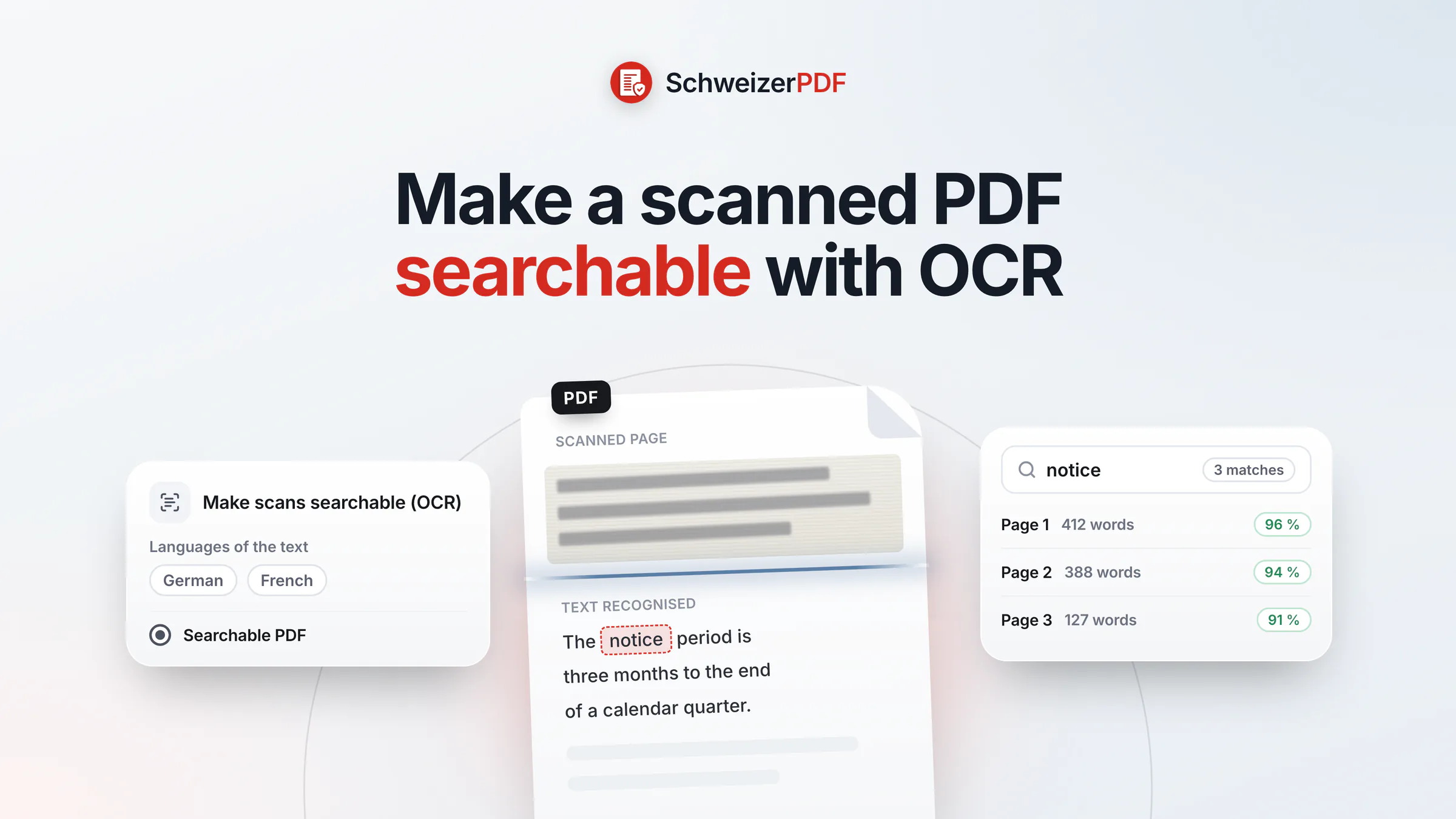
To make a scanned PDF searchable, you run OCR — optical character recognition — on it. OCR reads the words in the page images and writes them into the page as invisible text, placed exactly over the words you see. After that, you can search the document, select a sentence and copy it. In SchweizerPDF, Make scans searchable (OCR) does this in your browser: the scan is processed on your device and is not uploaded.
A scanner or a phone camera produces pictures of pages. The PDF looks like a document, but to a computer each page is a photograph: the search finds nothing, a click selects the whole image, and copying a paragraph is impossible. That is fine for reading, and a problem the moment you need to find one clause in a long contract or quote an amount from an old invoice.
Scanned or text PDF: how to tell the difference
- Search for a word you can see. Press Ctrl+F (Cmd+F on a Mac) in your PDF viewer and type a word from the page. No result usually means there is no text layer.
- Try to select a line. On a text PDF the cursor selects words; on a scan it draws a box or selects the whole picture.
- *Ask PDF details. With Full analysis*, the report sorts the pages into text, scanned without text, and scanned with searchable text — useful for files that mix typed and scanned pages.
- Watch for the hint. When PDF to text finds no text layer, it says that the document looks scanned and offers Make scans searchable (OCR) as the next step.
How OCR makes a scanned PDF searchable
The tool renders each selected page as a greyscale image at the resolution you choose, recognises the words on it and writes them back into the page as invisible text, word by word, at the position where each word appears. The page image itself stays exactly as it was: the scan looks the same, but now it has text behind its pixels. Your viewer's search, selection and copy work on that text.
Everything happens on your device. The recognition data for each language is downloaded from our server the first time you use that language and then cached by your browser; the document and the recognised text never leave your device. Per run, our server receives only the tool id and the outcome — see the security page and why your PDF tool shouldn't see your documents. Which plans include Make scans searchable (OCR) is shown on the pricing page.
Make a scanned PDF searchable: OCR step by step
- 1
Open the tool
Sign in, open Make scans searchable (OCR) among the conversion tools and select your scanned PDF with Select PDF file (or drop it on the page).
- 2
Choose the languages
Pick up to three languages of the text; the first is the main one. The app starts with the language of its interface, so check it when a German-speaking office scans a French letter.
- 3
Choose the result
Searchable PDF keeps the scan and adds the text layer. Text file saves only the recognised text. Both gives you both.
- 4
Set resolution and pages
Keep the default resolution unless the print is very small or the result is poor. Limit the pages if only part of the file is scanned, and leave Skip pages that already have text on.
- 5
Make it searchable and read the report
Click Make text searchable. Recognition takes a few seconds per page. The report lists every page with its word count and mean confidence, and warns about pages that were hard to read or had no text at all.
- 6
Check the result
Open the searchable copy, search for a word you know is there and compare a few numbers with the image. Keep the original scan.
Which languages and which resolution?
Recognition works best when the tool knows what to expect. For Swiss documents, German, French, Italian and English are the usual choices; Spanish, Portuguese and Dutch are available too. A bilingual contract or a letter with an English annex gets two languages, with the dominant one first.
| Setting | What it does | When to change it |
|---|---|---|
| Languages (up to 3) | Tells the recogniser which words and characters to expect | Mixed-language documents: add the second language, main language first |
| Resolution (150–600 dpi) | How finely each page is rendered before recognition; the default is 300 dpi | Small print or footnotes: go higher. Recognition gets slower as resolution rises |
| Pages | Which pages are recognised | Long files where only the annex is scanned |
| Skip pages that already have text | Leaves pages with a text layer untouched, so nothing is doubled | Turn it off for a scan that carries a small typed stamp, or the scan itself is skipped |
| Result | Searchable PDF, text file (.txt) or both | Use the text file to paste content elsewhere |
The scan matters as much as the settings. Scan at around 300 dpi, keep the pages straight and upright, and prefer clean black-and-white or greyscale over a dark photo of a crumpled sheet. Pages scanned sideways or upside down are not recognised: turn them first with Rotate pages.
How accurate is OCR — and where does it fail?
- Handwriting is not recognised. Notes in the margin and handwritten dates stay image-only.
- Sideways and vertical text, such as a rotated table or a reference printed along the edge, is not recognised.
- Tables are read as lines of words. The text becomes searchable, but columns may not come out in the order you expect in a text file.
- Low contrast — faint copies, coloured paper, stamps over text — produces errors. A higher resolution or the right language can help.
- Stamps and form fields that are annotations, not part of the page, are not recognised.
- Very large pages are recognised below the requested resolution; the report tells you when that happened.
Always check the numbers
OCR guesses each character. A 0 read as an O, a 1 as an l or a misplaced decimal point is enough to change an amount, an AHV number or an IBAN. The searchable text is a help for finding and copying — for anything that matters, compare it with the image.
OCR, file size and sensitive data
The searchable PDF keeps the full scan and adds text and the fonts for it, so it does not get smaller. If a scan is too large to send, run Compress PDF afterwards: the text layer stays selectable, as explained in compress a PDF without losing quality. Long documents need memory and time on your device; an older laptop or a phone is much slower than a current desktop — see large files.
Text recognition also makes everything on the page copyable, including AHV numbers, IBANs and names that were safely locked in a picture before. Before you share a searchable copy, remove what the recipient should not see with Black out (redact) — never with a black box drawn on top, which leaves the text underneath (the common redaction mistakes). And if the PDF carries a digital signature, adding a text layer changes the file and invalidates it; the app asks before it runs.
Frequently asked questions
Does OCR change how my scan looks?
No. The page images stay as they were; the recognised words are added as invisible text. Printing or viewing the searchable PDF shows the same scan.
Can I run OCR on a PDF that already has some text?
Yes. With Skip pages that already have text switched on, typed pages are left unchanged and only the scanned ones are recognised, so you can even run the tool again on its own result without doubling anything.
Is my scan uploaded for text recognition?
No. Recognition runs in your browser. Only the language data comes from our server, once per language; the document and its text stay on your device.
Why does OCR take so long on my phone?
Recognition is demanding work, done one page after another on your own device. It takes a few seconds per page on a desktop and several times that on a phone. For long files, use a computer.
Scan carefully, choose the right languages, check the result. The settings are explained in OCR for scanned documents; a worked example is making a scanned contract searchable. Ready to try it? Create a free account.
General information
This article explains how text recognition works in general and is not legal advice. OCR can misread characters: whether a searchable copy is accurate enough for your purpose is your decision — check it against the original scan.