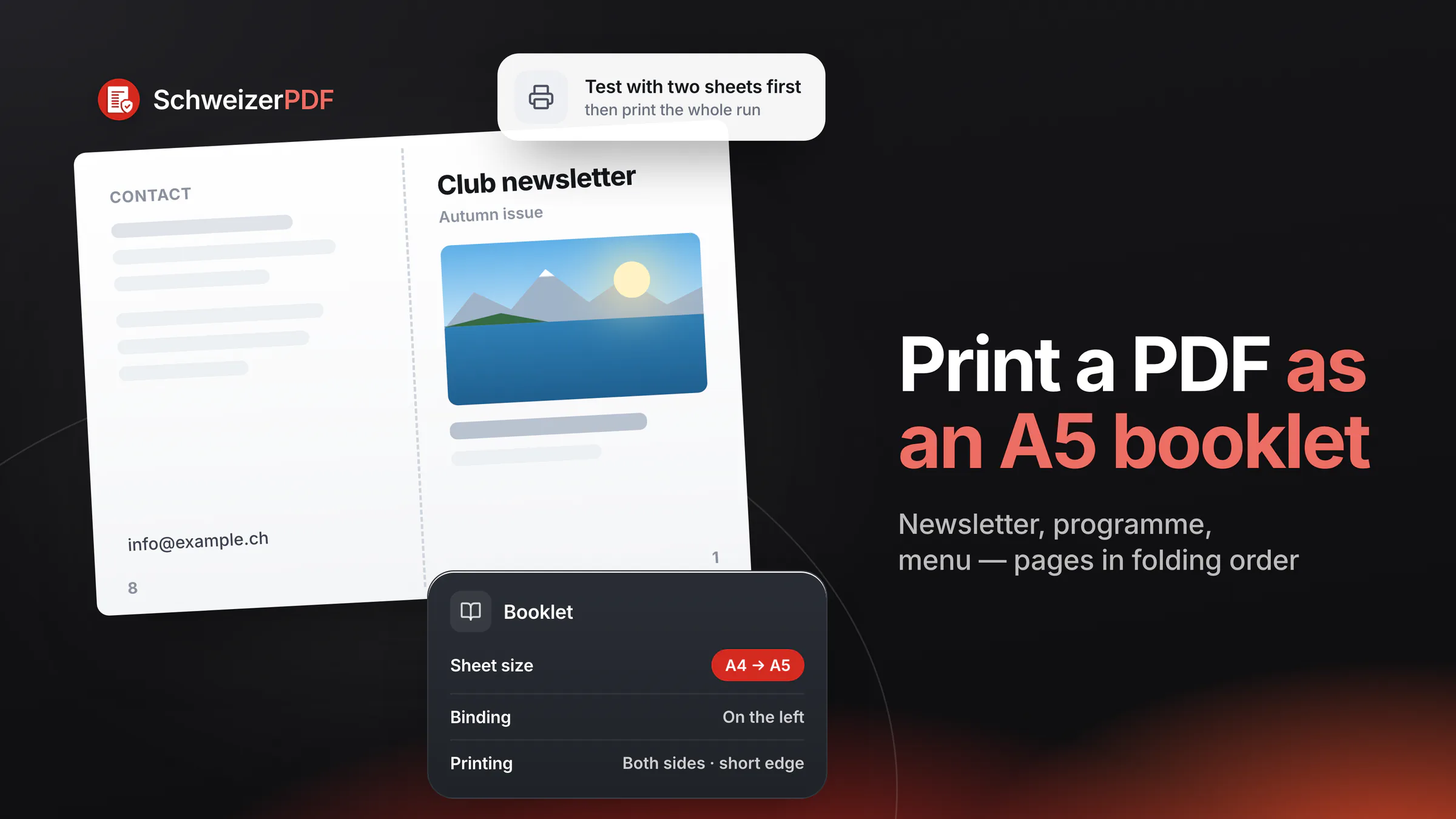
To print a PDF as a booklet, run Booklet with the sheet size A4: it puts two pages side by side on each sheet, in the order a folded booklet needs. Print the result on both sides, flipping on the short edge, fold the stack in half and staple it at the fold. Sixteen A4 pages become an A5 booklet on four sheets. In SchweizerPDF this runs in your browser, so the file is never uploaded.
A club newsletter, a concert programme, the menu for a village festival, a short manual for a machine: many documents read better as a small booklet than as a stack of loose pages. The hard part is the order. On the outer sheet the last page sits next to the first, and the second page is printed on the back next to the second to last. Booklet does that arithmetic for you.
How the page order of a booklet works
Every sheet carries four pages, two on each side. For an eight-page booklet, the two sheets look like this:
| Sheet | Front (left | right) | Back (left | right) |
|---|---|---|
| Sheet 1 (outside) | 8 | 1 | 2 | 7 |
| Sheet 2 (inside) | 6 | 3 | 4 | 5 |
Because each sheet holds four pages, the page count must be a multiple of four. If it is not, Booklet adds blank pages — at the end, or before the back cover so that the last page stays on the back.
Prepare the PDF: page size and page numbers
- One page size. Booklet scales every page by the same factor, so a smaller page comes out smaller. If contributions arrive in A4 and Letter, run Resize pages with New page size A4 and Fit to the page (keep proportions) first.
- Portrait pages. A landscape page is not turned; it is scaled down to fit a portrait half. Rotate or redesign wide pages, such as a table, before you impose.
- Page numbers before the booklet. Add Page numbers to the normal PDF, so every A5 page carries its own number in reading order. Set Leave the first pages without a number to 1 for the cover and keep Count pages without a number on, so the first inside page shows 2. With Facing pages (mirror the position on even pages) and Bottom right, the numbers sit on the outer corners.
- Slightly larger type. An A4 page printed on an A5 half shrinks to about seventy per cent. Choose a page-number size a little above what you would use for A4, and check that small print stays readable.
- Several files? Combine the contributions first with Merge PDF — see combining documents into one PDF.
With Continue with … the result goes straight from one tool to the next in your browser — see chaining tools; each step counts as its own operation.
Print a PDF as a booklet, step by step
- 1
Open Booklet
Sign in, open Booklet and select your PDF with Select PDF file (or drop it on the page).
- 2
Choose the sheet size
Under More options, Sheet size A4 gives an A5 booklet; A3 gives an A4 booklet if your printer takes A3. Twice the page size keeps the pages at their original size.
- 3
Binding and blank pages
Where is it bound? Left is right for English, German, French and Italian. Under Blank pages choose Before the back cover if the last page is a back cover that must stay outside.
- 4
Space at the fold
Space at the fold adds a gap between the two pages of a side, so text near the inner margin does not disappear into the fold. A few millimetres are usually enough.
- 5
Creep for thick booklets
In a thick booklet the inner sheets stick out once folded. Creep compensation per sheet moves the pages of each inner sheet towards the fold to make up for it — without scaling them, so content closer to the fold than the shift is cut off. For a thin booklet, leave it at zero.
- 6
Printing mode
With a duplex printer, choose Both sides. Without one, choose One side at a time.
- 7
Create and download
Click Create booklet at the bottom of the options, then Download PDF, and save the booklet PDF. The pages stay sharp and their text can still be selected.
Printer settings: duplex, short edge, actual size
- Both sides, flip on the short edge. The sheets are landscape, so the printer must turn them over the short edge. Drivers call it “short-edge binding”, “flip on short edge” or similar.
- Actual size. Print at 100 % on A4 paper rather than with a fit-to-page option, so the fold lands in the middle.
- No second booklet setting. Do not also switch on the printer's own booklet or multi-page function — the pages would be rearranged twice.
- Without duplex. Print the fronts file, turn the stack over as your printer requires and print the backs file. The backs come in the same order as the fronts, whatever your output tray does.
- Test with two sheets. Print the first two sheets, fold them and check the order and the page numbers before printing the whole run.
Then fold the stack in the middle and staple along the fold — a long-reach stapler makes this easier. If a print shop does the printing, send it the booklet PDF; if the file is too large for e-mail, see a PDF too large for e-mail.
Booklet or several pages per sheet?
Not every document needs folding. Several pages per sheet puts 2, 4 or more pages on one sheet in reading order — for handouts, slides with Draw a border around each page, or simply to save paper:
| Booklet | Several pages per sheet | |
|---|---|---|
| Result | Folded and stapled, reads like a small book | Loose sheets, several pages on each |
| Page order | Rearranged for folding | Reading order, across then down by default |
| Page count | Filled up to a multiple of four | Any |
| Good for | Newsletters, programmes, menus, manuals | Handouts, presentations, proofreading |
A club newsletter often lists names, addresses and birthdays of members. With SchweizerPDF it is laid out in your browser; per run our server receives only which tool ran and whether it finished — see the security page. You need an account and a connection.
Frequently asked questions
How many sheets do I need for my booklet?
One sheet per four pages, rounded up: a 20-page newsletter needs five sheets, a 22-page one six — with two blank pages added.
Why does my booklet have blank pages?
The page count was not a multiple of four. Add content or a notes page to fill them, or choose Before the back cover so the blank pages sit inside rather than after the back cover.
Can I print a booklet without a duplex printer?
Yes. Choose One side at a time, print all fronts, turn the stack and print all backs. Test with two sheets first, because printers differ in how the stack must be turned.
Can I make an A4 booklet?
Yes, with Sheet size A3 — if your printer takes A3 paper, or at a print shop. The steps are the same.
All layout tools are in the Layout section of the tools page; your first run is explained in Run your first tool. Ready to print? Create a free account and make your next newsletter a booklet.
General information
This guide describes how the SchweizerPDF Booklet tool can be used and gives general printing tips. Printer drivers name their settings differently and handle paper differently — check your printer's manual and print a test before the full run.