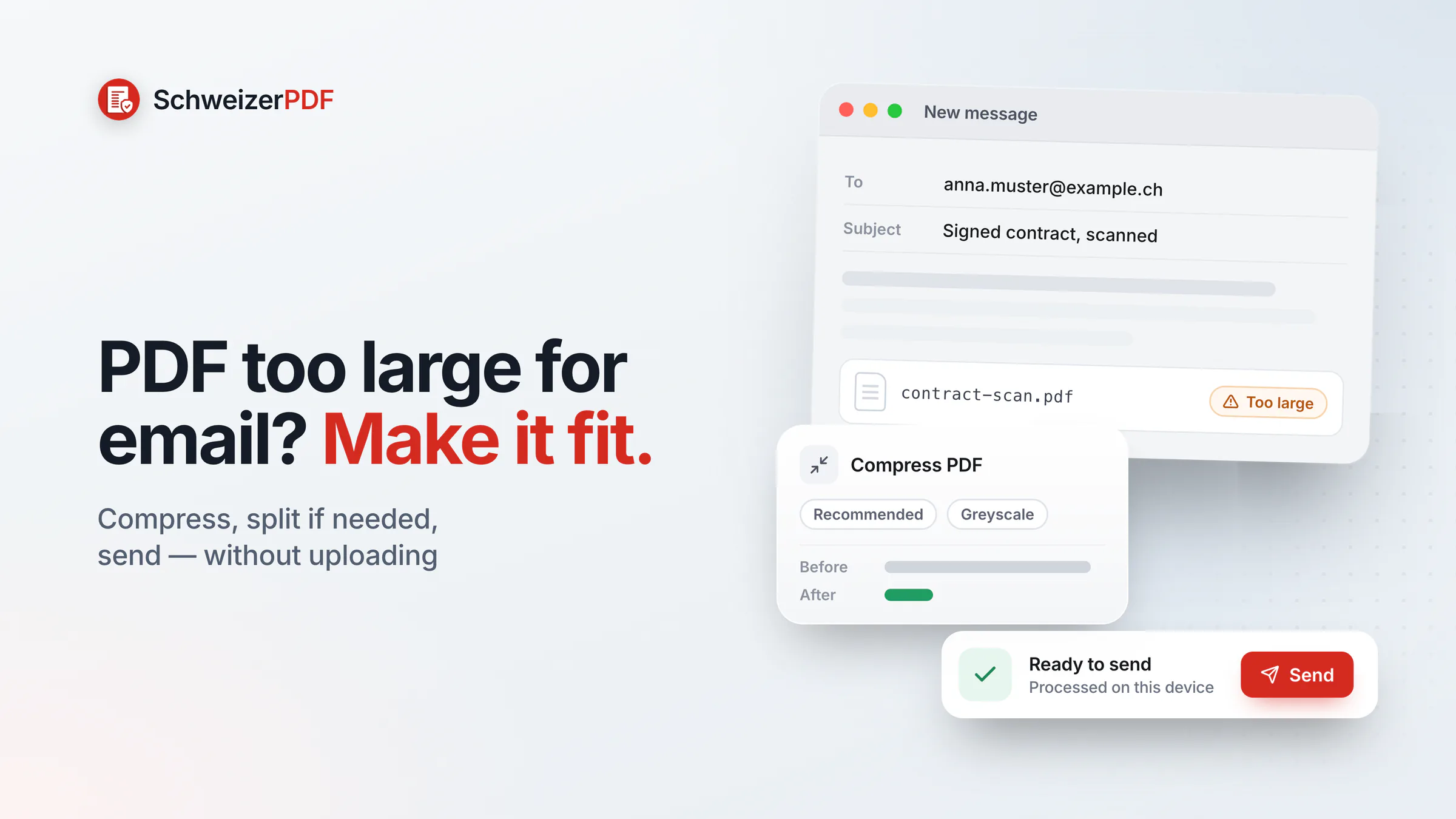
If a PDF is too large for email, compress it first: Compress PDF at the Balanced level usually makes scans and photo-heavy files much smaller while keeping them readable. If it is still too large, split it by file size into several attachments. Both run in your browser, so a confidential attachment is never uploaded to make it smaller.
Many e-mail providers limit attachments to somewhere between a few and a few dozen megabytes, and the recipient's server may accept less than yours does. Attachments also grow by about a third when they are encoded for sending, so a file just under the limit can still bounce. This guide walks through the steps in order.
Why is my PDF too large for email?
Almost always because of images: a contract scanned in colour at high resolution, a report with full-size phone photos, several documents merged into one. Text-only PDFs are rarely the problem. What really fills a PDF, and what each setting does, is explained in detail in compress a PDF without losing quality.
Step by step: make the PDF small enough to send
- 1
Check what is inside
Open PDF details. It shows the file size, whether pages are scanned, and a size breakdown into images, fonts, page content and attachments. If images dominate, compression will help; if attachments do, they are what you are sending.
- 2
Compress at Balanced
Open Compress PDF, select the file and keep the level Balanced. Text stays selectable; links, forms and bookmarks are kept. The result shows the size before and after.
- 3
Go further for scans
Still too large? For a colour scan of black-and-white paper, turn on Convert images to greyscale under More options. Then try Strong, or Custom with a lower image resolution.
- 4
Check that it is readable
Open the preview and zoom in on the smallest print, figures, stamps and signatures. A file the recipient cannot read is not a solution.
- 5
Split by file size if needed
If it is still too large, open Split PDF, choose By file size and enter a maximum a little below the recipient's limit. A single page larger than that is saved as its own file, and the app tells you.
- 6
Name the parts and send
Give the parts clear names (the split tool has a file-name option) and say in the message how many attachments belong together.
Which setting for which document?
| Document | Try first | If still too large |
|---|---|---|
| Invoice or contract exported as PDF | Usually small already; Balanced | Look for attachments with PDF details |
| Colour scan of a letter or form | Balanced + greyscale | Strong, then split by size |
| Report or brochure with photos | Balanced | Strong or Custom, then split by size |
| Black-and-white scan | Balanced (fax-style images are kept as they are) | Split by size |
| Several documents merged into one | Balanced (duplicates are merged) | Send them as separate e-mails |
Still too large? Other ways to send it
- Send only what is needed. If the recipient needs three pages of forty, Extract pages makes a small file of just those.
- Remove what is not needed. Remove images takes out photos or logos while text stays sharp; which plans include it is shown on the pricing page.
- Use the recipient's channel. Many organisations offer a secure upload portal or a file-transfer service for large documents. Ask for it, especially for confidential files.
- Do not rely on ZIP. Compressed archives barely shrink a PDF, because its content is compressed already.
Confidential attachments: don't upload them to shrink them
The attachments that are too large are often the sensitive ones: payroll documents, a scanned ID, medical reports, a client file at a fiduciary. Uploading them to an upload-based PDF website hands the original to a third party just to make it smaller — the comparison of both approaches explains the difference. In SchweizerPDF the file is processed in your browser and never sent to us; per run, our server receives only the tool id and the outcome. More on the security page.
Compression does not protect the content on its way. For a confidential attachment, consider Protect PDF and share the password through another channel — see password-protect a PDF. Before sending a document with identifiers to someone who needs only part of it, remove them properly: redacting AHV numbers and IBANs.
Frequently asked questions
What is the maximum attachment size for email?
There is no single limit. It depends on your provider and on the recipient's, typically between a few and a few dozen megabytes, and the encoded attachment is larger than the file. If unsure, aim well below.
Will the recipient notice the compression?
At Balanced, usually not on screen: its quality check keeps scanned text sharp. With Strong or Custom, small print and photos can show it — check before sending.
Can I compress several PDFs at once?
Yes, Compress PDF accepts several files in one run. How many files and how large depends on your plan — see pricing.
Why did my PDF not get smaller?
It was already well optimised; in that case you get the original back unchanged. Split it by file size, or send only the pages needed.
The short reference for both tools is in the help center: Compress a PDF and Merge and split PDFs. All tools are on the tools page — try it on your own attachment with a free account.
General information
This guide describes how the Compress PDF and Split PDF tools work and is not legal advice. Whether a compressed or split copy is legible enough, and whether a channel is suitable for a confidential document, is your decision — check every file before you send it.