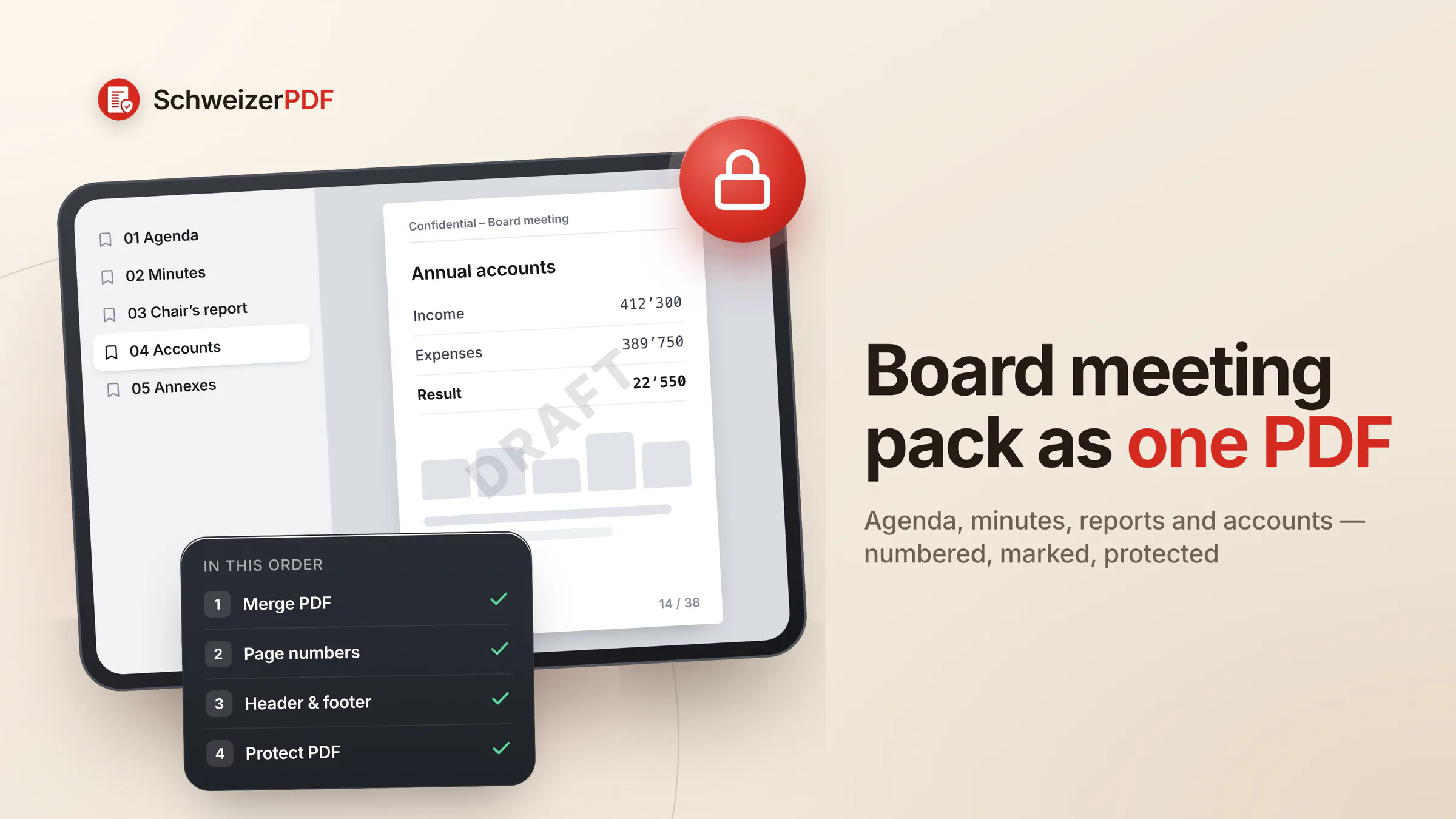
To build a board meeting pack as one PDF, merge the agenda, the minutes of the last meeting, the reports and the financial statements with Merge PDF, one bookmark per file. Then number the pages with Page numbers, add a confidentiality line with Header & footer, mark preliminary papers with a “Draft” Watermark, and finish with Compress PDF and Protect PDF before you send it. In SchweizerPDF every step runs in your browser: the papers are never uploaded.
The same applies to the board of directors of a company, the committee of an association or the council of a foundation. Members read the pack on a laptop or a tablet, and in the meeting someone says “page 14, the second table”. One file with bookmarks and page numbers makes that work. It also holds some of the most confidential material an organisation has: strategy, salaries, disputes, draft accounts.
What goes into a board meeting pack, and in what order?
The agenda sets the order. A common structure:
- Agenda — date, place and items, ideally on one page.
- Minutes of the previous meeting, for approval.
- Reports and proposals for each item, in agenda order — the chair's report, a project update, a proposal on a new hire.
- Financials — interim figures, annual accounts, budget, the auditor's report where there is one.
- Annexes that only some members will read, such as contracts or offers, at the end.
Number the files by agenda item before merging — 01 Agenda, 02 Minutes 15.09., 03 Chair's report, 04 Accounts 2025. That keeps the order visible and gives the bookmarks readable names. Documents from a word processor or a spreadsheet are exported to PDF there first: SchweizerPDF does not convert Word or Excel files.
Building the meeting pack PDF, step by step
- 1
Merge with one bookmark per file
Open Merge PDF, add the files and check the order. Under Bookmarks, choose One bookmark per file only: each document gets one entry named after its file, so members can jump to an item. Under Page size, choose A4 if a document arrived in another format.
- 2
Give the pack its own title
Under Document properties, choose Enter them myself and enter a title such as “Board meeting 12.11.” and the organisation as author. Otherwise the pack inherits the properties of the first file — often an old agenda template.
- 3
Number the pages
Choose Continue with … → Page numbers. A format such as 1 / 12 at the bottom right works in every language. If the agenda is a cover page, Leave the first pages without a number keeps it clean.
- 4
Add the confidentiality line
Continue with Header & footer and type, for example, “Confidential – Board meeting 12.11.” into the left header. The right slot can hold the date or the document title.
- 5
Mark drafts as drafts
If the pack goes out before the papers are final, continue with Watermark: a diagonal “Draft” at a low opacity, so nobody quotes a preliminary figure as final. The final pack is built without it.
- 6
Compress
Compress PDF at Balanced shrinks scanned signature pages and photographed annexes; links and bookmarks stay.
- 7
Protect before e-mailing
Last, Protect PDF: a password to open the PDF with AES 256-bit (recommended). Send the password through another channel than the e-mail, such as a text message or the phone.
Each hand-over is Continue with …: the result passes to the next tool in your browser's memory, without a download in between (how chaining works). Download the merged pack once before numbering it — that unnumbered master is what you go back to if something changes.
Late papers and corrections
A report always arrives the evening before. Page numbers and the footer are printed onto the pages, so adding pages to a numbered pack leaves the numbering wrong. Go back to the unnumbered master instead: insert the late document with Organise pages, which adds pages from another PDF at the right place, or merge again — then repeat numbering, footer, compression and protection. It takes a few minutes and keeps “page 14” true for everyone.
To replace a document, Remove pages takes out its old pages and Organise pages inserts the new ones. A note such as “Version 2” in the header tells members which pack is current.
Copies for individual members
Usually everyone receives the same pack. Three situations call for something else:
- A member with a conflict of interest steps aside for one item and should not receive its papers: Remove pages makes a copy without them.
- A committee — finance, audit, nominations — needs only its items: Extract pages, or Split PDF by bookmarks, makes a smaller pack.
- Traceable copies: a watermark “Copy for Max Muster” shows where a forwarded copy came from. What a watermark achieves, and what it does not, is explained in watermarks on confidential PDFs.
Each copy can get its own password with Protect PDF. More on sending confidential files: sending a confidential PDF by e-mail.
Why the meeting pack should stay on your device
A meeting pack bundles an organisation's most confidential papers in one file. An upload-based PDF website receives a copy of all of it in order to merge or number it. With SchweizerPDF the files are processed in your browser; per run, our server receives only which tool ran and whether it finished — no file, no file name, no page count. See processing PDFs in the browser vs. uploading them and the security page. The password you enter in Protect PDF stays in your browser's memory only while you work in the tool and is never stored or sent.
Two honest limits: you need an account and a connection, because plans and limits live on our server; and local processing does not protect against a compromised device or a browser extension that can read your pages. How many files one merge takes depends on the plan — see pricing. A fiduciary office that keeps the minutes for several boards uses the same steps per mandate.
Frequently asked questions
Can members jump to an agenda item on a tablet?
Yes, if the pack has bookmarks: most PDF readers on tablets show them in a side panel. To rename the entries, for example to “4. Annual accounts 2025”, use Edit bookmarks — which plans include Edit bookmarks is shown on the pricing page.
Do I need both Page numbers and Header & footer?
Not necessarily. Header & footer can print the page number in one of its slots too. Page numbers adds its own formats and Bates numbers. Use one of them for the number, so each page shows it only once.
Can the contents page of Merge PDF replace the agenda?
Usually not. Add a contents page listing the files adds a linked list of file names with their first pages, under an English heading (“Contents”). The agenda says more and is in your language; bookmarks per file do the navigation.
Is the meeting pack uploaded to SchweizerPDF?
No. All files are processed in your browser and never sent to or stored by us — see where your files are processed.
Every tool used here is explained in merging, splitting and organising PDFs, in Merge and split PDFs in the help center and in the Organise section of the tools page. Ready? Create a free account and put the next meeting pack together on your own device.
General information
This guide describes how the SchweizerPDF tools can be used to put meeting papers together. It is general information, not legal advice on company, association or foundation law. Which papers members receive, when and in what form is set by your articles, regulations and practice; check the finished pack before you send it.