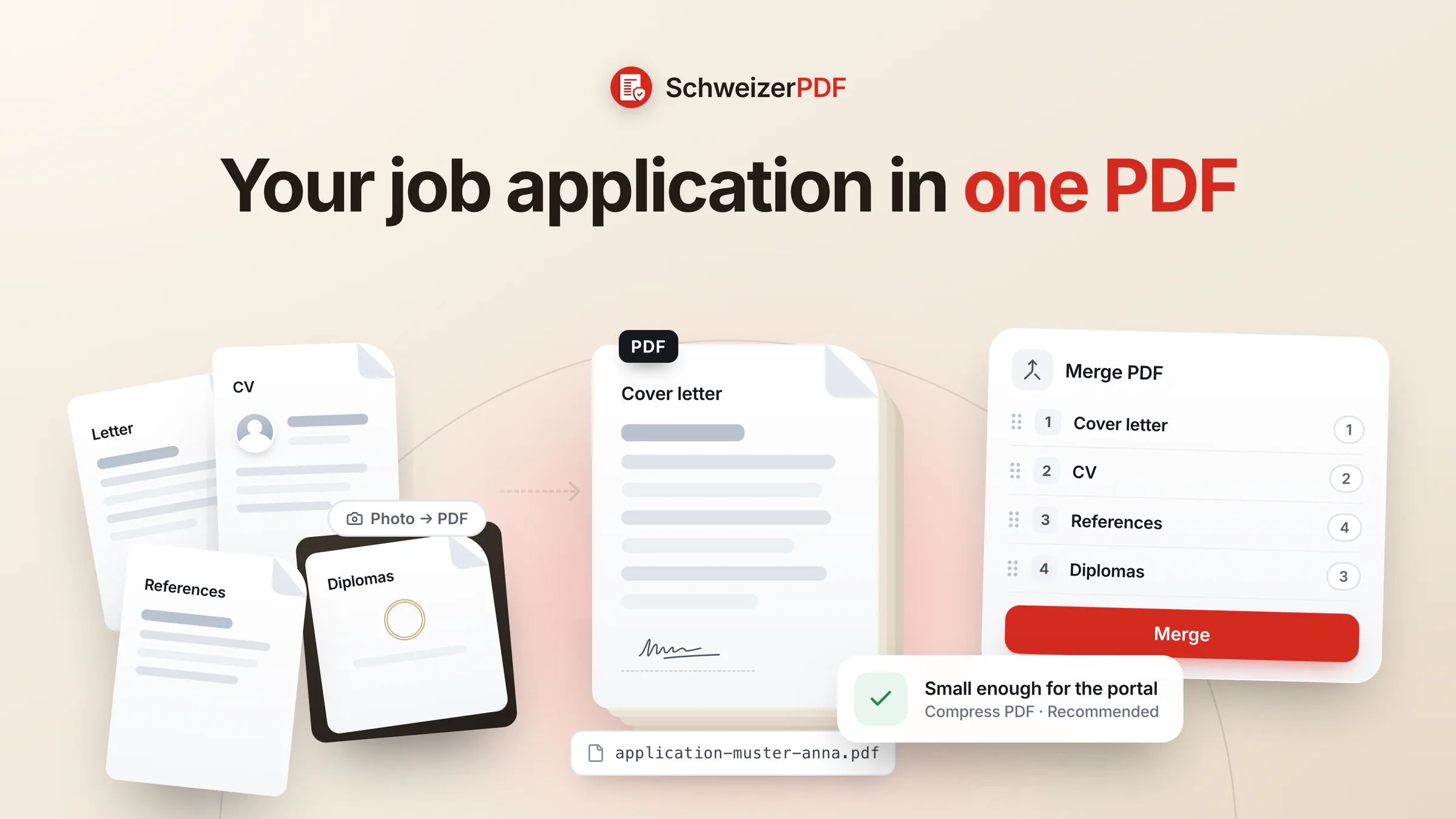
To combine a job application into one PDF, turn photographed documents into PDF pages with Images to PDF, put everything in order with Merge PDF, fix single pages with Organise pages and make the result small enough with Compress PDF. In SchweizerPDF all of this runs in your browser: your CV, references and diplomas are never uploaded.
Many employers in Switzerland ask for a complete application dossier — cover letter, CV, references from previous employers (Arbeitszeugnisse) and diplomas — and portals and inboxes handle a single file more easily than eight loose ones. One PDF in a sensible order is easier to read and looks prepared. It also holds more personal data than almost anything else you send: date of birth, address, photo, career history and assessments written by former employers.
What goes into a job application PDF, and in what order?
There is no single rule — the job advertisement comes first. If it asks only for a CV, or for separate files, follow it. Otherwise this order is common and easy to read:
- Cover letter — addressed to the position, ideally one page.
- CV — with a photo only if you choose to include one.
- References from employers (Arbeitszeugnisse), newest first, including interim references.
- Diplomas, the highest or most relevant first, then course and language diplomas.
- Further evidence only if it clearly fits the job, such as a short work sample.
Check what is asked for
Some advertisements ask for a CV only at first; some portals have a separate field for each document. If you have to upload files separately, prepare one tidy PDF per field instead of one large file — the steps below work the same way.
Combine your job application into one PDF, step by step
- 1
Collect everything
Put the cover letter and CV exported as PDF, the references and diplomas you already have as PDFs, and photos of any paper originals into one folder. Numbered file names (
01-letter,02-cv…) make the order visible. - 2
Turn photos into PDF pages
Open Images to PDF, add the photos and choose page size A4, margin Small and Fit to the page, so every photographed page has the same size as your letter.
- 3
Merge in order
Open Merge PDF, add all files and drag them into order. Under Pages from each file you can leave out pages you do not need, such as the empty back of a scan. For bookmarks, choose No bookmarks or One bookmark per file only: bookmarks named after your files show those names to the reader.
- 4
Fix single pages
If a page is upside down or in the wrong place, open the result in Organise pages and reorder, rotate or delete it visually.
- 5
Clean up the document properties
Open Edit title and author and check Title and Author. A CV built from an old template or a colleague's file often still carries someone else's name. Enter your own name and a title such as “Application – Anna Muster”. Merge PDF can set both too, under Document properties → Enter them myself.
- 6
Make it small enough
Run Compress PDF at Balanced. Photographed pages shrink the most; pages exported from a word processor are usually small already.
- 7
Name it and check it on a phone
Save it under a name like
application-muster-anna.pdf— your name and the word application, no internal version numbers. Then open it on a phone and read one page of each document: is the small print legible, is every page upright?
Photographed diplomas: making them look tidy
- Photograph each page on a dark, flat surface in daylight, straight from above, with the whole page in the frame.
- A scan, from a scanner or a scanning app, usually looks cleaner than a photo; the merging steps stay the same.
- In Images to PDF, Picture quality High (smaller file) is usually enough. Keep Original (no quality loss) if fine print must stay sharp, and compress afterwards.
- HEIC photos, the default format on some phones, open only in Safari. In other browsers, convert them to JPG first.
Old templates and file names: what your PDF reveals
A PDF carries more than its pages. Its document properties can name an author, a title and the application that created it, and bookmarks added while merging can repeat file names such as cv-old-version.pdf. PDF details shows what a file contains, Edit title and author changes title and author, and Remove hidden data clears document properties and attachments in one go — comments too, if you switch that option on. Check the finished file once before you send it; more in hidden data in PDFs.
Upload portal or e-mail: when the application PDF is too large
Portals and e-mail providers set limits on file size, and they differ: many e-mail providers accept attachments of a few to a few dozen megabytes, and some portals set their own, lower limit per file. If the compressed dossier is still too large, compress again with a stronger level, or choose a lower Picture quality in Images to PDF before merging. Then read the result: a reference nobody can read helps no one. How to choose a level is explained in compressing a PDF without losing quality and a PDF too large for e-mail.
Why your application should not pass through an upload website
An application dossier is a concentrated profile of you: identity, contact details, photo, career and references written by others. An upload-based PDF website receives a copy of all of it in order to merge it. With SchweizerPDF the files are processed in your browser; per run, our server receives only which tool ran and whether it finished — no file, no file name, no page count. The difference is explained in processing PDFs in the browser vs. uploading them and on the security page.
Two honest limits: you need an account and a connection, because plans and limits live on our server; and local processing does not protect against a compromised device or a browser extension that can read your pages. How many files you can merge in one run, and how large they may be, depends on the plan — see pricing.
Frequently asked questions
Should the cover letter be in the same PDF as the CV?
If the advertisement or the portal says nothing else, one PDF with the letter first is common and easy to read. If the portal has its own field for the letter, upload it there and leave it out of the dossier.
Do the links in my CV still work after merging?
Yes. Merge PDF keeps links, bookmarks and form fields working, so a link to your portfolio or profile stays clickable, and Compress PDF keeps links too.
Can I put my application together on a phone?
Yes, the tools run in the phone's browser too. Many photos and large files take longer on a phone than on a laptop, so a computer is more comfortable for a long dossier. Check the result on a phone either way.
Are my CV and references uploaded to SchweizerPDF?
No. They are processed in your browser and never sent to or stored by us — see where your files are processed.
For the tools themselves, read Merge and split PDFs and Compress a PDF in the help center; all page tools are in the Organise section of the tools page. If you receive applications yourself, see how HR teams use SchweizerPDF. Ready? Create a free account and put your dossier together on your own device.
General information
This guide describes how the SchweizerPDF tools can be used to put an application together. It is not career or legal advice. Which documents you send, and in what form, is decided by you and the employer's advertisement; check the finished file before you send it.