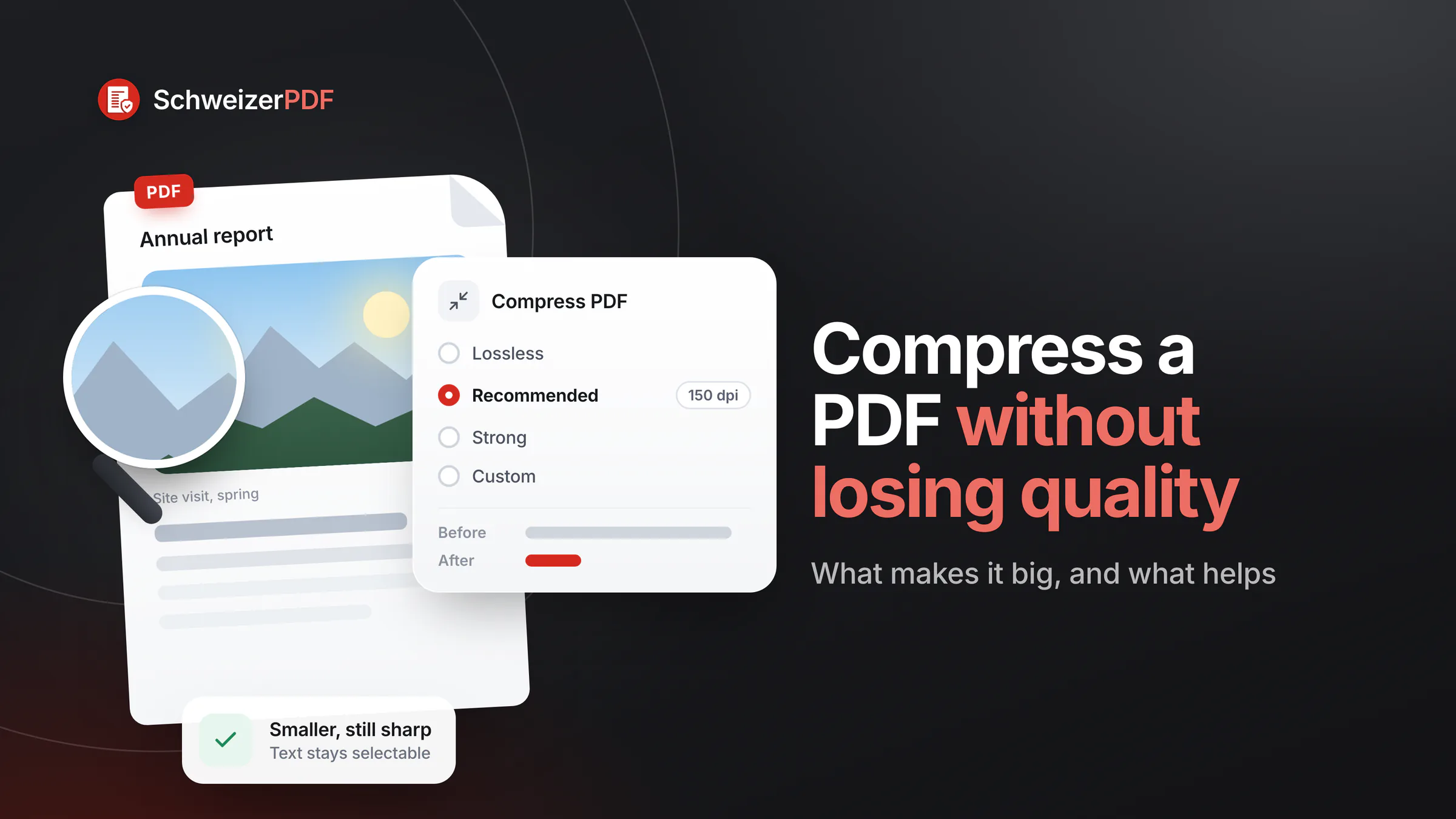
To compress a PDF without losing quality, first find out what makes it big — almost always images. Then reduce those images to the resolution the page actually needs, keep text as text, and remove data nobody reads. In SchweizerPDF, Compress PDF at the Balanced level does exactly that, and it does it in your browser: the file never leaves your device.
“Without losing quality” has two honest meanings. Lossless means nothing visible changes at all; the file shrinks only through tidier structure. Visually lossless means images are re-encoded, but at a resolution and quality where you cannot see the difference on screen or in a normal print. The second shrinks far more. This article explains both, and how to check which one you got.
What makes a PDF file big?
A PDF is a container. Its size comes from what is packed inside, and some contents weigh much more than others:
- Images. Photos, logos and screenshots, often at a far higher resolution than the page shows. A phone photo placed on an A4 page can carry many times the pixels needed.
- Scanned pages. Every scanned page is one large picture. A colour scan at high resolution of a plain black-and-white letter is the classic oversized PDF.
- Embedded fonts. Fonts travel with the file so it looks the same everywhere. Usually small, but documents with many fonts carry their weight.
- Duplicate objects. The same logo or background saved again on every page, typically after several documents were merged.
- Metadata and leftovers. XMP metadata, private data of the application that created the file, page thumbnails, unused resources.
- Attachments. Files embedded in the PDF count fully towards its size.
Check first: where does the size come from?
Guessing wastes time. PDF details shows the file size and, in the full analysis, a size breakdown into images, fonts, page content, attached files and structure. It also tells you whether pages are scanned (with or without searchable text) and lists the images with their formats and resolution range. If images make up most of the file, compression will help a lot. If fonts or page content dominate, expect a modest gain.
What each Compress PDF level does
Compress PDF offers four levels. Whatever you choose, text stays selectable, and links, forms and bookmarks are kept.
| Level | What changes | Good for |
|---|---|---|
| Light | Structure only: internal data is recompressed, duplicates merged. Images stay exactly as they are. | Documents where every pixel must stay untouched |
| Balanced | Images are reduced to about 150 dpi and re-encoded at moderate JPEG quality. A quality check keeps an image sharper when the setting would visibly harm it. | Most documents: e-mail, portals, archives |
| Strong | Images reduced to about 96 dpi at lower JPEG quality, with the same quality check. | Screen reading, when size matters most |
| Custom | Your own image resolution (dpi) and JPEG quality (1–100). No quality check: you chose the values. | Special cases, after testing |
The quality check matters for “without losing quality”: scanned text at a low resolution turns blurry quickly, so Balanced and Strong keep such images at a higher quality or resolution instead. Those files shrink less than the nominal settings suggest — on purpose.
The other options
- Resolution of black-and-white images (dpi) — for pure black-and-white scans. Keep it high enough for small print.
- Convert images to greyscale — removes colour from images (not available with Light, which never changes images).
- Remove metadata, private application data and page thumbnails — data the reader does not see.
- Remove unused and duplicate content — on by default; this is what fixes bloated merged files.
- Optimise for fast web view — reorders the file so the first page appears while the rest still loads. Useful for a PDF on a website; it does not make the file smaller.
You find them under More options. If compressing would not make a file smaller, you get the original back unchanged, with the note that it is already well optimised.
When greyscale or rasterising helps — and when it hurts
Two other tools change the content more deeply. Both can shrink a file in the right case, and both can cost you something.
- Remove colours (greyscale) helps with colour scans of black-and-white paper: a letter, an invoice, a signed form. Colour carries no information there. It also reaches images in print colour spaces (CMYK, spot colours), which Compress PDF otherwise leaves as they are. It hurts wherever colour means something: charts, colour-coded plans, photos, a red stamp. Its default method converts colours and keeps text selectable; the other method turns pages into grey images.
- Turn pages into pictures turns pages into images. That removes the text layer — nothing can be selected, searched or copied any more — and the file usually grows. It is a tool for flattening content, not for compression; only a page with an extremely complex drawing may get smaller as an image.
If a document carries photos or logos it does not need — a scanned ID next to a form, a full-page background — Remove images takes them out while text and drawings stay sharp.
How to check the result
- 1
Read the summary
The result shows the size before and after, how much smaller the file is, and how many images were recompressed, reduced in resolution or kept as they were.
- 2
Zoom in on the hard parts
Open the preview and look at the smallest print, footnotes, stamps, signatures and photos at full size. Those suffer first.
- 3
Select some text
Text should still be selectable and searchable. If it is not, the page was a scan without text from the start.
- 4
Print a test page
If the document will be printed, print one page. Strong compression is made for screens.
- 5
Keep the original
Save the compressed copy under a new name. Compression of images cannot be undone.
Honest limits of compressing in the browser
- Already optimised PDFs barely shrink. A text-only PDF exported from a word processor is often small already.
- Fonts are not subset. Embedded fonts stay as they are, so text- and vector-heavy files shrink less than with specialised desktop software.
- Some images are kept. Formats used in scans (JBIG2, CCITT fax, JPEG 2000) and images in print colour spaces are not recompressed (the latter only with greyscale).
- Your device does the work. Large scans can take minutes, and very large files may fail on phones or low-memory devices — see large files.
Why compress confidential PDFs locally?
The documents people compress are often the sensitive ones: a scanned passport for a rental application, a medical report, a signed contract. With an upload-based PDF website, the file is on someone else's server for the time it takes — the comparison of both approaches explains the difference. In SchweizerPDF the file is processed in your browser and never sent to us; per run, our server receives only the tool id and the outcome. Why that matters is the subject of why your PDF tool shouldn't see your documents, and the details are on the security page. Local processing does not protect against a compromised device or a browser extension that can read every page.
Frequently asked questions
Does compressing a PDF reduce its quality?
Light never changes images. Balanced re-encodes them at a level that is usually not visible on screen, and its quality check protects scanned text. Strong and Custom can show a difference — check small print before you send.
Which compression level should I choose?
Start with Balanced. Use Light when images must stay untouched, Strong when the file only needs to be read on screen.
Why did my PDF barely get smaller?
Most likely it contains few images, its images are already efficiently compressed, or fonts and page content make up most of the size. PDF details shows which.
How do I make a PDF small enough for e-mail?
Compress it, and if it is still too large, split it by file size. The step-by-step guide is PDF too large for email.
All tools are on the tools page, the short reference is Compress a PDF in the help center, and you can try it on your own files with a free account.
General information
This article explains how PDF compression works in general and in SchweizerPDF. Whether a compressed copy is good enough for its purpose — legibility, printing, archiving rules — is your decision: check every result and keep the original.