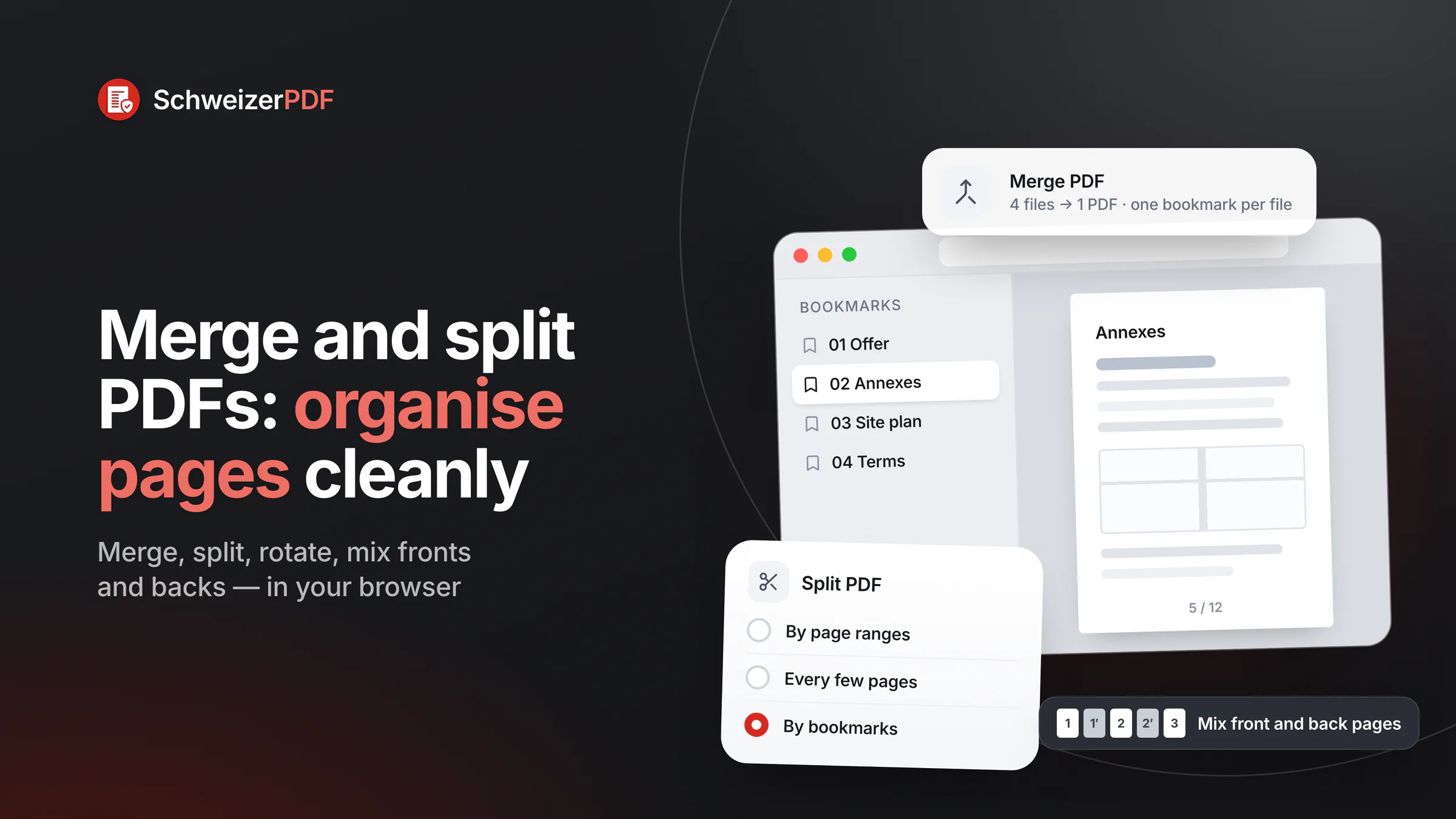
To merge PDFs, open Merge PDF, add the files, drag them into order and choose how bookmarks and page sizes are handled. To split a PDF, open Split PDF and pick one of six modes, from page ranges to blank separator pages. Single pages are the job of Organise pages, Rotate pages, Extract pages and Remove pages. In SchweizerPDF all of them run in your browser: your documents are not uploaded.
Merging and splitting sound trivial, yet they decide whether a document package reads well — an offer with annexes, a report with appendices, a dossier for an authority. The right order, useful bookmarks, one page size and numbered pages turn a pile of files into one document.
Which PDF tool for which job?
| Task | Tool | Good to know |
|---|---|---|
| Combine several files into one | Merge PDF | Order, pages per file, bookmarks, page size |
| Cut one file into several | Split PDF | Six modes |
| Reorder, rotate, delete or insert pages | Organise pages | Visual, with thumbnails; pages from other PDFs too |
| Copy some pages into a new file | Extract pages | Any order, pages can repeat |
| Delete pages | Remove pages | Can select blank pages for you |
| Turn pages permanently | Rotate pages | Optionally only landscape or portrait pages |
| Interleave front and back scans | Mix front and back pages | Reverses the second file by default |
| Add, rename or nest bookmarks | Edit bookmarks | Can also create them from headings |
| Number the pages | Page numbers | Also Bates numbers across files |
| Bring pages to one size | Resize pages | For example Letter to A4 |
How to merge PDFs in the right order
- 1
Add the files and set the order
Open Merge PDF from the organise tools, add the files and drag them into reading order. The file order becomes the page order.
- 2
Leave out pages you don't need
Pages from each file skips pages per file, such as an empty last page. Leave it empty to take every page.
- 3
Decide on bookmarks
Choose between One bookmark per file, containing its bookmarks (the default), Keep the files' bookmarks, One bookmark per file only and No bookmarks. Bookmarks per file carry the file names, so the reader sees them.
- 4
Unify the page size
Under Page size, choose A4 or Same size as the first page. The content is scaled to fit, and each page keeps its orientation.
- 5
Set the document properties
By default, title and author come from the first file. Enter them myself gives the merged file its own title.
- 6
Merge and check
Click Merge PDFs, download the result and scroll through it once: order, orientation, nothing missing.
For special cases: Add a contents page listing the files starts the result with one linked line per file, under an English heading (“Contents”). Add a blank page after files with an odd number of pages makes every file start on a front side when printed double-sided. Form fields can stay fillable, be flattened or be removed, and links keep working.
Splitting a PDF: the six ways to split
Split PDF cuts one document into several files:
- Choose pages — one file per range, such as 1–3 and 4–10; Put all ranges into one file makes a single extract instead.
- Every few pages — equal parts, such as one file per two-page form in a scanned stack.
- Odd or even — keeps only one of the two.
- By file size — parts below a maximum size, for portals or e-mail providers that limit attachments.
- By chapter — one file per bookmark at a chosen level, such as one per chapter.
- At blank pages — blank separator sheets mark where a new file starts, and are removed.
The parts are downloaded as several files, named by the File names option. For a few pages, Extract pages is quicker: one new PDF in the order you choose, or one PDF per page. If a file is simply too large to send, compress it first — see a PDF too large for e-mail.
Organise, rotate and remove pages
Organise pages shows every page as a thumbnail: drag pages into a new order, rotate, delete or duplicate them, insert a blank page or pages from another PDF, and apply it all in one run — the right tool for correcting a merged document.
- *Rotate pages turns pages permanently; with Only pages that are* set to landscape, every sideways table is straightened in one go.
- *Remove pages* deletes the pages you choose; “Select blank pages” finds empty ones for you.
- *Extract pages* copies pages into a new file and leaves the original untouched.
Front and back sides scanned separately: Mix front and back pages
A scanner without a duplex unit scans one side at a time: you scan the fronts, turn the stack over and scan the backs — and the second file comes out in reverse order. Mix front and back pages interleaves the two: add the fronts first and the backs second, and it takes one page from each in turn. By default it reverses the second file, exactly what the turned stack needs; switch that off if your backs are already in order. Pages to take from each file per turn handles other patterns, and the tool takes two to ten PDFs. Remove leftover blank backs with Remove pages; scanning tips are in scanning documents to PDF.
Tips for a clean document package
- Order for the reader. The overview first — cover letter, summary, agenda — then the documents in the order the text cites them.
- Name files before merging. Bookmarks and the contents page use the file name:
03 Annual report 2025reads well,scan_0047_final2does not. - Tidy the bookmarks. Edit bookmarks renames, reorders and nests them afterwards; which plans include Edit bookmarks is shown on the pricing page.
- One page size. US Letter documents become A4 with the page size option of Merge PDF, or with Resize pages and Fit to the page (keep proportions).
- Number the pages last, once the order is final, so “see page 14” stays true. Bates numbering continues across separate files, as a law firm needs for exhibits.
- Check what else is inside. The merged file takes title and author from the first file unless you set them; PDF details shows the rest — see hidden data in PDFs.
- Compress at the end. Compress PDF keeps links, forms and bookmarks.
Chaining tools without downloading in between
Merge, number, compress, protect: you do not need to save and reopen the file at every step. When a tool has finished, choose Continue with …; the result is handed over in your browser's memory — not uploaded, not stored, not put in a link (how chaining works). Each step counts as its own operation (what counts as an operation), and a reload discards the handed-over file, so download intermediate results you want to keep.
Every step runs on your device: the files are never sent to or stored by us, and per run our server receives only which tool ran and whether it finished — see the security page. You still need an account and a connection, and how many files one merge takes depends on the plan (pricing). Honest limits: very large files can fail on a phone or an older laptop, merging and splitting may lose the tagged structure of accessible PDFs, and any change to a digitally signed PDF invalidates its signature — the tools warn you first.
Frequently asked questions
Do bookmarks and links survive merging?
Yes. Merge PDF keeps links, bookmarks and form fields working. Under Bookmarks you choose whether the files' own bookmarks stay, are grouped under one bookmark per file, or are dropped.
How do I split a PDF into single pages?
Use Split PDF with Every few pages and one page per file. If you need only some of the pages, use Extract pages with Save each page as a separate PDF.
Why are my scanned back pages in reverse order?
Because the stack was turned over for the second pass. Mix front and back pages reverses the second file by default and interleaves fronts and backs in the right order.
Are my files uploaded when I merge or split a PDF?
No. They are processed in your browser and never sent to or stored by us — see where your files are processed.
The short version of both tools is in Merge and split PDFs in the help center, and every page tool is in the Organise section of the tools page. Two worked examples: a job application in one PDF and a board meeting pack. Ready? Create a free account and put your next document package together on your own device.
General information
This guide describes, in simplified form, how the SchweizerPDF page tools work. It is general information, not legal or professional advice. Which documents belong in a package and in what form a recipient expects them is for you and the recipient to decide; check the finished file before you send it.