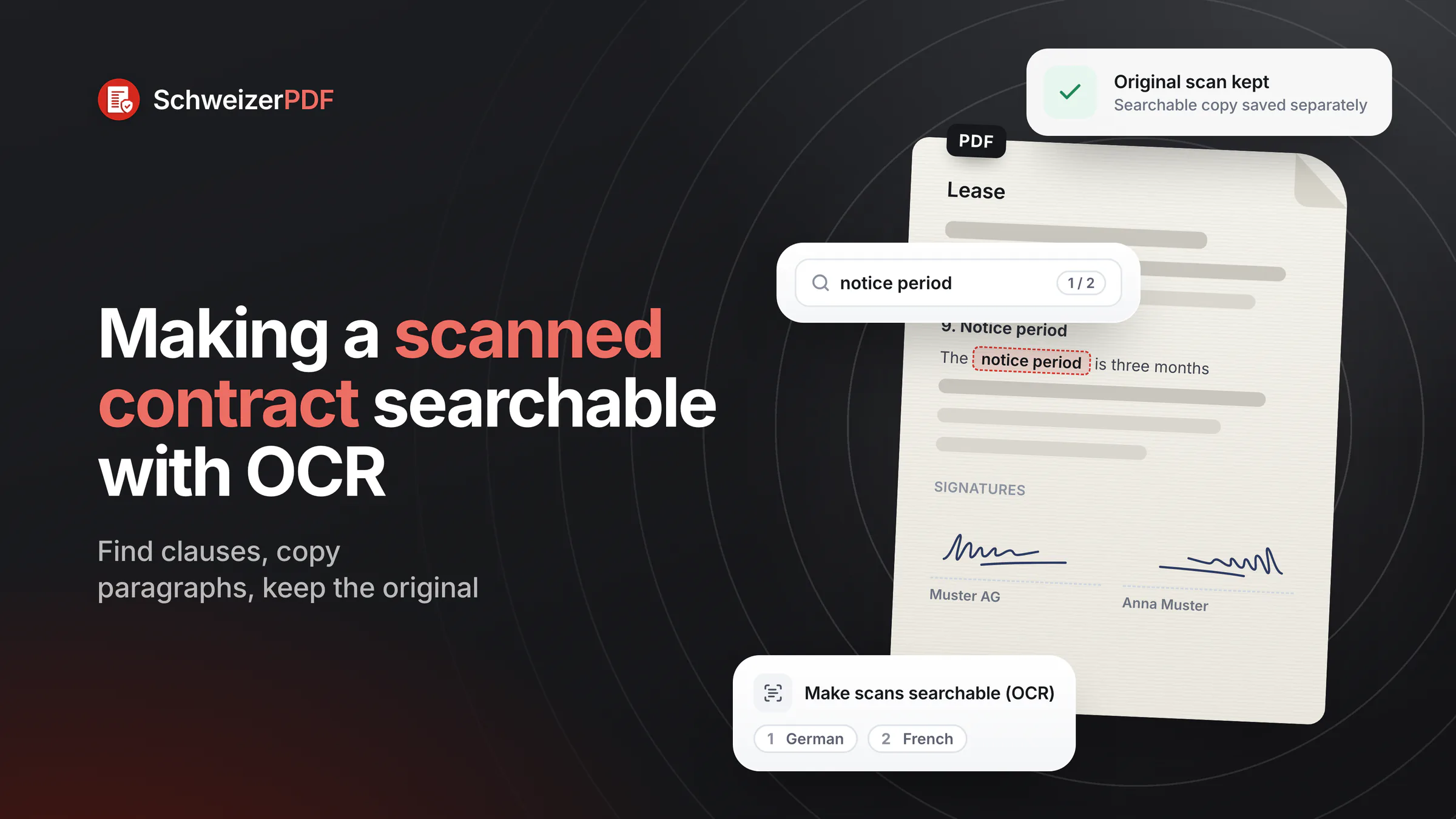
To make a scanned contract searchable, run Make scans searchable (OCR) on the scan with the contract's language selected. The tool recognises the printed text and adds it to the PDF as an invisible layer over the unchanged page images, so you can search for a clause, select a paragraph and copy it. In SchweizerPDF this happens in your browser; the contract is not uploaded.
The situation is familiar in any office that still signs on paper: a lease, a service agreement or an employment contract is printed, signed by both parties and scanned for the file. A week later someone needs the notice period, the clause on price adjustments or the exact wording of the termination paragraph — and the scan is a stack of pictures that nothing can search.
What OCR changes in a scanned contract — and what it does not
OCR adds text; it does not touch the picture. The scanned signatures remain images of signatures, and the searchable PDF is a working copy of a scan, not the signed original. Keep the paper original — and the original scan — exactly as you would have before. If the scan itself carries a digital signature (some scanning workflows add one), adding a text layer changes the file and invalidates that signature; the app asks before it runs, which is one more reason to save the searchable version as a separate file.
Make a scanned contract searchable step by step
- 1
Check the file with PDF details
Open PDF details and select the scan. With Full analysis, the report shows whether the pages are scanned without text, already have searchable text, or are ordinary text pages — and whether the file is damaged or digitally signed.
- 2
Fix orientation or damage first
Pages scanned sideways or upside down are not recognised: turn them upright with Rotate pages. If the file does not open properly, run Repair PDF first.
- 3
Open OCR and choose the languages
Open Make scans searchable (OCR) and select the contract with Select PDF file (or drop it on the page). Select its language; for a bilingual contract select both, the main language first (up to three).
- 4
Choose the result
Both gives you the searchable contract for the archive and a .txt file to paste clauses into an e-mail or a memo.
- 5
Make it searchable and read the report
Keep the default resolution and Skip pages that already have text (both under More options), then click Make text searchable. The report lists each page with its word count and mean confidence; a warning names pages that were hard to read.
- 6
Check the result
Search for a term you know is in the contract, such as the other party's name. Then compare every amount, date and deadline you rely on with the scanned image.
- 7
Compress if needed and save
If the file is too large for the archive or an e-mail, run Compress PDF on the searchable copy; the text stays selectable. Save it under a new name next to the original scan.
Example: a bilingual lease from Biel/Bienne
Muster AG lets an office to Anna Muster. The lease is written in German with a French annex, signed on paper and scanned into lease-muster-ag-scan.pdf. PDF details reports all pages as scanned without text. In Make scans searchable (OCR), German comes first and French second. After the run, a search for Kündigungsfrist jumps to clause 9, and délai de résiliation finds the annex. The rent in clause 4 is compared with the image digit by digit before it goes into the accounting. The result is saved as lease-muster-ag-searchable.pdf; the scan and the paper original stay where they were.
Checklist: can you rely on the searchable copy?
- A known term is found. Search for a party's name or a heading on each section of the contract.
- Numbers match the image. Amounts, dates, notice periods and percentages are the characters OCR most often gets wrong — compare each one you use.
- No page was left out. The report lists every page; a page with no text found, or one that was skipped because it already had text, needs a look.
- Handwriting is not in the text. Initials, handwritten corrections and dates next to the signature remain images; read them on the scan.
- The original is kept. The searchable copy sits next to the original scan, not in its place.
Good to know
- Recognition takes a few seconds per page on a desktop and is much slower on a phone; long contracts are better done on a computer — see large files.
- Stamps and form fields that are annotations, not part of the page, are not recognised. Neither is text printed sideways along the margin.
- If the PDF restricts copying, the tool asks you to confirm that you have the right to extract its content before it runs.
- A searchable contract also makes personal data easy to copy. Before you send an excerpt to a third party, remove what they should not see with Black out (redact) — see redacting AHV numbers and IBANs.
- For a law firm or any office handling confidential agreements, local processing means the unredacted contract never leaves the device; per run our server receives only the tool id and the outcome — see the security page.
Frequently asked questions
Does OCR make the scanned signature searchable?
No. A signature is a drawing, not printed text; it stays an image in the scan. OCR recognises the printed words around it, such as the names under the signature lines.
Is the searchable copy still the signed contract?
It is a copy of a scan with added text. Keep the signed original as you would have before, and treat the searchable PDF as a working and reference copy.
Can I OCR a contract written in two languages?
Yes. Select up to three languages, the main one first. German and French, or Italian and German, are common combinations in Swiss contracts.
Is the contract uploaded for text recognition?
No. Make scans searchable (OCR) runs in your browser. Only the language data is loaded from our server the first time you use a language. Why that matters is explained in why your PDF tool shouldn't see your documents.
Check the scan, recognise it in the right languages, compare the numbers, keep the original. The tool's settings are explained in OCR for scanned documents and in how OCR makes a scanned PDF searchable; Make scans searchable (OCR) is one of the conversion tools; which plans include it is shown on the pricing page. Ready to try it? Create a free account.
General information
This guide describes how the tools work and is not legal advice; it says nothing about the legal value of a scan or of a searchable copy. Whether the recognised text is accurate enough for your purpose is your decision — check it against the original before you rely on it.