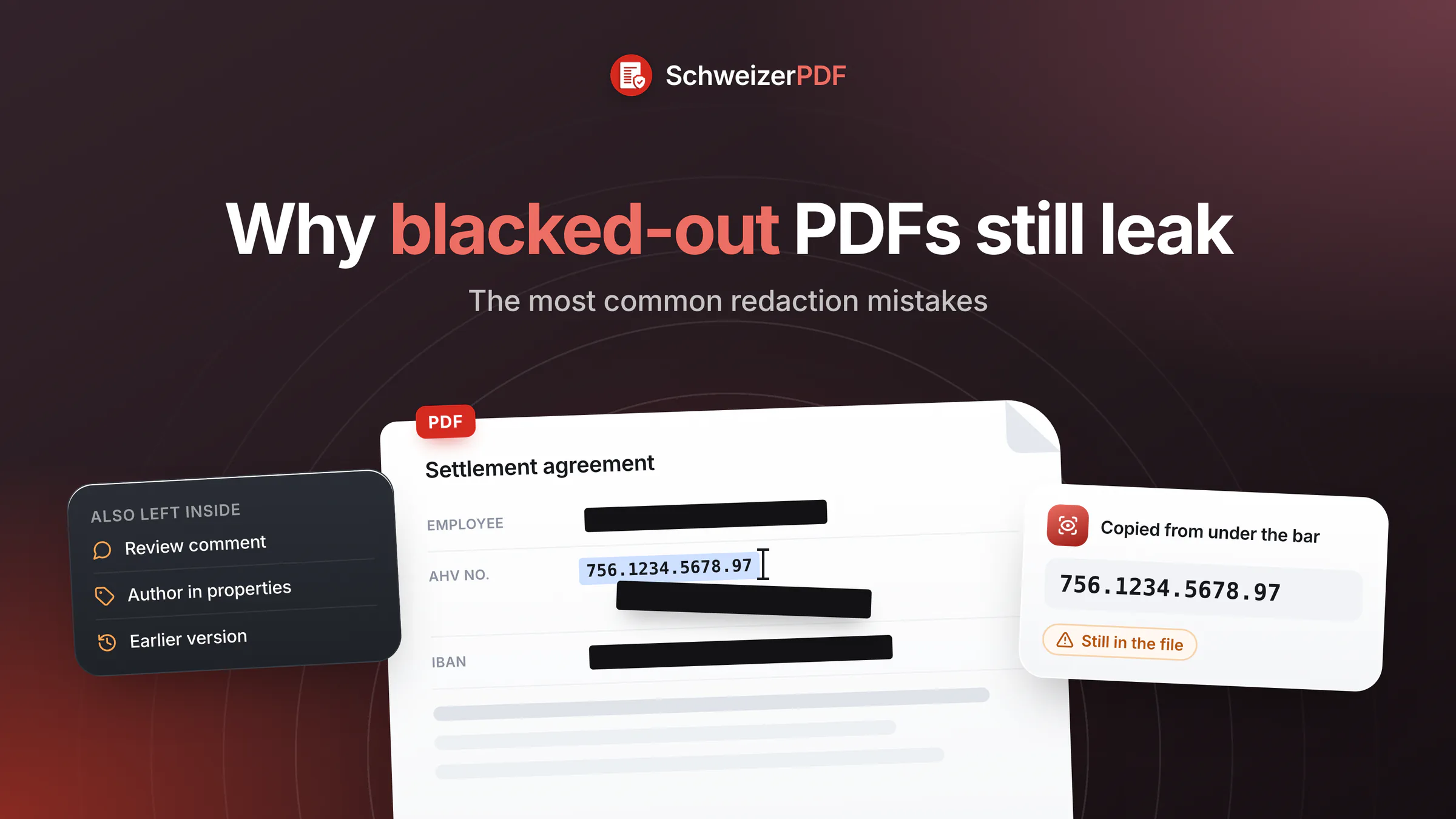
A blacked-out PDF leaks when the black is only paint. Most redaction mistakes come from the same misunderstanding: a PDF is not a picture of a page but a container with several layers — visible drawing, a text layer, comments, properties, attachments and sometimes earlier versions of itself. Covering one layer leaves the others intact, and anyone who receives the file can read them with an ordinary PDF viewer.
This article walks through the failure patterns that turn up again and again, and ends with a checklist for redacting a PDF so the content is really gone. The step-by-step guide with a worked example is Redacting AHV numbers and IBANs.
Why a blacked-out PDF can still leak
What you see on screen is the result of drawing instructions. Text is stored as characters with positions, so it can be selected, searched and copied. A black rectangle added on top is one more drawing instruction: it changes what is painted, not what is stored. Redaction in the proper sense removes the stored content itself, and also everything around the page that repeats it.
The most common redaction mistakes in PDFs
1. Black boxes, black highlights and black font
The classic. A rectangle drawn with a PDF editor, a highlight set to black, or text coloured black on a black background in the source document before export. On paper all three look redacted. In the file the words are still there: select the area, copy, paste into a text editor — and the AHV number appears. In Edit PDF this tool is labelled “Cover (not secure)” for exactly this reason.
2. The OCR text layer under a scan
A scanned page is an image, but many scanners and OCR programs add an invisible text layer so that the scan can be searched. If you cover the image with a box, the invisible layer underneath still contains every word. The reverse mistake exists too: a search finds nothing on a scan without a text layer, and the user assumes the number is not in the document. On scans, mark every value by hand.
3. Cropping instead of removing
Cropping a page to cut off a signature block or a column of figures only changes the visible area. The content outside it stays in the file and reappears when someone resets the crop or extracts the text. Crop pages warns about this and offers Turn pages into pictures as the follow-up when the cut-off part must really go.
4. Comments, annotations and form fields
Review comments such as “check Anna Muster's IBAN again” or a sticky note with a phone number are separate objects in the file. They may be hidden in one viewer and shown in another. Form fields keep their values in the same way. Redacting the page content does nothing for a comment on another page.
5. Metadata and document properties
Title, author, subject, keywords and custom properties are often filled in automatically from the original document: the author's name, a case reference, the client's name in the title. XMP metadata can repeat the same information a second time. None of it is visible on the page.
6. Attachments, bookmarks, layers and thumbnails
A PDF can carry attached files — the original spreadsheet behind a table, for example. Bookmark titles can name what the redacted section was about. Hidden layers can contain content that a viewer simply does not display, and stored page thumbnails can still show the page as it was before the black box.
7. Earlier versions kept by incremental saves
Many PDF programs save changes by appending them to the end of the file instead of rewriting it. The previous state remains inside, and tools can restore it — including the version before the redaction. PDF details shows whether a file was changed after its creation and how many times.
8. Names in the file name
A perfectly redacted document called Termination_Max_Muster_AHV.pdf gives away what the redaction hid. The same goes for the subject line and the text of the e-mail it travels with.
The ten-second test
Open the redacted file, select the area under each black bar, copy and paste it into a text editor. Then search the document for the value you removed. If either finds something, the file is not redacted.
Redaction checklist: how to do it right
- 1
Redact the content, not the picture
Use *Black out (redact)*: every page with a mark becomes an image with the marked areas filled, and the original text layer of that page is not carried over. Pages without marks stay unchanged.
- 2
Find, then review every mark
Search & redact finds likely matches for AHV numbers, IBANs, e-mail addresses, phone numbers, card numbers, dates and your own terms — not guaranteed ones. Mark names, signatures and everything on scanned pages by hand, and check each mark.
- 3
Remove the hidden data
Run Remove hidden data for comments and annotations, attached files, bookmarks, hidden layers, thumbnails and private application data, form fields and document properties.
- 4
Check the properties
Open Edit title and author and look at title, author, subject, keywords and custom properties. Black out (redact) can also remove the document's metadata in the same run.
- 5
Rename the file
Save the redacted copy under a neutral name that says nothing the document no longer says.
- 6
Check the result
Select and copy under the bars, search for the removed values, and open PDF details to see properties, comments, attachments, bookmarks and later changes at a glance.
Redaction also has costs — searchable text, file size, digital signatures — which are set out in Redact vs black box. All tools for this are in the security section of the tool list; PDF details and Edit title and author are under information.
Why redact on your own device
The unredacted original is the most sensitive version of the document. Uploading it to a website in order to redact it means handing exactly that version to someone else. SchweizerPDF processes the file in your browser: per run our server receives the tool id and the outcome, nothing derived from the file. What it does store — your account, plan and a usage ledger — is listed on how SchweizerPDF protects your documents. Local processing does not protect against a compromised device or browser extensions that can read the page, so keep both clean. Background: Why your PDF tool shouldn't see your documents.
Frequently asked questions
Can an earlier version of a PDF be restored after redaction?
If the redaction was saved as an incremental update, often yes: the earlier state is still in the file. PDF details shows whether a file was changed after its creation. Black out (redact) writes a newly built file, so the redacted copy carries no earlier versions.
Can blacked-out text be recovered from a PDF?
If it was only covered, yes — usually with nothing more than copy and paste. If the page was properly redacted, the covered characters are no longer in the file, but check the comments, properties, attachments and file name as well.
Does redaction also remove metadata?
Not by itself on every tool. In Black out (redact) it is an option; Remove hidden data and Edit title and author cover the document properties and the rest of the hidden content.
Why can I no longer search my redacted PDF?
Redacted pages become images so that no text is left under the bars. Keep the original for your own files; if the remaining text must be searchable, run Make scans searchable (OCR) on the redacted copy.
Which method removes what is compared in Redact vs black box: eight methods compared. Firms that send documents with client data every day — see SchweizerPDF for law firms — can create an account and redact in the browser.
General information
This article describes common failure patterns and how the SchweizerPDF tools work in simplified form; it is not legal advice. Whether a redaction is sufficient for a given purpose is your decision — check every redacted copy before you send it, and ask a qualified professional where legal obligations apply.