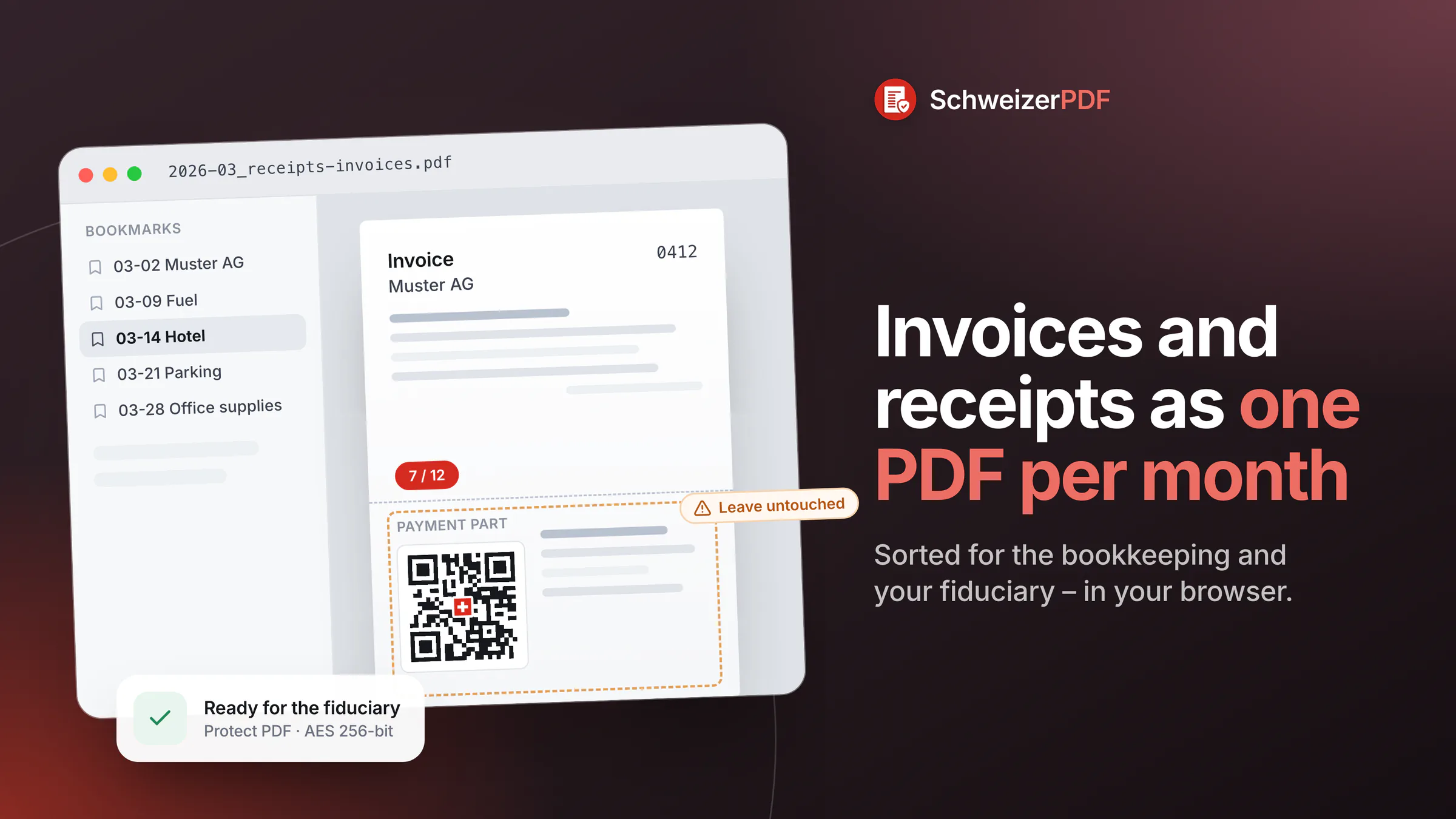
To organise receipts and invoices as PDF for bookkeeping, collect each month's documents in one folder, turn photos of receipts into PDF pages with Images to PDF, merge everything into one file per month with Merge PDF and one bookmark per document, make the photographed pages searchable with Make scans searchable (OCR), add Page numbers and give the file a clear title with Edit title and author. In SchweizerPDF every step runs in your browser, so your suppliers, amounts and bank details are never uploaded to a PDF website.
For a small business or a self-employed person, the monthly pile is familiar: supplier invoices by e-mail, fuel and parking receipts in a wallet, a hotel bill as a photo on the phone. Your fiduciary needs them complete, legible and in an order that matches the bank statement. A fixed routine takes a quarter of an hour a month and saves questions at the year-end closing. For a private tax return, see tax return documents as PDF instead.
A folder and naming scheme for monthly bookkeeping
Agree on a scheme with your fiduciary once, then keep it. Dates written year-month-day sort correctly in every folder and every program.
- One folder per month:
2026-03, inside a folder for the year. - One name per document, date first:
2026-03-14_muster-ag_invoice-0412.pdf,2026-03-21_fuel.jpg. Merge PDF can turn file names into bookmarks, so a good name becomes a good table of contents. - One file per month:
2026-03_receipts-invoices_muster-anna.pdf— or, if your fiduciary prefers, one for expenses and one for income. - Plain characters: letters, digits and hyphens; no umlauts or special characters, and no AHV numbers or other personal data in a name.
Receipts and invoices into one PDF per month, step by step
- 1
Collect the month
Save supplier PDFs from e-mail and portals, and photograph paper receipts flat and in good light — scanning documents to PDF has the details. Put everything in the month's folder and name it as above.
- 2
Put receipts on pages
Open Images to PDF, add the photos and choose Page size A4. For small slips, Pictures per page (under More options) 2 or 4 keeps the file short; keep 1 for anything with small print. Order by Date taken (oldest first) puts them in sequence. Some phones save HEIC, which Images to PDF opens only in Safari; elsewhere, use JPG.
- 3
Merge the month
Open Merge PDF, add the receipt pages and the supplier invoices and drag them into date order. Under Bookmarks, choose One bookmark per file only: each document gets a bookmark with its file name, and your fiduciary jumps straight to the invoice from Muster AG. Add a contents page listing the files puts a linked list in front (its heading is in English); Pages from each file leaves out pages you do not need, such as printed general terms.
- 4
Make the photos searchable
Run Make scans searchable (OCR) on the monthly file with the languages of your receipts and Skip pages that already have text (under More options): supplier PDFs stay as they are, only the photographed pages are recognised. Amounts and supplier names become searchable — but OCR can misread digits, so the image stays the reference.
- 5
Number the pages
Page numbers with the Style
1 / 12(under More options) gives every page a reference, so “page 7, the hotel bill” is a clear question. Choose a place under Where on the page where the numbers cover no amount and no QR code. - 6
Describe the file
In Edit title and author, enter a Title such as “Receipts and invoices 2026-03 – Anna Muster”, your business as Author and Keywords such as “2026-03, expenses”. The title shows in the viewer instead of the file name.
You do not need to download the file between these steps: Continue with … hands the result to the next tool in your browser's memory — see chaining tools.
QR-bills, e-invoices and originals: what to leave unchanged
Leave the payment part alone
A Swiss QR-bill carries its payment data in the QR code of the payment part. Do not place page numbers, stamps or watermarks over it, do not crop or redact it, and pay from the invoice as you received it — the monthly PDF is the copy for your books.
Every SchweizerPDF tool writes a new file and leaves the original as it was. Keep invoices as you received them, especially electronic invoices with a digital signature: any change invalidates the signature, and the app asks before it happens. Accounting vouchers generally have to be kept for ten years — what that means for a PDF archive is explained in archiving business documents as PDF.
Handing documents to your fiduciary securely
A monthly file shows who you buy from, what you pay and often your IBAN. Before you send it by e-mail, protect it with Protect PDF — a password to open it, AES 256-bit (recommended) — and give the password by phone or text message, never in the same e-mail. Many e-mail providers limit attachments to a few to a few dozen megabytes; Compress PDF makes a file of photographed receipts much smaller. Other ways to hand files over are compared in ways to send confidential PDFs, and how fiduciary offices work with SchweizerPDF is on the fiduciaries page.
The files are processed in your browser and never sent to or stored by us; per run, our server receives only which tool ran and whether it finished — see the security page. You need an account and a connection, and local processing does not protect against a compromised device or a browser extension that can read your pages. Which plans include Make scans searchable (OCR) is shown on the pricing page.
Frequently asked questions
One PDF per month, or one per invoice?
Ask your fiduciary. One file per month with a bookmark per document is easy to send and to file; some bookkeeping workflows prefer one PDF per invoice — then skip the merge and name each file consistently.
Can my fiduciary search for an amount or a supplier?
Yes, in supplier PDFs that contain text and in photographed receipts after OCR. Small or faded receipts are recognised less reliably, so search is a help, not a check of the figures.
Can I still pay a QR-bill from the monthly PDF?
Pay from the original invoice. The monthly file is the bookkeeping copy, and anything added near the payment part could make the QR code harder to read.
My receipts are in German, French and Italian. Does OCR cope?
Yes. Make scans searchable (OCR) takes up to three languages per run; choose the ones your receipts are written in. Recognition runs on your device and is slower on a phone than on a computer.
The tools are explained in Merge and split PDFs and OCR for scanned documents in the help center; all page tools are in the Organise section of the tools page. Ready for this month's receipts? Create a free account.
General information
This guide describes how the SchweizerPDF tools can be used to prepare bookkeeping documents. It is general information, not accounting, tax or legal advice, and it simplifies the retention rules. Which documents your bookkeeping needs, in what form and for how long depends on your business — ask your fiduciary, and check every file before you hand it over.