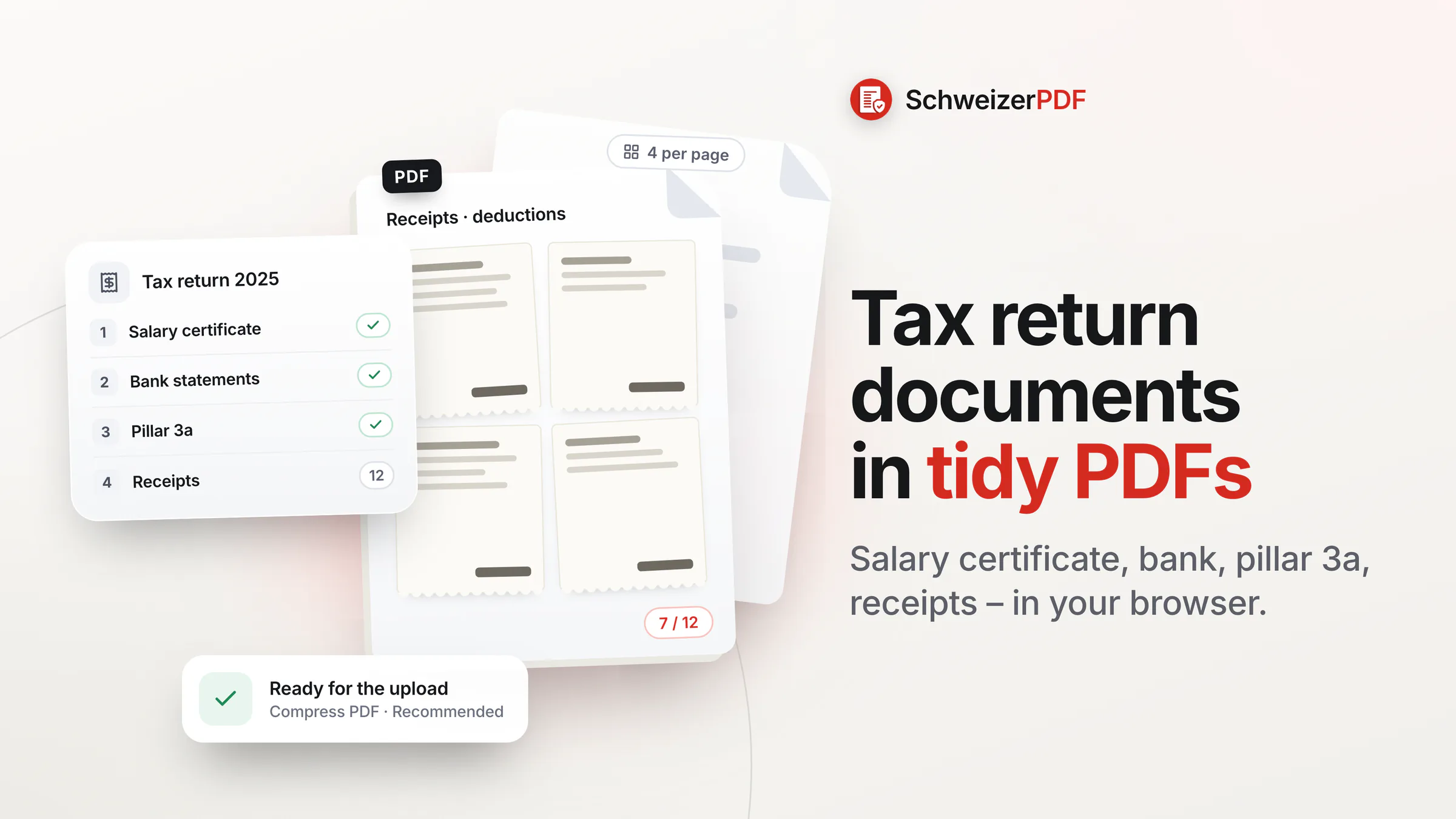
To prepare your tax return documents as PDF, collect every document per category, turn paper receipts into PDF pages with Images to PDF, combine each category — or everything — with Merge PDF, add Page numbers and make the files small enough for the upload with Compress PDF. In SchweizerPDF all of this runs in your browser, so your salary, savings and medical costs are never uploaded to a PDF website.
Few documents say as much about you as the papers behind a tax return: income and employer, account balances and securities, pension savings, insurance premiums, doctors' bills, donations. A salary certificate (Lohnausweis) usually also carries your AHV number. Sorting them carefully saves the tax office questions and you time — and keeping them on your own device keeps the whole picture in one place: yours.
Which documents usually go with a Swiss tax return?
It depends on your situation and your canton, and the canton's instructions list what it wants. Commonly needed are:
- Income: the salary certificate from each employer, statements of pensions or other income.
- Bank and securities: year-end statements or tax statements from your bank, with balances and interest.
- Pension savings: the pillar 3a certificate and confirmations of any buy-ins into a pension fund.
- Insurance: health insurance premiums and, if you received one, the decision on a premium reduction.
- Deductions: receipts for medical costs, childcare, donations, professional expenses or further training.
- Property, if you own one: mortgage interest statements and invoices for maintenance.
Every canton has its own rules
Depending on the canton, you file online, with tax software or on paper, and supporting documents are uploaded, sent by post or only provided on request. Which file types are accepted, how large one upload may be and whether each document needs its own field also differ. Check your canton's current instructions before you prepare the files.
Prepare your tax documents as PDF, step by step
- 1
Collect and name by category
Download statements from e-banking and the insurance portal as PDFs and put them in one folder with the photos or scans of paper documents. A short prefix per category (
1-income,2-bank,3-pillar3a,4-insurance,5-deductions) keeps the order visible. How to scan paper well is explained in scanning documents to PDF. - 2
Put receipts on pages
Open Images to PDF and add the photos of receipts. Choose Page size A4 and Fit to the page. For small slips, set Pictures per page (under More options) to 2 or 4: several receipts on one page are easier to check than twenty half-empty pages. Keep 1 per page for anything with small print.
- 3
Merge each category
Open Merge PDF, add the files of one category and drag them into order. Under Pages from each file you can leave out pages you do not need, such as general terms printed on the back of a statement. Repeat for each category, or merge everything into one file if your canton asks for that. Merging itself is explained in combining an application into one PDF.
- 4
Fix single pages
Open the result in Organise pages to rotate a sideways receipt, move a page or delete an empty one.
- 5
Number the pages
Page numbers adds numbers to every page. Choose Where on the page Bottom right and, under More options, the Style
1 / 12, so a question about page 7 has a clear answer. Numbers are added to the page content; check that they do not cover any figures. - 6
Make it small enough
Upload portals often limit the size per file. Run Compress PDF at Balanced — photographed receipts shrink the most. If a file is still too large, see a PDF too large for e-mail: the same levels apply.
- 7
Set a clear title
Open Edit title and author and enter a Title such as “Tax return 2025 – Bank statements – Anna Muster” and your name as Author. The title then shows in the viewer instead of an old file name. Name the file the same way:
tax-2025_2-bank_muster-anna.pdf.
One PDF for everything, or one per category?
Follow the canton's rules first. If they leave the choice to you, this table helps:
| Structure | Fits when | Watch out for |
|---|---|---|
| One PDF for everything | You send documents by e-mail or the portal accepts one file | Size per upload; add a contents page with Add a contents page listing the files in Merge PDF |
| One PDF per category | The portal has a field per type of document, or a reviewer reads category by category | Use the same naming pattern for every file |
| One PDF per document | The portal asks for each certificate separately | Many small files: name each one clearly |
Digitally signed statements, fiduciaries and privacy
Some statements from banks or pension funds are digitally signed. Any change to such a file — merging, compressing, adding page numbers — invalidates the signature, and SchweizerPDF warns you before it happens. If your canton or the issuer asks for the signed original, submit that file unchanged and prepare only the other documents.
If a fiduciary prepares your tax return, the same tidy PDFs save both of you time. For e-mail, a password on the file adds protection — see how PDF password protection works — and how fiduciary offices use SchweizerPDF is described on the fiduciaries page. Do not redact anything the tax office needs; but if a copy of a salary certificate goes to someone else, such as a landlord, remove the AHV number and IBAN first.
With SchweizerPDF the files are processed in your browser; per run, our server receives only which tool ran and whether it finished — no file, no file name, no amounts. Details are on the security page. You need an account and a connection, and local processing does not protect against a compromised device or a browser extension that can read your pages.
Frequently asked questions
Should I keep the paper originals after scanning them?
Yes, keep the originals and the PDFs. The tax office may ask for documents later, and how long you have to keep them depends on the rules that apply to you — your canton's instructions or a fiduciary can tell you.
Can I upload photos of receipts instead of a PDF?
Some portals accept images, others only PDF. A PDF with several receipts per page, in order and numbered, is usually easier to read for whoever checks your return — and it is one file instead of twenty.
Do page numbers change the original documents?
They are added to the new PDF you download; the files on your device stay as they were. Keep the originals unchanged, especially digitally signed statements.
Are my tax documents uploaded to SchweizerPDF?
No. They are processed in your browser and never sent to or stored by us — see where your files are processed.
For the tools themselves, read Merge and split PDFs and Compress a PDF in the help center; all page tools are in the Organise section of the tools page. Ready? Create a free account and prepare your tax documents on your own device.
General information
This guide describes how the SchweizerPDF tools can be used to prepare documents for a tax return. It is not tax or legal advice and simplifies cantonal practice, which differs. Which documents you submit, and in what form, is set by your canton's instructions; if in doubt, ask the tax office or a qualified fiduciary, and check the finished files before you submit them.