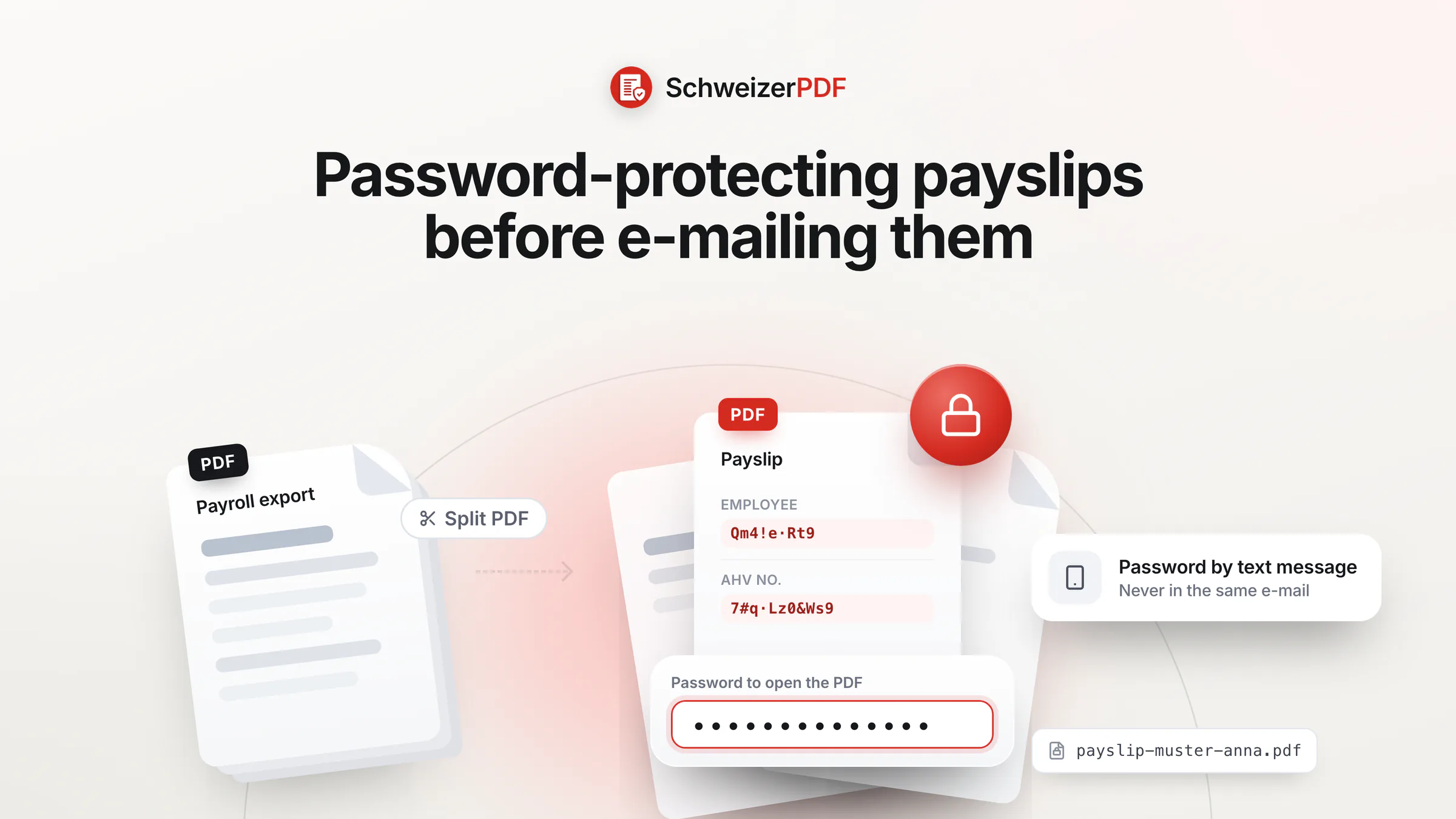
To password protect payslips for e-mail, split the payroll export into one PDF per employee with Split PDF, protect each file with its own open password in Protect PDF, and give each employee their password through a different channel than the e-mail. Both tools run in your browser, so the payslips are not uploaded anywhere.
This guide is for HR and payroll staff and for fiduciaries who run payroll for clients. It shows the monthly routine, the decisions to make once — names, passwords, channels — and the limits to keep in mind.
Why payslips need more than a plain e-mail
A payslip combines a name, a salary, deductions, an AHV number and often an IBAN. An e-mail can end up in the wrong inbox through a typo, an auto-completed address or a forwarded thread, and it stays in mailboxes and backups for years. An open password means that a misdirected file is unreadable to whoever receives it by mistake.
The Swiss Federal Act on Data Protection (FADP/nDSG) asks for security appropriate to the risk and for processing no more data than the purpose requires. A password is one such measure, not the only one. Data minimisation counts too: each employee receives only their own payslip, not the combined file, and nothing more than they need.
Decide once: originals, file names and passwords
- Keep the original. The combined payroll PDF stays in your payroll system or client file. The protected copies are for sending only; if a password is lost, you protect the original again.
- File names without identifiers. A file name is visible even when the file is encrypted — in the e-mail, in the recipient's download folder. Use the month and a neutral reference, for example
2026-10-payslip-muster-anna.pdfor a personnel number. Never an AHV number, an IBAN or a salary. - One password per employee. With a shared password, every colleague could open every other payslip.
- Passwords that are not in the payslip. Not the AHV number, not the birth date, not the personnel number printed on the page. Agree on a long passphrase with each employee, for example at onboarding, and reuse it monthly if your policy allows.
- A second channel. Hand the password over in person, by text message or by phone — never in the e-mail that carries the file.
Step 1: split the payroll PDF per employee
Payroll software usually exports one PDF with all payslips. Split PDF turns it into one file per employee in a single run. Pick the mode that matches your export:
| Mode | When it fits | Resulting file names |
|---|---|---|
| By page ranges | Payslips of different lengths, e.g. pages 1–2, 3, 4–5 | Original name plus the range |
| Every few pages | Every payslip has the same number of pages | Original name plus the range |
| By bookmarks | The export has one bookmark per employee | Original name plus the bookmark title |
Check the result before going further: open a few files and make sure each contains exactly one person's pages. In bookmarks mode, the file names come from the export's bookmarks — check that they contain nothing you would not put in a file name. Rename the files to your naming scheme.
Step 2: protect each payslip with its own password
- 1
Open Protect PDF
Sign in, open Protect PDF and select one employee's payslip with Select PDF files (or drop it on the page).
- 2
Enter that employee's password
Type it in Password to open the PDF and confirm it. The tool warns you below eight characters; a long passphrase is better.
- 3
Keep the defaults
Leave AES 256-bit (recommended) and Also encrypt the document properties (title, author and so on) switched on. Permissions and a permissions password are not needed for payslips.
- 4
Save under the agreed name
Save the protected copy, then open it once with the password to check it.
- 5
Repeat for the next employee
Click Start over, select the next payslip and enter the next password.
One run per individual password
One run of Protect PDF applies the same passwords to every file in it. Individual passwords therefore mean one run per payslip, and each run counts as one operation — a team of twelve is one split plus twelve protect runs, thirteen operations a month. Check that your plan covers this on the pricing page.
Step 3: send the file and the password separately
Attach the protected payslip to an e-mail to the employee's own address, with a short neutral subject such as “Payslip October 2026”. The password does not appear in the e-mail. If a password must be sent, send it by text message or tell it by phone; if you agreed on a standing passphrase, no message is needed at all.
Example
A fiduciary runs payroll for Muster AG. In October the payroll export is one PDF with a bookmark per employee. One Split PDF run in bookmarks mode gives one file per person; the payslip of Anna Muster, AHV number 756.1234.5678.97 (official sample value), becomes 2026-10-payslip-muster-anna.pdf. Protect PDF encrypts it with the passphrase she agreed on when she joined, the file is e-mailed to her, and the combined export stays in the client file. Nothing in the file name, the subject or the e-mail body identifies her beyond her name.
Frequently asked questions
Can all employees get the same password?
Technically yes, but then every employee can open every colleague's payslip if one is misdirected. Individual passwords are what makes the protection meaningful here.
What if an employee forgets the password?
It cannot be recovered. Agree on a new one and protect the payslip again from the original you kept.
Do the payslips or passwords reach your server?
No. Splitting and protecting happen in your browser; per run our server receives only the tool id and the outcome. See the security page.
Is a password-protected attachment enough under the nDSG?
That depends on your situation and is your organisation's decision. The law asks for measures appropriate to the risk; a password is one of them, alongside correct addresses, minimal content and careful storage.
Summary
Split once, protect each payslip with its own password, keep identifiers out of file names and send passwords separately. How the encryption works and where it stops is explained in Password-protecting a PDF; if a document must reach someone without certain values, redaction is the right tool. More for HR teams and fiduciaries — or create an account and try it with this month's payroll.
General information
This guide describes how Split PDF and Protect PDF can be used for payslips; it is simplified and is not legal advice. Which security measures your payroll requires is your decision — check every file before you send it, and ask a qualified professional for specific requirements.