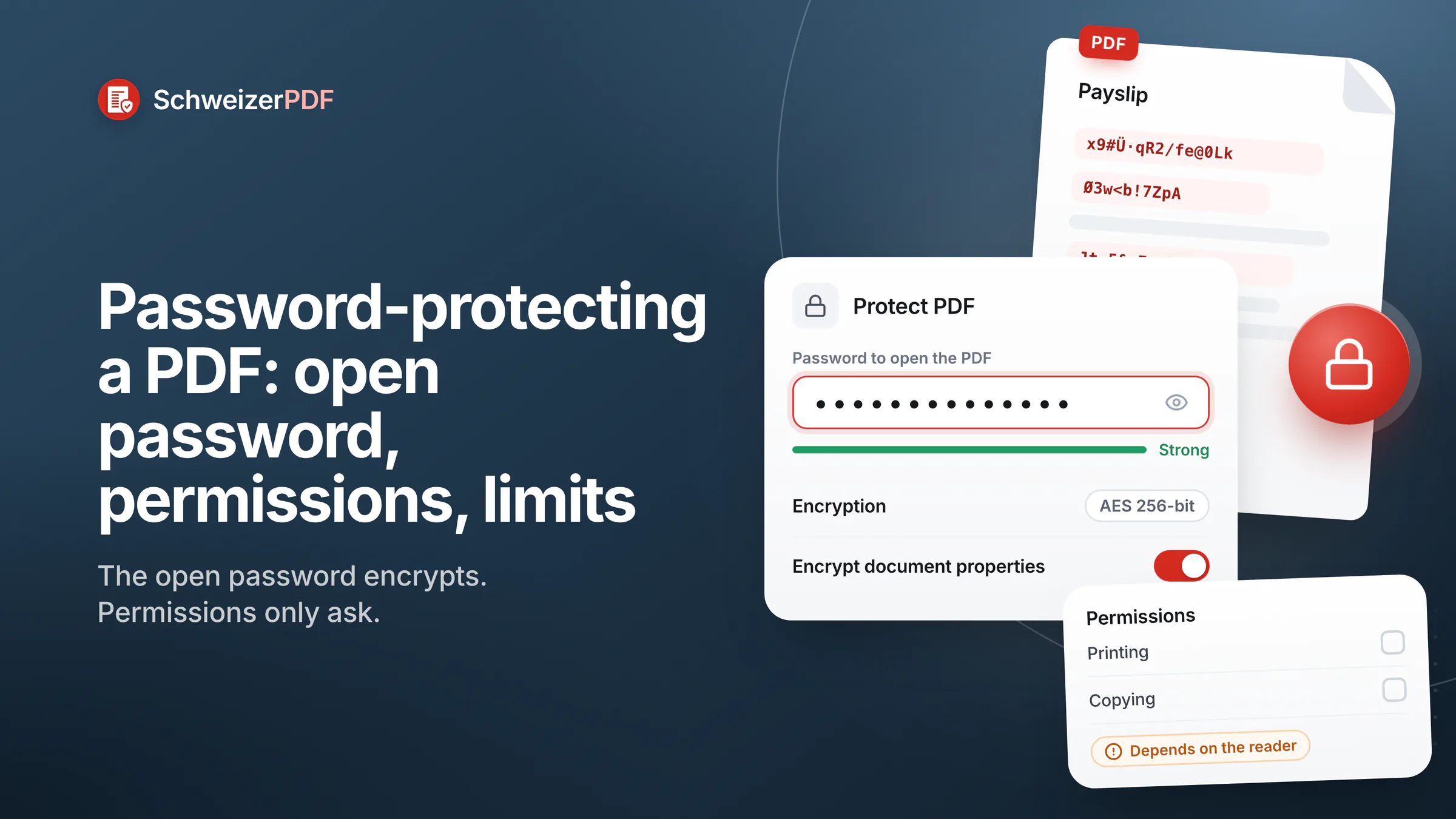
To password protect a PDF properly, set a password to open the PDF. That password encrypts the content: without it, the file is unreadable data. A second, optional permissions password only controls what someone who has opened the file may do — print, copy, edit — and those restrictions depend on the PDF reader respecting them.
The two are easy to confuse, and the difference decides whether a document is actually confidential. This article explains what each password does, what the encryption covers, where protection ends, and how to share a password without undoing its purpose.
Two passwords, two different jobs
The PDF standard defines two passwords for the same file. In Protect PDF they appear as Password to open the PDF and Password to change the permissions (optional).
| Password to open the PDF | Password to change the permissions | |
|---|---|---|
| Purpose | Keeps the content confidential | Protects the restrictions on printing, copying, editing and comments |
| Without it | The file cannot be opened at all | The file opens, with the restrictions in place |
| Who needs it | Everyone who should read the document | Only whoever may change the restrictions — usually you |
| Strength of the protection | Encryption: real protection | A rule the PDF reader is asked to follow |
You can set either password or both. If you leave the permissions password empty, Protect PDF uses a random 32-character password that nobody knows. The restrictions then cannot be changed by anyone; to lift them, the protection has to be removed with the open password. If you set both, they must differ — otherwise anyone who can open the file could also change the permissions.
What the encryption actually does
When you set an open password, the text, images and other content of the PDF are encrypted. A program that does not know the password sees only unreadable bytes. Protect PDF offers two methods:
- AES 256-bit (recommended) — the current method of the PDF standard. Passwords can include umlauts, accents and characters from other scripts.
- AES 128-bit (for older PDF readers) — only for recipients whose software cannot open AES-256 files. Passwords are limited to Western European characters; for anything else, the tool asks you to switch to AES-256.
The older RC4 method is never offered. Apart from the security layer, nothing in the document changes: pages, fonts and form fields stay exactly as they were. If the PDF is digitally signed, adding protection invalidates the signature, and the tool tells you so.
Document properties: encrypt the metadata too
A PDF carries document properties such as title, author and subject. They often contain names — the employee, the client, the case. The option Also encrypt the document properties (title, author and so on) is on by default and keeps them behind the password as well. Leave it on unless a system that must read those properties without the password receives the file.
Why PDF permissions rely on the honour system
Permissions — Printing (not allowed, low quality only, allowed), Allow copying text and images, Allow changes to the document, Allow comments, Allow filling in forms, Allow adding, removing and rotating pages — are flags stored in the file. They are not a second layer of encryption. Anyone who can open the document can, technically, read all of its content, and it is up to the PDF reader to honour the flags.
Well-behaved readers do. Some do not, and a determined person can use software that ignores them. If a file has no open password at all, the restrictions are the only thing in the way — and that is not much.
Permissions are not a lock
Use permissions to signal intent and prevent accidental edits or printing. For confidentiality, rely on the open password. Screen readers and other assistive technology are always allowed with both encryptions; the tool tells you if you try to switch this off.
Strong passwords, and how to share them
The encryption is only as strong as the password. Someone who obtains the file can try passwords as often as they like, offline, without anyone noticing. Short passwords fall quickly; Protect PDF warns you below eight characters and shows the strength while you type.
- Long beats clever. A passphrase of several unrelated words is easier to type and harder to guess than a short string of symbols.
- Nothing the document gives away. Not a birth date, an AHV number, a company name or a policy number that appears in the file or its covering e-mail.
- One password per recipient when different people must not read each other's documents.
- A separate channel. Never put the password in the same e-mail as the file. Tell it by phone, send it by text message or agree on it in advance.
- Keep it safe. A forgotten open password cannot be recovered — not by us, not by anyone. Keep the unprotected original in a safe place, or store the password in a password manager.
How to password protect a PDF with SchweizerPDF
- 1
Open Protect PDF
Sign in, open Protect PDF from the security tools and select the file with Select PDF files (or drop it on the page). It is processed in your browser; it is not uploaded.
- 2
Set the open password
Enter it in Password to open the PDF and confirm it. Watch the strength indicator.
- 3
Decide on permissions
Only if you need them: restrict printing, copying or changes, and set a permissions password if you want to be able to change them later.
- 4
Keep the defaults
Leave AES 256-bit (recommended) and the encryption of the document properties switched on, unless a recipient's old reader needs AES-128.
- 5
Save and test
Save the protected copy under a new name, then open it once yourself to check that the password works.
The details of each option are in the help article Password-protect a PDF.
What password protection does not do
- It does not stop someone who has the password. Once opened, the document can be read, saved or forwarded. Send the password only to the people who should read the file.
- It is not redaction. Protection hides the whole document from outsiders; it does not remove an AHV number from the copy the recipient opens. To remove content for good, see Redacting AHV numbers and IBANs.
- It does not help on a compromised device. Malware or a browser extension that can read your screen or your files sees the document before it is encrypted.
- It can be removed by anyone who knows the password. Unlock PDF removes the password and restrictions from a PDF you are allowed to open, and asks you to confirm that you have the right to do so. Use it only for files you are entitled to unlock — see Password-protected files.
Frequently asked questions
Can a forgotten PDF password be recovered?
No. The password never reaches our server, and there is no back door in the encryption. Keep the original or store the password safely.
Does the password reach your server?
No. Passwords stay in your browser's memory only while you work in the tool; they are never stored or sent to us. For each run, our server receives only the tool id and the outcome — nothing derived from the file. Why that matters is explained in Why your PDF tool shouldn't see your documents and on the security page.
When should I choose AES-128?
Only when a recipient's software cannot open the AES-256 file. Everything else stays the same, but the password may only use Western European characters.
Can I protect several PDFs at once?
Yes: one run of Protect PDF can take several files and applies the same passwords to all of them. When each recipient needs an individual password, run the tool once per file — the workflow for monthly payslips is described in Password-protecting payslips before e-mailing them.
Summary
Set an open password, keep AES-256 and the metadata encryption, treat permissions as a courtesy rather than a lock, and send the password by a different route than the file. Create an account to protect your next PDF in your browser.
General information
This article explains how PDF password protection works in general and in Protect PDF; it is simplified and is not legal or security advice. Whether a protection is sufficient for your documents is your decision — for specific requirements, ask a qualified IT security or legal professional.