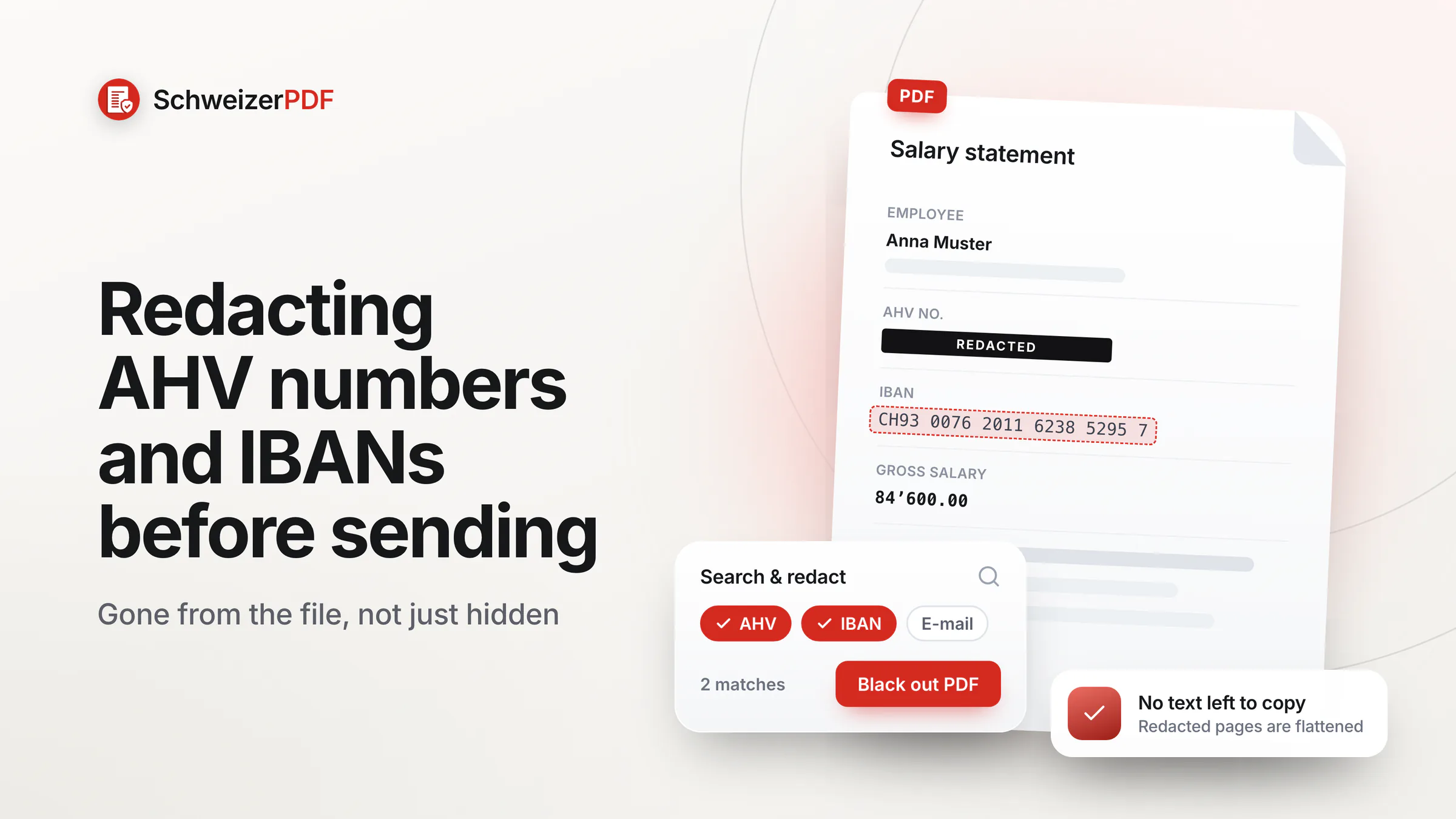
To redact a PDF so that an AHV number or an IBAN is really gone, you need a tool that removes the content, not one that covers it. With Black out (redact) in SchweizerPDF you mark what must disappear — found by search or drawn by hand — and every marked page is rebuilt without the hidden text. The document is processed in your browser and never uploaded.
A salary statement for a mortgage application, a bank statement for a landlord, an insurance letter for a lawyer: many documents go to people who need some of their content, but not all of it. AHV numbers and IBANs are the classic examples. They identify a person or an account for years, and once they are out, they cannot be changed.
Why a black box is not redaction
A black rectangle drawn in a PDF editor hides the number on screen, but the text stays in the file and can still be selected and copied — what each common method really removes is compared in Redact vs black box.
Covering is not redacting
Boxes drawn with Edit PDF, highlights in black or a black font colour all leave the original text in the PDF. Cropping a page keeps the content outside the visible area too. Use Black out (redact) for anything that must be gone.
How redacting a PDF works in SchweizerPDF
The Black out (redact) tool runs entirely in your browser. On every page that has a mark, the page is turned into an image with the marked areas filled in. The original text layer of that page is not carried over, so there is nothing left to copy. Pages without marks stay unchanged.
Because the document is never uploaded, the unredacted original never leaves your computer either — which is the point when the original is the sensitive part. Why that matters is explained in why your PDF tool shouldn't see your documents. Which plans include Black out (redact) is shown on the pricing page.
Redact AHV numbers and IBANs step by step
- 1
Open Black out (redact)
Sign in, open Black out (redact) and select your PDF with Select PDF file (or drop it on the page).
- 2
Search for identifiers
Open Search & redact and tick the presets for AHV numbers and IBANs. E-mail addresses, phone numbers, credit card numbers and dates are available too, and you can add your own search terms, such as a client's name.
- 3
Mark the rest by hand
Draw boxes over anything the search cannot know about: signatures, a photo on a copy of an ID card, handwritten notes. Scanned pages have no text layer and cannot be searched — the tool tells you which ones, and you mark them by hand.
- 4
Review every mark
The search finds likely matches, not guaranteed ones. Go through every page, accept or skip each result, and check that each box covers what it should — and that nothing was missed.
- 5
Set the options
Choose the redaction colour and the text on the redacted areas (none, “REDACTED” or your own). Keep Also remove title, author and dates switched on unless you need the title and author.
- 6
Black out and download
Click Black out PDF at the bottom of the options and wait for the progress to finish, then click Download PDF and save the result under a new name. The original stays untouched on your disk.
- 7
Check the result
Read the verification in the report, then open the redacted copy and try to select the hidden text. There should be nothing to select on the redacted pages.
Example: a salary statement for the bank
A fiduciary sends a client's salary statement to a bank that only needs the gross salary. The search finds the AHV number 756.1234.5678.97 and the IBAN CH93 0076 2011 6238 5295 7 (both official sample values). The employee's address — Anna Muster, Muster AG — is marked by hand, the result is saved as salary-statement-redacted.pdf, and the verification reports that none of the redacted text can be found. The original stays in the client file.
Checklist: is the redacted PDF safe to send?
- Nothing to select. On every redacted page, try to select or copy the text where a mark was.
- The verification passed. The report searches the result for the text you redacted with Search & redact — except terms searched with Match case or Whole words only, terms of which you skipped a match, and areas you drew by hand. It covers the text layer only, so look at scans yourself.
- Line breaks. A number split by a hyphen at the end of a line is not found by the search. Read the pages for split identifiers.
- Hidden content. Comments, attachments and form fields can contain names too. Remove hidden data clears them; PDF details shows what a file contains.
- The file name. A name like
muster-anna-salary.pdftells the recipient what you just removed. Choose a neutral one.
Good to know
- Redacted pages become images — no longer searchable, usually larger, and a digital signature becomes invalid (the app asks first); what that costs is set out in Redact vs black box.
- Text outside the visible page area cannot be searched or checked. If a page was cropped before, assume content may be hidden there and mark it.
Frequently asked questions
Which AHV and IBAN formats does the search recognise?
AHV numbers starting with 756, written with dots, spaces or without separators, and IBANs with the right length for their country. Both are proposed only when their check digits are valid, so a mistyped number is not found — mark it by hand.
Can a redacted PDF be un-redacted?
Not on the redacted pages: they are rebuilt as images without the original text layer, so there is no hidden text to recover. What was not marked stays readable, which is why every page needs review.
Does the search find every AHV number and IBAN?
It finds likely matches in the text layer. It cannot read scanned pages, and it misses numbers split across lines. Treat it as help, not as a replacement for reading the document.
Is my document uploaded when I redact it?
No. Redaction runs in your browser. About your document, our server only learns that Black out (redact) was started and whether it finished — see where your files are processed.
Redact on your own device, review every mark, check the result. For the tool itself, see Redact safely; for what stays local and what our server sees, read the security page; for the difference to upload-based PDF websites, read the comparison. Ready to try it? Create a free account.
General information
This guide describes how the Black out (redact) tool works and is not legal advice. Whether a redaction is sufficient for a given purpose is your decision — check every redacted copy before you send it.