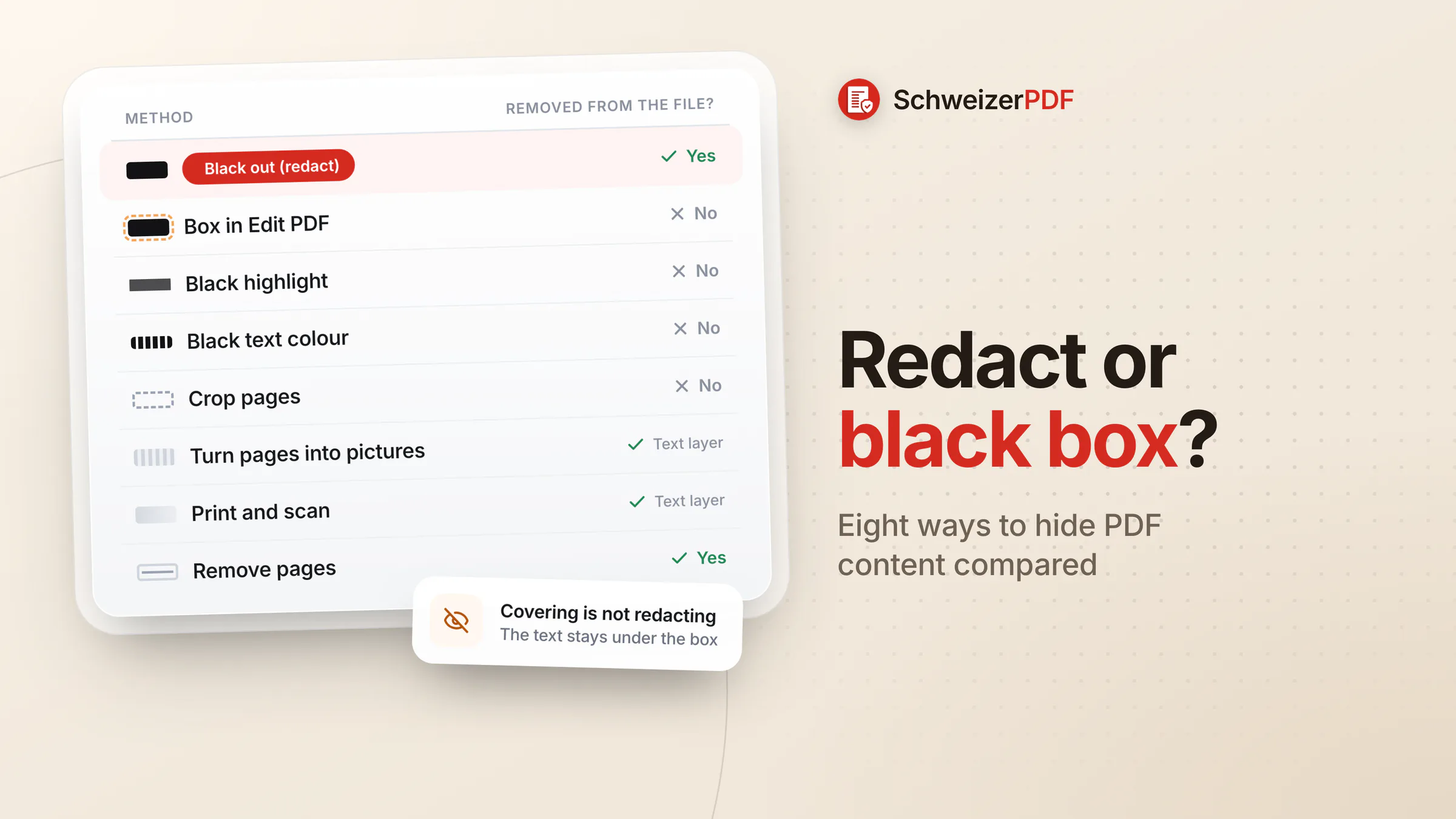
Redacting a PDF removes content from the file; a black box only covers it. Of the eight common ways to make something “disappear” from a PDF, only four change what is stored in the file — real redaction, rasterising, deleting pages and, with heavy trade-offs, printing and scanning. The other four change only what you see and leave the text where it was.
This comparison puts the methods side by side: what each removes, what it costs and when it is the right choice. The typical mistakes behind leaked documents are in Redaction mistakes in PDFs; the step-by-step guide is Redacting AHV numbers and IBANs.
Redact vs black box: what is the difference?
A PDF page is built from drawing instructions, and its text is stored as characters that can be selected and copied. A black box, a black highlight or black text adds paint on top or changes the colour — the characters stay. Redaction removes the characters themselves, so there is nothing left under the bar to select, copy, search or extract.
Eight methods compared
| Method | Text removed from the file? | Searchable afterwards? | File size | Effort | When to use |
|---|---|---|---|---|---|
| Real redaction (Black out (redact)) | Yes, on marked pages: they become images, the text layer is not carried over | Marked pages no; other pages yes | Grows (redacted pages are images) | Medium: mark, review, check | Removing specific values before sending |
| Box drawn in an editor (Edit PDF) | No — the text stays under the box | Yes, including the covered text | About the same | Low | Visual notes, never confidential content |
| Black highlight | No | Yes, including the highlighted text | About the same | Low | Never for hiding content |
| Black (or white) text colour | No | Yes | About the same | Low, in the source document | Never for hiding content |
| Cropping (Crop pages) | No — the cropped-out area stays in the file | Yes, including the hidden part | About the same | Low | Page layout only |
| Rasterising the whole document (Turn pages into pictures) | Text layer and hidden content of the pages removed; what is visible stays visible | No, unless OCR is run afterwards | Usually larger | Low | Making existing covers final, removing cropped-out content, no copyable text wanted |
| Printing and scanning | Yes — the scan has no text layer, but nothing is blacked out by itself | No, unless OCR is run | Usually much larger, lower quality | High | Rarely; when a paper step is required anyway |
| Deleting pages (Remove pages) | Yes, for the removed pages | Remaining pages unchanged | Smaller | Low | When whole pages are not needed |
Why boxes, highlights and colour changes are not redaction
All three work on what is painted. A viewer draws the text and then the box over it — but select the area, and the text comes along. A highlight is an annotation over the text; the text underneath is unchanged. Text set to black on black, or white on white, is still text: search finds it, copy and paste reveals it. In Edit PDF the tool is named “Cover (not secure)” for this reason: it is meant for whiting out a margin note on a print copy, not for confidential data.
Cropping belongs in the same group. It changes the visible area of the page, not its content: whatever lies outside stays in the file and returns when the crop is reset. Crop pages warns about it and hands over to Turn pages into pictures when the hidden part must go.
How to choose the right method
- Whole pages are not needed — use Remove pages. The rest of the document stays as it is; outline entries and form fields of removed pages are pruned.
- Specific values must go (AHV numbers, IBANs, names, signatures) — use Black out (redact). Search & redact proposes likely matches; review every one and mark the rest by hand.
- The document is a scan — still Black out (redact), but mark by hand: a scan without a text layer cannot be searched, and a scan with an OCR layer hides text under the image.
- You received a file with boxes already drawn — Turn pages into pictures turns the pages into images of what is visible, so the boxes become final. Check first that every box is opaque and in the right place.
- Nobody should be able to copy any text — Turn pages into pictures for the whole document, then Make scans searchable (OCR) only if you need it searchable again.
- In every case — finish with Remove hidden data (comments, attachments, bookmarks, hidden layers, thumbnails, properties) and look at Edit title and author.
Print and scan is listed for completeness. It removes the text layer, but the black has to be applied on paper, ink can leave text readable under the right light, and the scan often ends up as a large, blurred file. Redacting the PDF directly is faster and cleaner. All the tools named here are in the security section of the tool list.
How to verify a redaction
- 1
Select and copy under each bar
Open the result, select the area under every black bar and paste it into a text editor. Nothing should come out.
- 2
Search for the removed values
Search the document for each value you redacted — the AHV number, the IBAN, the name. No result should appear.
- 3
Read the built-in check
After a run, Black out (redact) searches the result for the text you redacted with Search & redact and reports whether any of it can still be found. Terms searched with Match case or Whole words only, terms of which you skipped a match, and areas you drew by hand are not checked — check those yourself.
- 4
Open PDF details
PDF details shows the properties, comments, attached files, bookmarks, layers, pages without text and whether the file was changed after its creation.
- 5
Look at the file name
Save under a neutral name. A redacted document called after the person it is about gives away what the bars hide.
What real redaction costs
- Redacted pages are images: their text can no longer be selected or searched. Keep the original for your files.
- A higher resolution keeps small print readable but makes the file larger; Compress PDF can help afterwards.
- Links on redacted pages can be kept where they are not under a redacted area.
- A digital signature becomes invalid — the app asks before it runs.
Redaction in SchweizerPDF runs in your browser, so the unredacted original never leaves your device: per run our server receives the tool id and the outcome, nothing from the file. How that compares with upload-based PDF websites is in Processing PDFs in the browser vs. uploading them; what is stored on our side is on how SchweizerPDF protects your documents.
Frequently asked questions
Is drawing a black box the same as redacting a PDF?
No. The box covers the text on screen and on paper, but the text stays in the file and can be copied or extracted. Only a redaction tool removes it.
Is rasterising the whole PDF safer than redacting?
It solves a different problem. Rasterising removes the text layer and hidden content but blacks out nothing — what is visible stays visible. Use Black out (redact) to remove values, and Turn pages into pictures when no page should keep copyable text.
Can I make a redacted PDF searchable again?
Yes, run Make scans searchable (OCR) on the redacted copy. It recognises the remaining visible text; the redacted areas contain nothing to recognise.
Does printing and scanning remove metadata?
The scan is a new file, so the original's properties, comments and attachments are not in it — but a scanner can write its own properties. Check the result with PDF details like any other file.
The tool itself is explained in Redact safely. To redact on your own device, create an account.
General information
This comparison describes redaction and covering methods in general, simplified terms, not named products, and is not legal advice. Whether a method is sufficient for a given purpose is your decision — check every result before you send it, and ask a qualified professional where legal obligations apply.