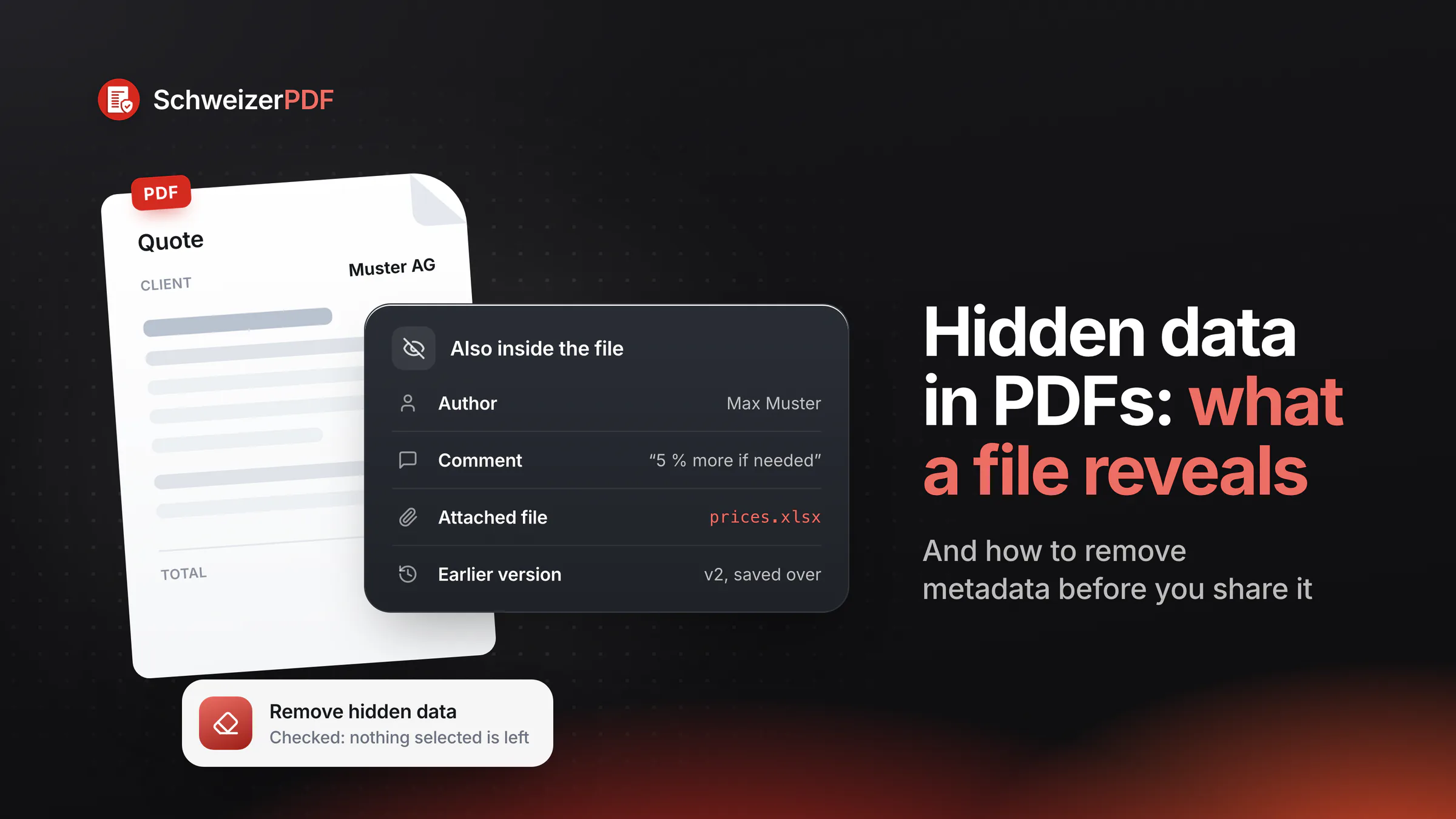
To remove metadata from a PDF, run Remove hidden data: in one pass it clears the document properties, the XMP metadata, scripts, attached files, thumbnails and private application data — and, if you choose, comments, form fields, hidden layers and bookmarks. PDF details shows beforehand what a file contains, and Edit title and author lets you change single properties instead of deleting them all. All three run in your browser; the file is not uploaded.
A PDF is more than the page you see. It is a container, and much of what it carries never appears on screen: who wrote it, with which program, when, what reviewers commented, which file was attached to it. That becomes a problem when a quote, a contract draft or a report goes to someone outside your organisation and takes information with it that you did not mean to send.
What a PDF reveals beyond the visible page
- Document properties — title, author, subject, keywords, the application it was created with, the PDF producer, creation and modification dates, the language and any custom properties.
- Extra document details — a second, more detailed copy of the same information in another format. It can sit on the document and on single pages, images or fonts, and it does not always match the properties.
- Comments and annotations — sticky notes, highlights, review remarks. A viewer may hide them; the file still contains them.
- Form fields — the values typed into a form stay in the fields, including fields that are not visible on the printed page.
- Attached files — a PDF can carry other files: the spreadsheet behind a table, an earlier draft, an e-mail.
- Hidden layers — content that is switched off when the document opens. It is not displayed, but it is there.
- JavaScript and actions — scripts that run when the file opens or a button is pressed, and actions that open files, send form data or launch programs.
- Bookmarks — the outline in the side panel. Its titles can name sections that were later removed.
- Thumbnails and private data — stored page previews and data a program keeps for itself. A stored thumbnail can show a page as it looked before a change.
- Earlier versions — many programs save changes by appending them to the file. The previous state stays inside and can be restored.
- The document ID — a permanent identifier that can link a shared copy back to its original.
Almost none of it is typed on purpose: programs fill it in from the user account, the template and every review. A typical example: Anna Muster sends a quote to a prospective client. The visible page is fine. The properties say the title is Offer Muster AG v3 – final price after discount, the author is a colleague who has since left, a custom property holds the internal project number, and a forgotten comment on page 2 reads “can go down another 5 % if needed”. None of it is visible in a quick look; all of it is readable with any PDF program.
How to see a PDF's metadata and hidden content
Before you remove anything, look. PDF details reads the file and lists what it contains: the properties and the XMP metadata, the application and producer it was made with, the document ID, and whether and how often the file was changed after it was created. Under interactive content it shows the form and its fields, annotations, links, bookmarks, attached files, scripts and layers.
Edit title and author shows the document properties in editable fields — title, author, subject, keywords, Created with, Made by, dates, language and custom properties — prefilled with what the file holds today (title, author, subject and keywords first, the rest under More options). Both tools are in the info tools.
How to remove metadata and hidden data from a PDF
- 1
Check the file
Open PDF details and note what the file contains — properties, comments, attachments, scripts, layers, later changes.
- 2
Open Remove hidden data
Sign in, open Remove hidden data from the security tools and select the PDF with Select PDF files (or drop it on the page). One run can take several files.
- 3
Choose what to remove
Each kind of hidden data is a switch. The safe defaults are already on; decide about the rest according to what the recipient needs (table below).
- 4
Remove and download
Click Remove hidden data at the bottom of the options, then Download PDF, and save the result under a new, neutral name. After removing, the tool reads its own result again and checks that what you selected is gone. The original stays unchanged on your disk.
- 5
Check the result
Open the cleaned copy in PDF details once more. The sections you cleared should be empty.
| Option in Remove hidden data | Default | Good to know |
|---|---|---|
| Document properties (author, title, dates…) | On | Also clears their XMP equivalents |
| XMP metadata | On | On the document and on pages, images and fonts |
| JavaScript | On | Scripts at document, page, link and form level |
| Attached files | On | Including files attached to a page |
| Actions that open files, send form data or launch programs | On | Links to websites are a separate option |
| Thumbnails and private application data | On | Stored page previews and program data |
| Give the file a new document ID | On | The copy can no longer be linked to the original by its ID |
| Web links | Off | Turn on only if links should not work |
| Comments and annotations | Off | Turn on for review remarks and notes |
| Form fields | Keep | Keep them, flatten them into the page, or remove them |
| Hidden layers and their content | Off | Turn on when layers may hold old content |
| Bookmarks | Off | Turn on if bookmark titles give too much away |
Cleaning happens on your device, which matters because the file you clean is the one with everything still in it: per run our server receives the tool id and the outcome, nothing derived from the file — not its name, its size or its properties. Details are on the security page and in why your PDF tool shouldn't see your documents.
Edit title and author: when you want to keep some properties
Removing everything is not always right: a title helps screen readers and search, and some recipients' systems expect an author or a language. With Edit title and author you replace an employee's name with the company name, give the document a neutral title, empty the keywords or delete a custom property, and leave the rest as it is. Set the change date to now updates the modification date in the same run.
A practical order: run Remove hidden data for the content you do not want to send, then Edit title and author to set the few properties you do want — in that order, because removing the document properties clears what you set before.
Checklist before you share a PDF
- Properties. Title, author, subject, keywords and custom properties say nothing the recipient should not know.
- Comments. No review remarks or notes are left, on any page.
- Form values. Fields hold only what the recipient may see — or they are flattened or removed.
- Attachments. No attached file travels along unless you mean it to.
- Layers and bookmarks. No hidden layer and no bookmark title refers to content that was removed.
- Visible content. Anything on the page that must go is redacted — removing hidden data does not touch what the page shows.
- File name and e-mail. The file name and the covering message do not repeat what you just removed.
What removing hidden data does not do
- It does not change the visible page. An AHV number in the text stays readable. Use Black out (redact) for that — see Redact safely and redaction mistakes in PDFs.
- It does not remove cropped-out content. Content outside the visible area of a cropped page stays in the file; Turn pages into pictures removes it.
- Some hidden layers cannot be removed safely. When deleting a layer's content would shift the visible text, the tool keeps it and tells you.
- It invalidates a digital signature. Any change to a signed PDF does; the app warns you before it runs.
Earlier versions are taken care of in any case: every SchweizerPDF tool writes its result as a newly built file, so previous states kept by incremental saves are not carried into the copy.
Frequently asked questions
Does removing metadata change the pages?
No. Text, images and layout stay as they are. Only what you select disappears — and form fields change only if you choose to flatten or remove them.
Does a password hide the metadata?
From outsiders, yes: with an open password and Also encrypt the document properties switched on, Protect PDF encrypts the properties too. Everyone who has the password sees them. More in password-protecting a PDF.
Does Black out (redact) remove metadata?
Black out (redact) can remove the document's metadata in the same run — the option is on by default. Comments, attachments and the other hidden content are the job of Remove hidden data.
Is my PDF uploaded to remove its metadata?
No. The work happens in your browser — see where your files are processed.
Look with PDF details, clean with Remove hidden data, set what you want to keep with Edit title and author. When the content itself must stay private, protect, redact or remove pages — compared helps you choose. Firms that send client files daily, such as law firms, can create a free account and clean their PDFs in the browser.
General information
This article describes PDF metadata and the SchweizerPDF tools in simplified form; it is not legal advice. Whether a file is clean enough for a given purpose is your decision — check every copy with PDF details before you send it, and ask a qualified professional where legal obligations apply.