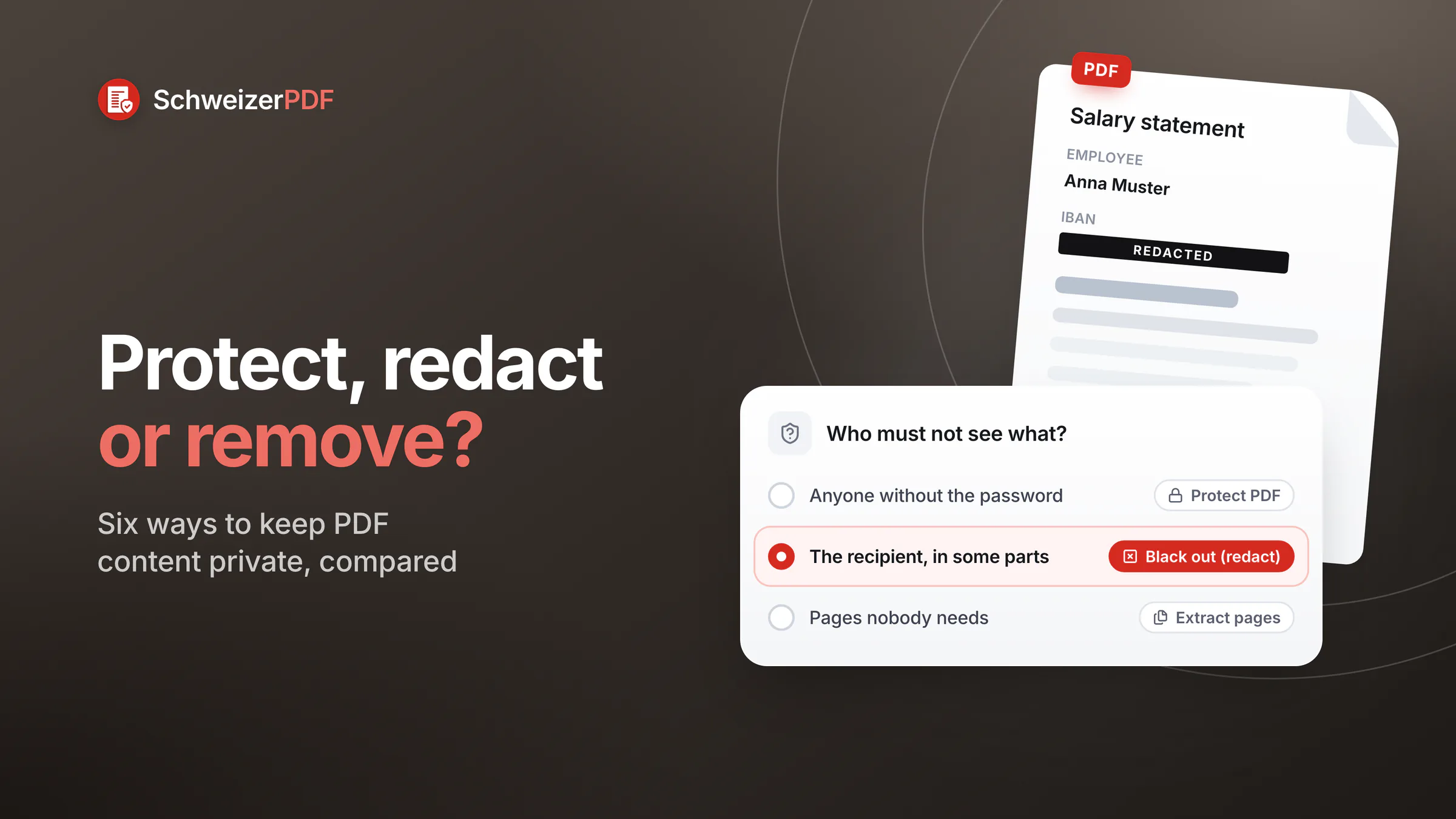
Password protect a PDF when the recipient may read all of it but nobody else should. Redact it when the recipient may see the document but not certain parts of it. Extract or remove pages when they only need some pages. The three solve different problems: a password keeps the whole file away from outsiders, redaction and page removal take content out of the copy for everyone — including the person you send it to.
Three more tools complete the picture: Remove hidden data for what travels along unseen, Turn pages into pictures when no text should be copyable, and Watermark to mark a copy. This comparison sets the six side by side and gives a decision guide. Which methods actually remove content and which only cover it is compared in Redact vs black box.
Six tools, six different jobs
- Protect PDF encrypts the file with a password to open it. Without the password the content is unreadable; with it, everything is visible.
- Black out (redact) permanently removes marked text and images. Marked pages become images with the areas blacked out; other pages stay as they are.
- Remove pages and Extract pages keep only the pages the recipient needs — one deletes the pages you choose, the other builds a new PDF from the pages you choose.
- Remove hidden data clears what is not on the page: document properties, XMP metadata, scripts, attachments and, if you choose, comments, form fields, hidden layers and bookmarks.
- Turn pages into pictures turns pages into images, so their text can no longer be copied or extracted and hidden page content is gone. It blacks out nothing.
- Watermark adds a text or image over or under the content — “Draft”, “Confidential”, “Copy for Muster AG”. It hides nothing.
Password, redaction and the rest compared
| Tool | Protects against | Who can still see the content | Reversible? | Text and search | Typical use |
|---|---|---|---|---|---|
| Protect PDF (open password) | Anyone without the password: a misdirected e-mail, a lost device, a shared folder | Everyone with the password — all of it | Yes, with the password (Unlock PDF) | Unchanged once opened | Sending a whole document to an authorised recipient |
| Black out (redact) | Specific values reaching the recipient | Everyone sees the rest; marked areas are gone for everyone | No — the copy has nothing left to recover; keep your original | Marked pages become images, not searchable | Sending to a third party who must not see some parts |
| Remove pages / Extract pages | Whole pages reaching the recipient | The remaining pages, in full | No, in the copy | Remaining pages unchanged | The recipient needs only some pages |
| Remove hidden data | Properties, comments, attachments and other unseen content travelling along | The visible pages stay visible to everyone | No, in the copy | Pages unchanged (unless you flatten or remove form fields) | Before any document leaves your organisation |
| Turn pages into pictures | Copying and extracting text; hidden and cropped-out page content | Everything visible stays visible | No, in the copy | No text left; searchable again only with OCR | Final copies where no text should be copyable |
| Watermark | Nothing is hidden; it marks the copy and its purpose | Everyone sees everything | Can be edited out with PDF software unless the pages are rasterised afterwards | Unchanged | Drafts, “Confidential”, a copy marked for one recipient |
The first column is the key question: who must not see what? A password draws the line around the file — inside it, the recipient sees everything. Redaction and page removal draw the line inside the document — and they draw it for the recipient too.
Which one for which situation
- The whole document goes to someone who may read all of it — protect it. A payslip for the employee, a contract for the client, a medical report for the patient: they need every page, you only want to keep others out. See password-protecting payslips and how PDF passwords work.
- The document goes to a third party who must not see some parts — redact. A salary statement for the bank without the AHV number, a court filing without a client's IBAN. A password would not help: the recipient would have it and see everything. See redacting AHV numbers and IBANs.
- Only some pages are needed — extract them, or remove the rest. Two pages of a forty-page annex for the insurer: Extract pages creates a new PDF with just those.
- The file goes outside your organisation at all — remove hidden data, whichever of the above you use. Author names, comments and attachments are not touched by a password for whoever opens the file, and not by redaction of the page. What else a PDF carries is listed in hidden data in PDFs.
- The recipient should not be able to copy text — rasterise. The permissions of Protect PDF can ask a reader not to allow copying, but whether it follows them depends on the reader.
- You want to mark who a copy is for, or that it is a draft — add a watermark, in addition to one of the methods above, never instead of them.
Combining them: the order matters
Many documents need two or three of these. With Continue with … the result goes straight to the next tool in your browser — see chaining tools; each step counts as its own operation. A sensible order:
- 1
Pages first
Extract pages or Remove pages, so that the later steps only handle what will be sent.
- 2
Then redact
Black out (redact) the values that must go on the remaining pages, and review every mark.
- 3
Then remove hidden data
Remove hidden data for properties, comments, attachments and the rest.
- 4
Mark and rasterise if needed
Watermark if the copy should be marked; Turn pages into pictures afterwards if no text should be copyable — that also makes the watermark part of the page image.
- 5
Protect last
Protect PDF at the end. Tools that change a PDF write a new, unprotected file — the app tells you when protection was removed — so the password belongs on the final copy.
Where each method stops
- A password is not redaction. Once the file is open, everything in it can be read, saved and forwarded.
- Permissions are not encryption. Restrictions on printing or copying are a request to the reader; only the open password keeps content confidential.
- Redaction is not page removal. It removes marked areas, not whole pages, and the search finds likely matches only — review every page. It also invalidates a digital signature, as does any change to a signed PDF.
- Removing pages leaves the rest of the file as it is — properties, comments and attachments included. Follow up with Remove hidden data.
- Rasterising is not redaction. What is visible stays visible; it only removes the text behind it.
- A watermark hides nothing. It is a label, not a lock.
Why the choice is made on your device
All six tools run in your browser. The unredacted original, the full document before pages are removed and the password you choose never leave your device: per run our server receives the tool id and the outcome, nothing derived from the file. The security page explains what is stored, and browser vs. upload compares this with upload-based PDF websites. Protect PDF, Black out (redact) and Remove hidden data are among the security tools; the others are in the tool overview.
Frequently asked questions
Should I password-protect or redact a PDF?
Ask who must not see what. If the recipient may see everything and only outsiders must not, protect it. If the recipient must not see some parts, redact them — a password would give the recipient everything.
Can I password-protect a redacted PDF?
Yes, and for sensitive documents that is often the right combination: redact first, then Protect PDF as the last step. Details in Password-protect a PDF and Redact safely.
Does removing pages leave anything behind?
The removed pages are gone from the copy, and so are their bookmark entries and form fields. The rest of the file — properties, comments on other pages, attachments — stays, which is what Remove hidden data is for.
Is a watermark enough for a confidential PDF?
No. A watermark shows that a document is confidential; it does not keep anyone from reading it. Combine it with a password or redaction.
Decide who must not see what, then pick the tool that draws the line in the right place. HR departments sending payslips and references — see SchweizerPDF for HR — can create a free account and do it all in the browser.
General information
This comparison describes general approaches and the SchweizerPDF tools in simplified form, not named products; it is not legal or security advice. Which method is sufficient for your documents is your decision — check every result before you send it, and ask a qualified professional where legal obligations apply.