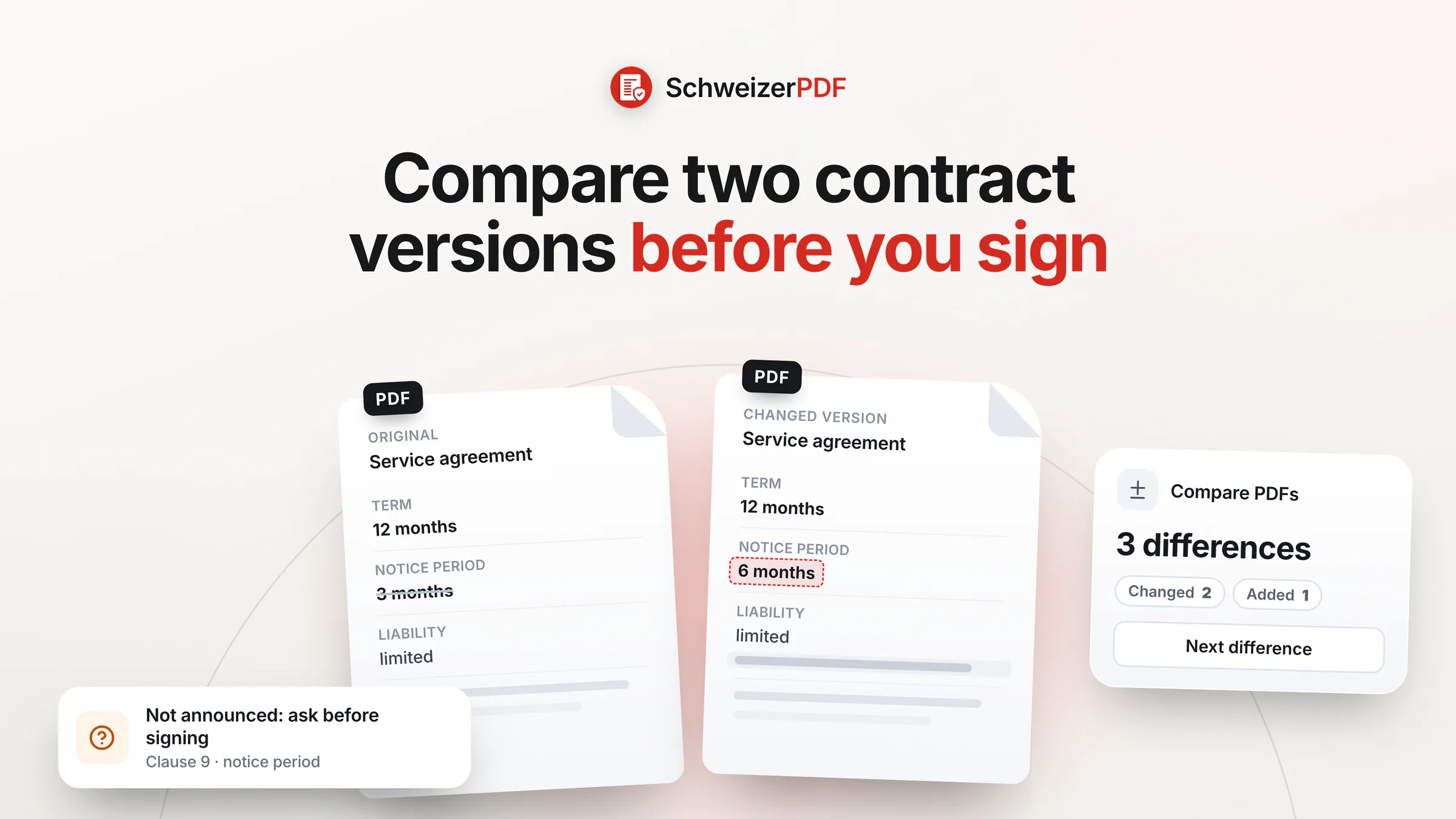
To compare two PDF versions of a contract, open Compare PDFs, add the version you last sent as Original and the revised one as Changed version, and run it in Text and look mode. The result lists every added, removed and changed word, added or removed pages and changes in appearance, side by side or overlaid. Then read each highlighted difference and ask about any change nobody announced. In SchweizerPDF the comparison runs in your browser, so neither draft is uploaded.
Contracts and offers rarely go back and forth only once. A lease or a supplier offer comes back with a note saying “only the dates are updated” — and the notice period has quietly moved from three months to six, or a liability cap has disappeared. A comparison shows you where to look; reading the marked passages remains your job.
What a PDF comparison finds in a revised contract
Compare PDFs reads the text of both files word by word and, depending on the mode, also compares how the pages look. Each difference is listed with its type:
- Added, removed and changed words — “three months” changed to “six months”, a sentence added to the liability clause, a word deleted from a definition.
- Pages added or removed, or a changed page size — a new annex, a missing signature page.
- Changed appearance — a logo, a table, a stamp or an image that differs, and layout changes the text does not explain.
- Moved text — a moved paragraph is shown as removed in one place and added in another; where text has moved in from other pages, the result says so.
The result shows the number of differences with a chip for each type, the two versions Side by side or as an Overlay, and a list you step through with Next difference. With Also save a PDF with the changes marked, you also get a PDF of the revised version in which every difference is a highlight, frame or note that ordinary PDF viewers list in their comments panel.
How to compare two versions of a contract, step by step
- 1
Keep your own last version
Save every version you send as a PDF with the date in its name, such as
2026-10-02_service-agreement_v3_sent.pdf. The comparison is only as good as its reference: compare against the version you last sent or agreed, not against an older draft of the other side. - 2
Add both files
Open Compare PDFs from the document info tools and add both PDFs. Your version belongs under Original, the revised file under Changed version; the swap button switches them if they are the wrong way round.
- 3
Choose the mode
Text and look suits most contracts. Use Text only when only the wording matters, and Look only for scans — see below.
- 4
Review every difference
Go through the list with Next difference and read each passage in context, in both versions. Look hardest at amounts, dates, deadlines, notice periods, liability, termination and place of jurisdiction, and at small words such as “not”, “only” or “at the latest”, which turn a sentence around with a few letters.
- 5
Compare with what was announced
Hold the list against the other side's cover note or summary of changes. Anything changed but not mentioned is a question for them before you sign: ask in writing and keep the answer with the file.
- 6
Keep the record and check the final copy
Save the marked-up PDF next to both versions as a record of what you checked. When the copy for signature arrives, compare it once more with the last version you agreed.
Which comparison mode fits your documents?
| Mode | Use it for | Good to know |
|---|---|---|
| Text and appearance | Contracts and offers created digitally, such as exports from a word processor | Reports text changes and, where the text does not explain a change, differences in appearance |
| Text only | Long documents where only the wording counts | Formatting, images and stamps are not compared |
| Appearance only (for scans and drawings) | Scans, plans and drawings | Compares the rendered pages; Sharpness of the comparison and Ignore small colour differences set how fine it looks |
Scanned and signed contract versions
A scan is a picture of a page: it carries no text, so a text comparison has nothing to read. You have two options. Run Make scans searchable (OCR) on both scans first and compare the searchable copies — OCR errors, especially in numbers, can then show up as differences, so check each one against the image. Or choose Look only, which compares the pages pixel by pixel. That works best when both files come from the same digital source: two scans of the same paper are rarely aligned exactly, and a slight shift or other lighting shows up as differences. How OCR handles contracts is shown in making a scanned contract searchable.
Compare PDFs only reads the two files and does not change them, so comparing a digitally signed PDF leaves its signature intact. What signatures mean in general is explained in electronic signatures in Switzerland. If a file restricts copying, the tool asks you to confirm that you have the right to extract its content before it runs.
What a comparison does not replace
- Reading the contract. The comparison shows what differs between two files, not whether a clause is good for you. A clause that was already unfavourable in your own version stays unmarked.
- Formatting-only changes need an appearance mode. In Text only, bold type, a smaller font or another colour is not a difference.
- Comments and form fields are compared by their appearance only, not as text.
- Annexes in separate files need their own comparison: the tool compares exactly two PDFs.
- Word documents are not converted: SchweizerPDF does not offer Office conversions, so both versions must be PDFs.
Draft contracts are confidential by nature, and in a law firm often covered by professional secrecy — see professional secrecy and online PDF tools. With SchweizerPDF both versions are processed in your browser and never sent to or stored by us; per run, our server receives only which tool ran and whether it finished. Details are on the security page. You need an account and a connection, and local processing does not protect against a compromised device or a browser extension that can read your pages. Which plans include Compare PDFs is shown on the pricing page.
Frequently asked questions
Which version should be the “Original”?
The version you last sent or agreed to. Everything listed as added or changed is then what the other side has done since — and none of their edits hides behind your own.
Can I compare a Word document with a PDF?
Not directly. SchweizerPDF works with PDFs and does not convert Word documents. Export both versions to PDF in the program they were written in, then compare the two PDFs.
Can I send the marked-up PDF to the other party?
Yes, it is an ordinary PDF with the differences as comments. The notes are written in English and quote the changed text, so check first that it holds nothing you want to keep internal — and see hidden data in PDFs for what else a file can carry.
The comparison tool is in the Details & extras section of the tools page, and text recognition for scans is explained in OCR for scanned documents. Ready for the next revision? Create a free account.
General information
This guide describes how the SchweizerPDF comparison tool works. It is general information, not legal advice. A comparison can miss a difference or mark one that does not matter, and it does not assess what a contract says. Read the whole document before you sign, and for the meaning of a clause or a change, ask a qualified lawyer.