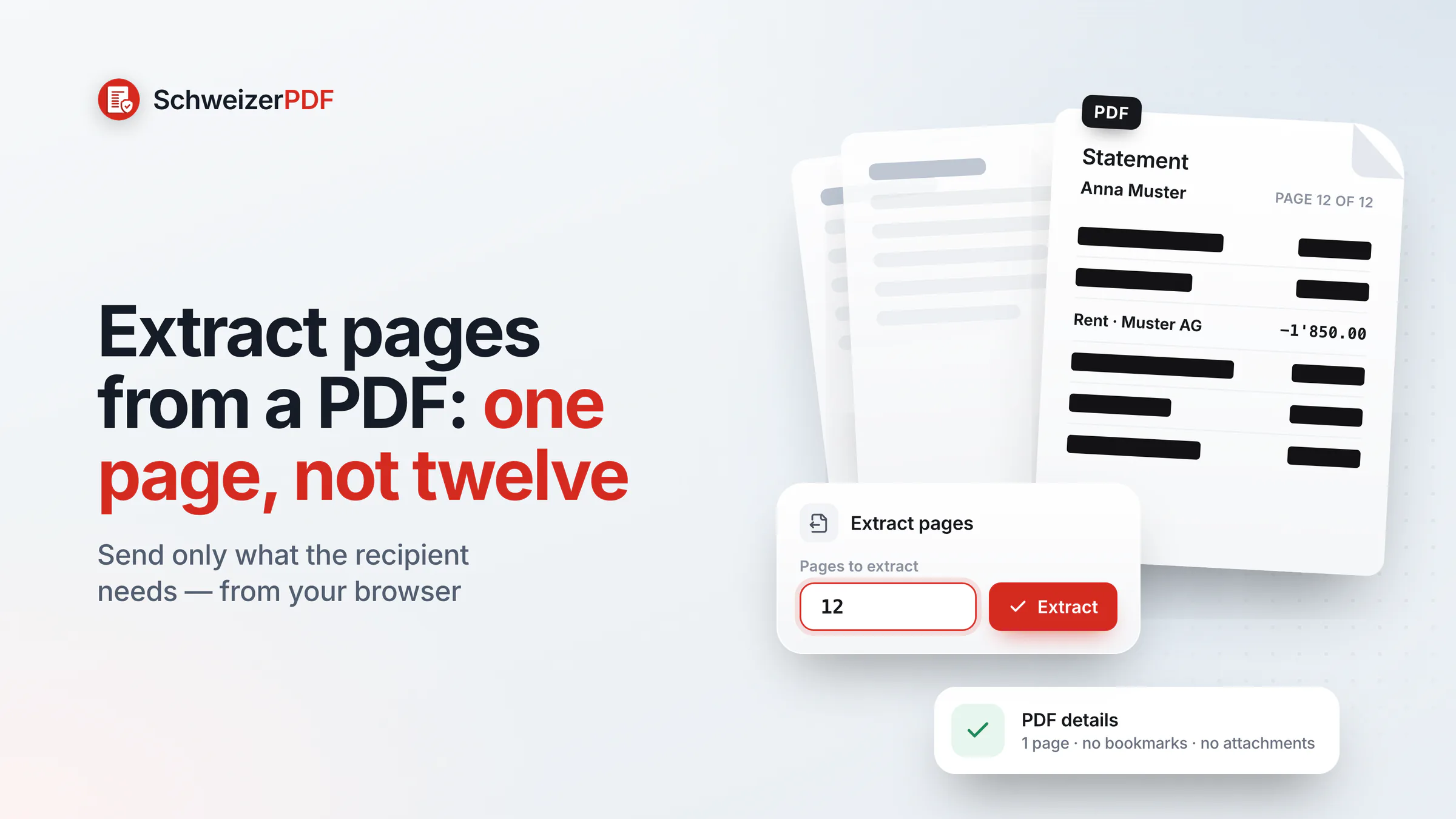
To extract pages from a PDF, open Extract pages, enter the pages you need — 12, or 1, 11-12 — and save the new file. It contains only those pages; the original stays as it is. Then go through what is left: redact the lines on those pages that are none of the recipient's business, clear the hidden data and check the copy with PDF details. In SchweizerPDF every step runs in your browser, so the full statement is never uploaded.
A new landlord wants proof that you pay your rent. An office asks for one year of an insurance policy that covers ten. A bank statement for the whole year shows your salary, your doctor's bills, your donations and every shop you went to. Sending one page instead of twelve is data minimisation in practice: what you do not send cannot be forwarded, filed for years or leaked.
Extract pages or remove pages: which one?
Both tools make a smaller copy. Which one is quicker depends on how much of the document stays:
| Tool | What it does | Use it when |
|---|---|---|
| Extract pages | Builds a new PDF from the pages you choose, in the order you choose; pages can repeat | You need a few pages out of many — one month of a statement, one year of a policy |
| Remove pages | Deletes the pages you choose; everything else stays in order | You need almost everything — the statement without the two pages of general terms |
| Organise pages | Shows every page as a thumbnail to move, rotate or delete | You want to see the pages while you decide |
Whether fewer pages are the right answer at all, or a password or redaction would fit better, is set out in protect, redact or remove.
How to extract pages from a PDF, step by step
- 1
Open Extract pages
Sign in, open Extract pages and select the statement with Select PDF file (or drop it on the page). If the PDF is password-protected, you enter the password first; the result is saved without protection, and the app tells you so.
- 2
Choose the pages
Click the page thumbnails, or type into Pages to extract:
12for one page,3-5for a range,8-for page 8 to the end, several entries separated by commas. The order you type is kept, so12, 1puts page 12 first. - 3
One file or several
Leave Save each page as a separate PDF off for one file. Switch it on when a portal wants each page as its own upload.
- 4
Extract and download
Click Extract pages at the bottom of the options, then Download PDF, and save the copy under a new, neutral name. The original on your disk is not changed.
- 5
Redact what the page still shows
The page you keep usually holds more than the recipient needs: other transactions, a balance, a customer number. Remove them with Black out (redact) — how searching and marking work is shown in redacting AHV numbers and IBANs. Which plans include Black out (redact) is shown on the pricing page.
- 6
Clear the hidden data
Use Remove hidden data on the copy, choose Choose what to remove and keep Author, title and dates, Extra document details and Attached files switched on; also switch on Bookmarks, which is off by default.
- 7
Check with PDF details
Open the final copy in PDF details: the page count should be what you meant to send, with no bookmarks, no attached files and no properties you did not expect.
What extracted pages still carry
Extract pages and Remove pages tidy up behind themselves: bookmarks that only pointed to removed pages are dropped, so are the form fields of those pages, and links to them stop working. Some things, however, belong to the document rather than to a page, and they travel with every copy:
- Document properties and XMP metadata — a title such as “Account statement 2025 – all accounts”, an author, the software that produced it.
- Attached files — a statement can carry a CSV of all transactions as an attachment.
- Bookmarks of the pages you keep — and a bookmark heading stays as long as one of its entries points to a kept page, with its title unchanged.
- Everything printed on the page — the running balance, “Page 12 of 12”, the other transactions. Only Black out (redact) removes that.
Remove hidden data clears the first three; what else a PDF can carry unseen is listed in hidden data in PDFs.
Digitally signed statements
Some banks and insurers sign their PDFs digitally. Any change — extracting pages included — invalidates that signature, and SchweizerPDF warns you before it happens. If the recipient needs a verifiable signed original, ask whether an extract is accepted, or send the original unchanged. What a signature does and does not prove is explained in electronic signatures in Switzerland.
Example: proof of rent for a new landlord
Anna Muster's e-banking statement covers twelve months on twelve pages. The property management of her new flat asks for proof that her last rent was paid. She extracts page 12, redacts every transaction on it except the rent payment to Muster AG, and runs Remove hidden data. PDF details shows one page, no bookmarks and no attached files, and she saves it as rent-december.pdf. The full statement stays in her own files.
The same works for an insurance policy: an office that needs the cover for one year gets those pages, not the whole history. A fiduciary forwarding a client's documents to an authority can do the same with a scope that is often narrower than the file it holds.
Why sharing fewer pages is worth the extra minute
The Swiss Federal Act on Data Protection (FADP/nDSG) asks anyone processing personal data to keep it to what the purpose needs — what that means for everyday documents is summarised in the nDSG and everyday PDFs. When you send your own documents, the same idea protects you: the recipient keeps only what it asked for.
With SchweizerPDF the full statement stays on your device while you cut it down: per run our server receives only which tool ran and whether it finished, nothing derived from the file — see the security page. You need an account and a connection, and local processing does not protect against a compromised device or a browser extension that can read your pages.
Frequently asked questions
Can I extract pages that are not next to each other, in a different order?
Yes. Separate them with commas — 1, 4-5, 2 — and the new PDF follows the order you typed. A page can even appear twice.
Will the recipient see that pages are missing?
The file itself only shows the pages it contains. But text printed on the page, such as “Page 12 of 12” or a balance carried forward, still shows where the page came from. Redact it if that matters.
Can I extract pages from a password-protected PDF?
Yes, after entering the password. The result is not protected; if it should be, run Protect PDF as the last step — see Password-protect a PDF.
Does extracting pages change the original file?
No. The tool writes a new PDF and the original stays on your disk exactly as it was. Keep it — you may need the full statement later.
For the tools themselves, see Merge and split PDFs and Redact safely in the help center; all page tools are in the Organise section of the tools page. Ready? Create a free account and send only the pages that matter.
General information
This guide describes how the SchweizerPDF tools can be used to share parts of a document and is not legal advice; the note on data protection is simplified. Which pages and details a recipient may ask for, and whether an extract or a redacted copy is accepted, depends on the case — ask the recipient or a qualified professional if in doubt, and check every copy before you send it.