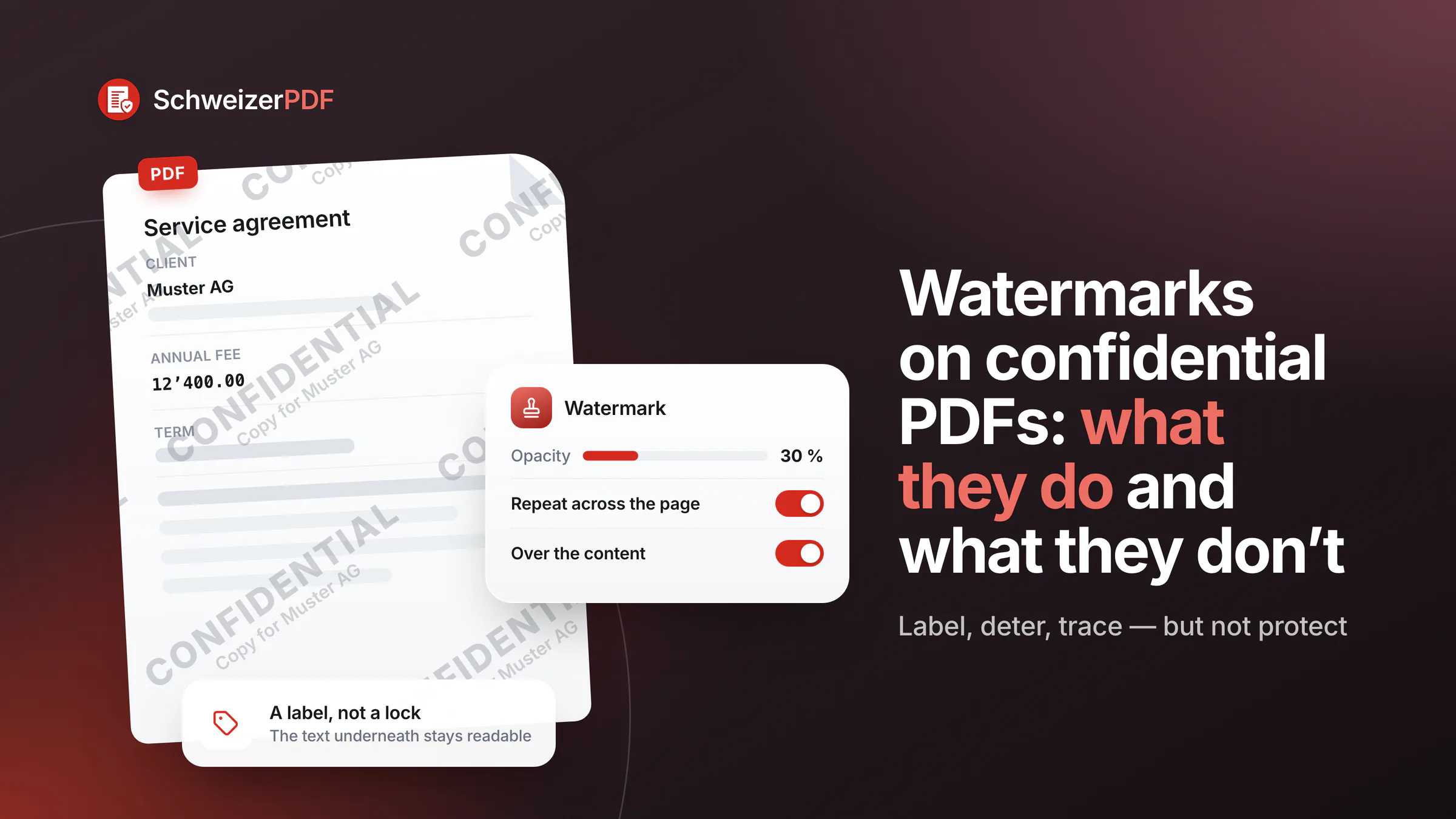
To add a watermark to a PDF, open Watermark, type a text such as “Confidential” or “Copy for Muster AG” (or choose an image), set the opacity, rotation, position and layer, and run the tool. In SchweizerPDF this happens in your browser: the document is not uploaded, and the original stays unchanged on your disk.
A watermark is a label printed across the page. It tells every reader what the document is and who it was meant for, and it makes careless forwarding less likely. What it does not do is hide or lock anything: the content underneath stays readable, and the watermark itself can often be removed. Knowing both sides helps you use it for the right job.
What a watermark on a confidential PDF does
- It labels the status. “Draft”, “Confidential” or “For internal use only” across every page stops a working version from being mistaken for the final one, and reminds every reader how to handle it.
- It deters. A document that visibly says “Copy for Muster AG” is less likely to be passed on casually. Most people think twice before forwarding something that names its recipient.
- It traces a copy. If each recipient gets their own copy with their name and the date in the watermark, a copy that turns up somewhere else shows which version it came from — as long as nobody has removed the mark.
- It survives printing. Unlike a note in an e-mail, the watermark is part of the page. It is still there on paper and on a scan of that paper.
What a watermark cannot do
A watermark is added to the page, it does not take anything away. Everything under it — names, salaries, an IBAN — stays in the file and can still be read, selected and copied. A semi-transparent mark is meant to leave the content readable, so it cannot also make it unreadable.
It is also not permanent. A watermark added as its own object can often be deleted with PDF editing software; one in the margin can be cropped away; one under the content can be covered. A determined recipient can also simply retype or photograph the page. Treat a watermark as a label and a deterrent, not as a lock.
A watermark is not redaction
If the recipient must not see a value at all, remove it with Black out (redact) — a watermark or a box drawn over it leaves the text in the file. If only certain people may open the document, add a password with Protect PDF. Why covering is not removing is explained in the most common redaction mistakes.
How to add a watermark to a PDF, step by step
- 1
Open Watermark
Sign in, open Watermark from the edit tools and select your PDF with Select PDF files (or drop it on the page).
- 2
Choose text or an image
For a text watermark, type the label; it can have several lines, for example “Confidential” and “Copy for Muster AG, 16.10.2026”. For an image, choose a PNG or JPEG, such as a stamp.
- 3
Set how it looks
Pick the font, colour and opacity. Fit the text to the page sizes the text to each page by itself; switch it off to set a fixed size.
- 4
Place it
Choose Repeat across the page to tile it, or One watermark at a position such as the centre or a corner. Diagonal rotation runs it from corner to corner; Custom angle lets you set the degrees.
- 5
Choose the layer and the pages
Over the content is visible on every kind of page; Under the content keeps the text on top. Limit it to some pages if needed, for example every page except the cover.
- 6
Add it and check
Click Add watermark at the bottom of the options, then Download PDF, save the result under a new name and open it. Check that the label is readable and that nothing the recipient needs is hidden.
Watermark options explained
| Option | What it does | Good starting point |
|---|---|---|
| Opacity (%) | How strongly the mark shows | Low enough that the text underneath stays easy to read |
| Rotation | Diagonal, or a custom angle | Diagonal for “Confidential”, horizontal for a recipient line |
| Position | Repeat across the page, or one watermark at a chosen spot | Repeat for tracing — a tiled mark is harder to crop away |
| Layer | Over or under the content | Over for scans and photos; under for text documents |
| Pages | All pages or a selection | All pages, so no page can be separated unmarked |
| Hide from screen readers | Marks the watermark as decoration | On, so assistive technology reads the document, not the label |
One detail matters for scans: a page that is one big image covers anything beneath it. If you put the watermark under the content on such a page, it may not be visible — the tool warns you on which pages that happens. Put it over the content instead.
Making a watermark harder to remove: Turn pages into pictures and Flatten
After watermarking, you can continue with Turn pages into pictures. It turns each page into an image, so the watermark and the content become one picture: there is no separate watermark object left to delete, and the text can no longer be selected or copied. This makes removal harder — not impossible. Someone with image-editing skills, or a camera, can still work around it.
- The trade-off. Rasterised pages lose their text layer, so they can no longer be searched; links can be kept as an option. The file usually grows — Compress PDF can help afterwards.
- Lock the form fields first, if the file has forms or comments. Lock form fields makes form fields and annotations part of the page, so filled-in values and notes cannot be changed afterwards. It does not change the watermark itself; that is what Turn pages into pictures is for.
- Keep the original. Rasterise a copy and keep the editable version for yourself.
You do not need to download in between: choose Continue with … and the result is handed over in your browser's memory (how chaining works). Which plans include Turn pages into pictures is shown on the pricing page.
Header & footer and page numbers for document control
A watermark says what a document is. A header or footer says which version it is. Header & footer adds text left, centred or right — with the page number, the date, the file name or the document title — so every printed page carries “Confidential · Draft 3 · 16.10.2026” without covering the content. Page numbers can also add Bates numbers that continue across several files, which helps when a law firm or an HR department sends a set of documents and both sides need to refer to the same page.
A practical pattern for a confidential set: a light diagonal “Confidential” watermark, the recipient's name and the date in the footer, page numbers in the form “Page 1 of 12”, and — for the copy that leaves the organisation — Turn pages into pictures last.
Frequently asked questions
Can a watermark be removed from a PDF?
Often, yes. A watermark added as its own object can be deleted with editing software, and one in the margin can be cropped off. Tiling it across the page and rasterising the pages make removal harder, but no watermark is impossible to remove.
Should the watermark go over or under the content?
Over the content works on every page, including scans and photos. Under the content keeps text crisp on documents with a white background, but is hidden by full-page images.
Does a watermark make a PDF secure?
No. It labels the document and discourages sharing, but the content stays readable. To remove information, use Black out (redact); to control who can open the file, use Protect PDF — see PDF password protection explained.
Is my document uploaded when I add a watermark?
No. Watermark runs in your browser. About your files, our server only learns that the tool was started and whether it finished — see where your files are processed and the security page.
Use a watermark to label and trace, Black out (redact) to remove, and Protect PDF to restrict who opens a file. For practical cases, read watermarking a copy of your ID and a rental application dossier in one PDF. Ready to try it? Create a free account.
General information
This article describes how the Watermark tool and related tools work and is not legal advice. A watermark does not protect or remove content; whether it is sufficient for a given purpose is your decision — check every copy before you send it.