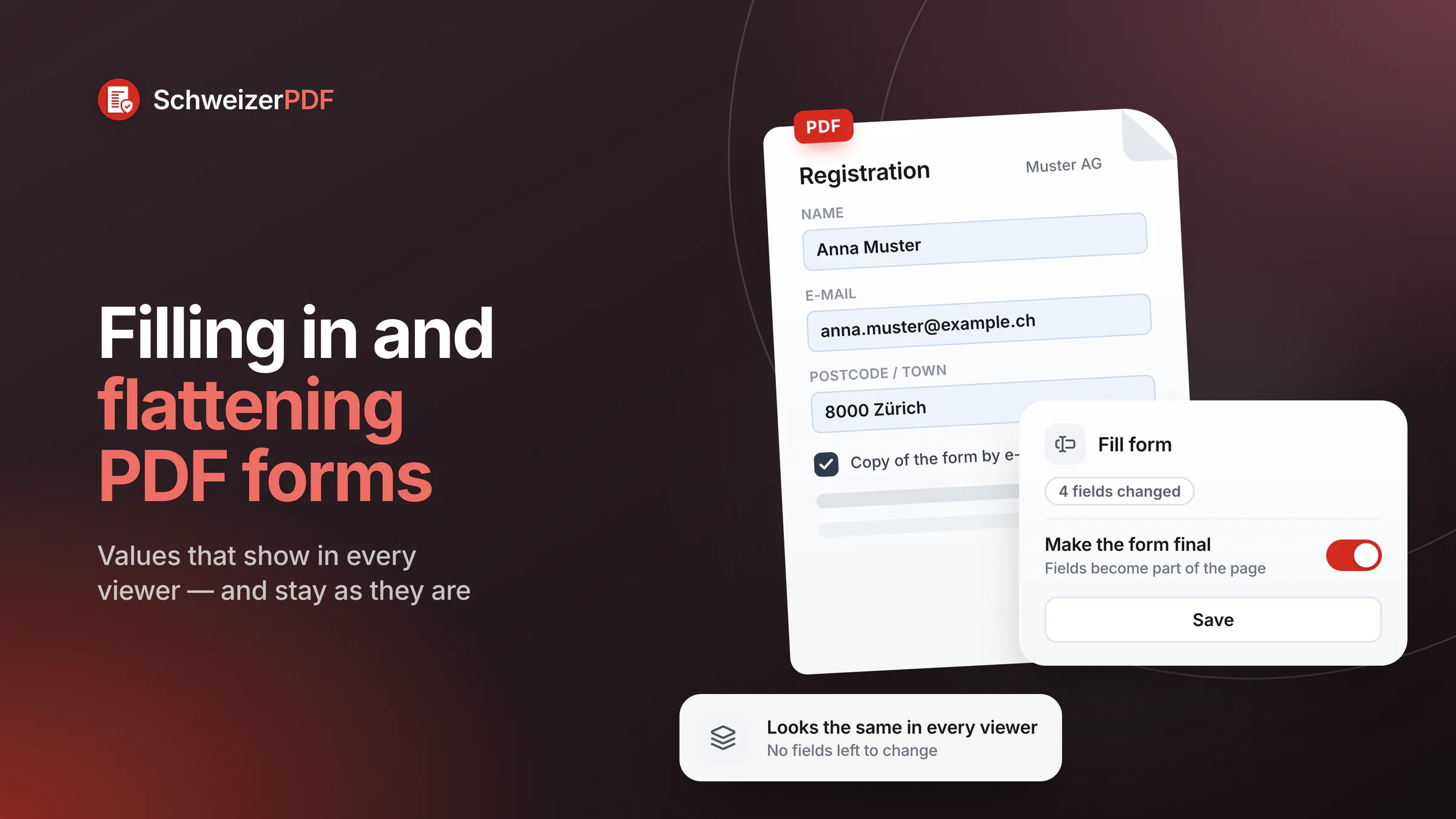
To fill in a PDF form and keep what you typed, open it in Fill form, enter the values and save: the tool writes each value into its field and draws it, so it shows in every PDF viewer. To make the form final before you send it, switch on Make the form final (fields become part of the page) — or run Lock form fields on a form you filled elsewhere. The values then become part of the page and can no longer be changed in a form field.
Below: what a fillable form is, why a value sometimes disappears in another viewer, when to flatten, how to build your own form with Create form, and why filled-in forms need care.
What a fillable PDF form is
A fillable PDF — in technical terms an AcroForm — has two layers. The page is the printed form: labels, lines, boxes. On top of it lie form fields, separate objects with a name (for example postcode), a value and an appearance, the small picture of the value that a viewer paints into the box. Because the fields are separate from the page, a viewer can let you type into them, and another program can read the values out.
- Text fields for names, addresses, amounts or a longer comment.
- Check boxes for yes/no answers and option buttons where only one of several answers applies.
- Drop-down lists and lists for a fixed choice, such as a canton or a type of leave.
- Signature fields — an empty place reserved for a signature.
Not every PDF that looks like a form is one. A scanned form or a document exported without fields has nothing to type into; Create form can add the fields (below). Some forms use dynamic XFA, a format only one desktop reader supports: Fill form tells you so and cannot fill them.
How to fill in a PDF form and save it
- 1
Open Fill form
Sign in, open Fill form from the form tools and select the PDF with Select PDF file (or drop it on the page), for example a registration form from Muster AG. It is read in your browser; it is not uploaded.
- 2
Fill in the fields
Click into a field or move from field to field with the keyboard. Required fields are marked with an asterisk, and a counter shows which ones are still empty — you can save anyway if a field does not apply.
- 3
Check your changes
Only the fields you change are written. Reset my changes takes you back to the values that were in the file.
- 4
Decide: editable or final
Leave the fields editable if someone still has to complete or process the form. Switch on Make the form final if the values should stay as they are.
- 5
Save and check
Save the result and open it once in a second viewer, such as the one on your phone, before you send it.
Two things to know before you save. Calculations, input masks and validation scripts in a form are not run — totals are not updated, so check them yourself; built-in number, percent and date formats are applied. Values of password fields are never saved in the PDF.
Why filled values don't show in some PDF viewers
A field stores its value and its appearance separately. Some programs save only the value and set a flag asking the next viewer to redraw every field. Many viewers do; others — preview apps, some phone viewers, print pipelines — simply paint the appearance stored in the file. The result: the recipient sees an empty box or an old value, although the correct value is in the file.
Fill form avoids this. It draws a new appearance for every field you change, and if the file asked viewers to redraw its fields, it redraws all text and choice fields and clears that request. That is what the option Update how fields look does — it is always on. If a form you received shows empty boxes in one viewer, opening it in Fill form and saving it again usually fixes it.
Check in a second viewer
Viewers differ. Before a form goes to an authority, a landlord or an insurer, open the saved file once in a different viewer from the one you filled it in. If the values show there, they will show for the recipient.
Flatten a PDF form before you send it
Flattening paints the fields' appearances into the page and removes the fields. Afterwards the values are page content: they look the same in every viewer, they can no longer be changed in a form field, and a form tool finds no field data to read out or alter. You can flatten in two ways: with the switch in Fill form, or with Lock form fields for any PDF — a form filled in another program, or a document with comments. Its options:
- What should no longer be editable?: Form fields, Comments and marks, or Both.
- Keep links clickable, so links in the document still work.
- Only what is printed, which leaves items that are visible only on screen as they are.
- Hidden annotations are removed. Attachments and media annotations are never flattened: their icon would hide the file they carry.
Do not flatten when the recipient has to work with the fields — an office that reads the values out of the form, or a colleague who completes the second page. Keep an unflattened copy in any case: a flattened form cannot be turned back into fields. And flattening is not a lock: someone with editing software can still change page content. How flattening compares with a permissions password, rasterising and a digital signature is set out in ways to make a PDF not editable. Any change to a digitally signed PDF, flattening included, invalidates the signature — the app warns you first.
Create a fillable PDF form with Create form
Create form adds fields to an existing PDF — for instance a membership form that Muster AG wrote in a word processor and exported. You place each field on the page and choose its type: Text, Check box, Option buttons, Drop-down list, List box, Date or Signature field. Fields already in the PDF are shown locked, so you cannot break them by accident. When you are done, Fill in this form passes the result straight to Fill form in your browser.
- Give each field a clear name (
last_name, notText3): it is what a program reading the values sees, and a Tooltip helps people using a screen reader. - Mark mandatory fields as Required; use Read-only for a value the person filling in must not change.
- Choose the right type. A Date field with a Date format avoids ten spellings of the same day; a drop-down list avoids typing errors.
- Test the form once yourself before you send it out.
Which plans include Create form is shown on the pricing page.
Filled-in forms are personal data
A filled-in form often holds more personal data than any other document: name, address, date of birth, AHV number, IBAN, sometimes health or salary details. Under the Swiss Federal Act on Data Protection (FADP/nDSG) that calls for care in who receives it — what that means for everyday documents is summarised in the nDSG and your everyday PDFs. With an upload-based form website, every value you type travels to someone else's server. With SchweizerPDF the form is filled in your browser: per run, our server receives only the tool id and the outcome, nothing you typed — see the security page.
Before you pass a form on, think about what travels with it. Remove hidden data has a Form fields option — Keep them, Flatten them into the page or Remove them — and clears document properties, attachments and comments in the same run; details in hidden data in PDFs. If the form goes by e-mail, protect it with a password as described in sending a confidential PDF by e-mail.
Frequently asked questions
Can I save a filled-in PDF form without flattening it?
Yes. By default Fill form keeps the fields: the values are saved in them and the recipient can still change them. Flatten only when the values should stay as they are.
Can a flattened form be made fillable again?
Not with its original fields — after flattening, the values are part of the page. You can add new fields with Create form, but the old values stay printed underneath. Keep the unflattened file if you may need to edit it.
Why does a form say it can't be filled in here?
It is a dynamic XFA form, a format only one desktop reader can display. Ask the issuer for a regular PDF form, or fill it in with the reader they name.
Are the calculations in a form carried out?
No. Form scripts are not run, for security; built-in number, percent and date formats are applied. Check totals and calculated fields before you save.
Fill in, check in a second viewer, flatten when the values are final, and keep the original. Authorities and offices that issue forms are covered in SchweizerPDF for public administration; where your files are processed is explained in where your files go. Create a free account to fill in your next form in your browser.
General information
This article explains PDF forms and the SchweizerPDF form tools in simplified form; it is not legal advice. Whether a filled-in or flattened form meets an issuer's requirements is for you to check with that issuer — for questions about data protection, ask a qualified professional.