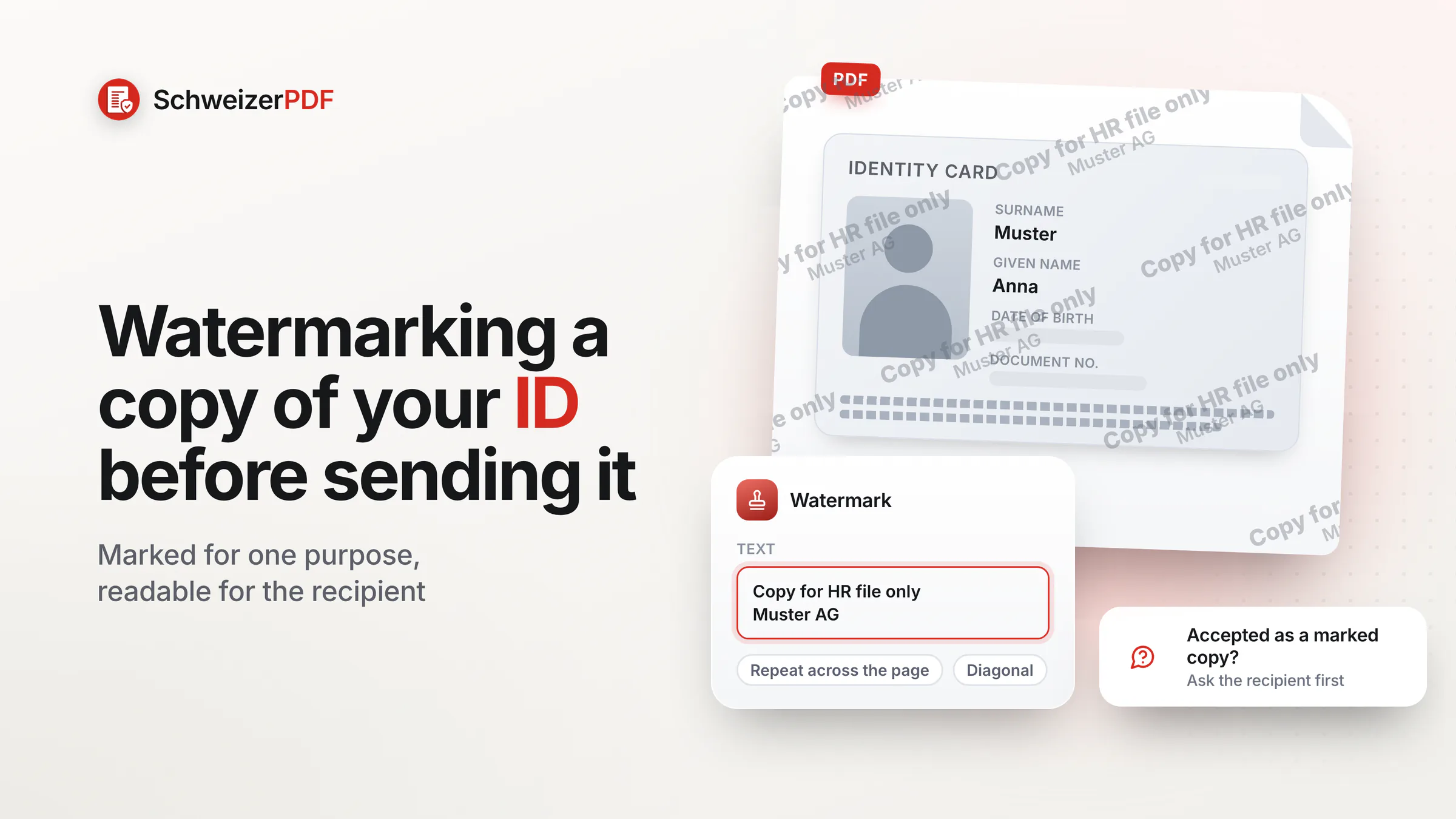
To watermark a copy of your ID card or passport, turn the photo or scan into a PDF with Images to PDF, then add a semi-transparent watermark repeated across the page with Watermark — stating the purpose, the recipient and the date, for example “Copy for HR file only · Muster AG · 16.10.2026”. Optionally finish with Turn pages into pictures and Compress PDF. Every step runs in your browser; the copy of your ID is never uploaded.
A new employer, an insurer, a landlord, a club or an online platform: many organisations ask for a copy of an identity document. Once sent, that copy sits in mailboxes and files you do not control. A watermark does not stop it from being read, but it makes it clear what it was given for — and less useful for anything else.
Why put a watermark on a copy of your ID?
- It names the purpose. A copy marked “for the HR file only” is harder to pass off as a general-purpose ID copy, for example to open an account in your name.
- It ties the copy to one recipient. If a copy turns up where it should not, the recipient's name and the date show which one it was.
- It keeps the document usable. A light, tiled watermark leaves your name, photo and dates readable for the person who legitimately needs to check them.
It also has limits. A watermark adds a label; it removes nothing and locks nothing. A determined person can try to edit it out or retype the data. What a watermark can and cannot do is explained in adding a watermark to confidential PDFs.
Ask before you send a marked copy
Some recipients need an unaltered copy, or use their own identification process — for example regulated identification at a bank or an insurer. A watermarked copy may be refused there. Ask the recipient first whether a marked copy is accepted and which details they actually need.
Watermark an ID copy step by step
- 1
Photograph or scan both sides
Lay the card flat in good light, avoid glare on the photo and the security features, and capture the front and the back. For a passport, the photo page is usually enough — ask what the recipient needs.
- 2
Turn the images into a PDF
Open Images to PDF in the convert tools and add both images. Set Pictures per page (under More options) to 2 and the Page size to A4, so the front and the back sit on one page, and keep Fit to the page.
- 3
Continue with Watermark
Choose Continue with … and pick Watermark — the PDF is handed over in your browser's memory (how chaining works). Type the text on three lines: the purpose, the recipient and the date.
- 4
Repeat it across the page
Choose Repeat across the page, Diagonal rotation and Over the content. A photo fills the page, so a watermark under the content would be hidden. Keep the opacity low enough that every value stays readable.
- 5
Check readability
Open the result and zoom in. The recipient must still be able to read your name, date of birth, document number and expiry date, and recognise the photo, if they need them.
- 6
Optionally rasterise
Turn pages into pictures turns the page into one image, so the watermark is no longer a separate object that can be deleted. Removal becomes harder, not impossible.
- 7
Compress and save
Phone photos make large files. Compress PDF with Balanced usually gives a size you can attach to an e-mail (compressing a PDF for e-mail). Save it under a neutral name such as
id-copy-muster-ag.pdf.
What to write in the watermark
| Element | Example | Why |
|---|---|---|
| Purpose | Copy for HR file only | Makes reuse for another purpose obvious |
| Recipient | Muster AG | Shows where a copy came from if it turns up elsewhere |
| Date | 16.10.2026 | Separates this copy from the ones you send later |
Keep it short: three lines read better than one long sentence, and Fit the text to the page sizes them for you. A mid-grey colour stays visible on light and dark parts of the card. Each recipient should get their own copy, so run Watermark once per recipient with their name.
Share only what is needed
A watermark works best together with restraint. Send a copy only when it is actually asked for, ask whether the front of the card alone is enough, and ask what the copy is for and how long it will be kept. For a rental application there is specific guidance from the Federal Data Protection and Information Commissioner (FDPIC) on when an ID copy may be requested — it is summarised in a rental application dossier in one PDF.
If the recipient confirms that they do not need certain details, you can remove them with Black out (redact) instead of merely covering them — the method is the same as in redacting AHV numbers and IBANs. Never cover a value with a box or a dark watermark: the original stays in the file.
Frequently asked questions
Will a bank or an authority accept a watermarked ID copy?
That depends on the recipient and the procedure. Some accept marked copies, others need an unaltered copy or identify you in their own way. Ask before you send.
Can someone remove the watermark?
It is harder after Turn pages into pictures, because the watermark and the image become one picture, and a tiled mark cannot simply be cropped off. It is never impossible — treat the watermark as a label, not as protection.
Where should the watermark go?
Across the whole page, over the content, at a low opacity. That way no part of the card can be cut out unmarked, and every detail stays readable.
Is my ID uploaded when I do this?
No. Images to PDF, Watermark, Turn pages into pictures and Compress PDF all run in your browser. About your files, our server only learns which tool was started and whether it finished — see the security page. The original photos stay on your device; delete them there if you no longer need them.
Mark the purpose, recipient and date, keep the copy readable, and ask before you send. Why processing on your own device matters for documents like these is explained in why your PDF tool shouldn't see your documents. Which plans include Turn pages into pictures is shown on the pricing page. Ready to try it? Create a free account.
General information
This guide describes how the tools work and is general information, not legal advice. Whether a watermarked copy is accepted, and which details a recipient may ask for, depends on the recipient and the procedure — ask them, and for legal questions consult a qualified professional.