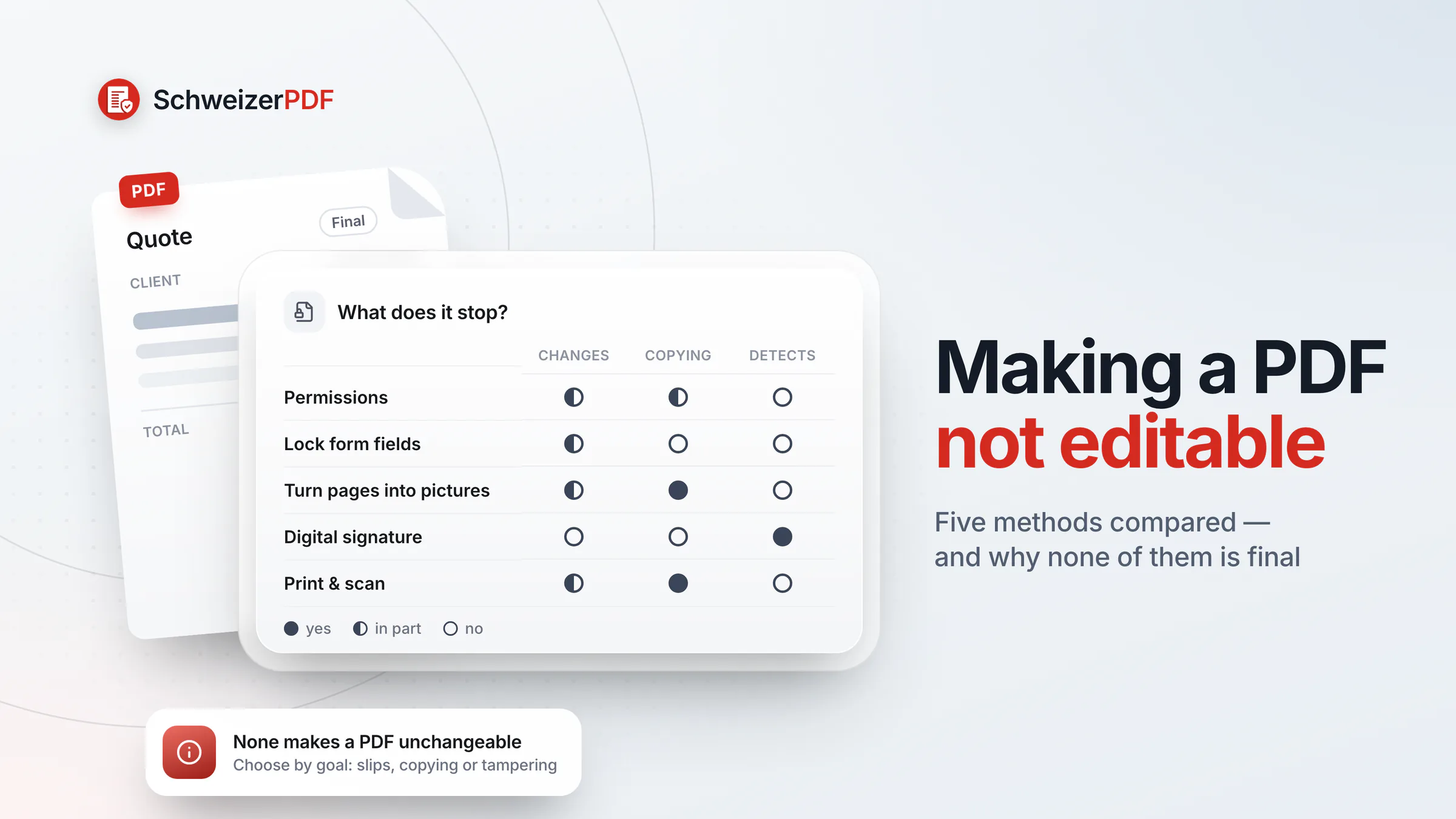
No method makes a PDF impossible to change: anyone with a copy and the right software can write a new version of it. What you can do is make changes harder, make copying harder, or make changes visible. To prevent accidental changes to filled-in values, flatten the PDF. To ask viewers not to allow edits or copying, set permissions with Protect PDF — compliant viewers honour them, others do not. To make text impossible to select and copy, rasterise the pages. To detect tampering, a digital signature is the tool — it does not prevent changes, it reveals them.
Below, five methods — including printing and scanning — side by side, with a guide to choosing.
Why a PDF can always be changed
A PDF is a file, not a printout. Whoever has it can open it in editing software, retype a page, take a screenshot or print it. "Not editable" therefore means one of three things in practice: prevent accidental changes (a filled-in value is overwritten by mistake), deter copying (the text of a draft or a price list is lifted into another document), or detect tampering (a contract is altered and sent back as if nothing had happened).
Five ways to make a PDF not editable
1. A permissions password with Protect PDF
Protect PDF lets you switch off Allow changes to the document, Allow comments, Allow filling in forms and Allow copying text and images, and restrict Printing. With a Password to change the permissions (optional), only you can change these settings later. The restrictions are flags in the file: viewers that follow the PDF standard honour them, software that ignores them does not. A file that opens without a password can have its restrictions lifted by tools built for that — Unlock PDF does it too, after you confirm that you have the right. Why permissions are a courtesy rather than a lock is explained in how PDF password protection works.
2. Flatten form fields and comments
Lock form fields paints form fields, comments and annotations into the page — What should no longer be editable?: Form fields, Comments and marks, or Both. Values then look the same in every viewer and can no longer be changed in a field or moved like a comment. The text stays real text: it can be searched, selected and copied, and editing software can still change it. Flattening protects against slips, not against intent. Filling and flattening forms step by step is covered in filling in and flattening PDF forms.
3. Turn pages into pictures
Turn pages into pictures turns pages into images at the Quality you choose. Their text can no longer be selected, copied or searched, and hidden content behind the visible page is removed; links can be kept. The cost: the file usually grows, text is less sharp when zoomed in and screen readers find nothing to read. Anyone can also run text recognition on it and get the text back — so rasterising deters copying, it does not prevent it. Which plans include Turn pages into pictures is shown on the pricing page.
4. A digital signature
A certificate-based digital signature is calculated from the exact content of the file. When the file is changed afterwards, a PDF reader reports the signature as invalid or the document as modified. It prevents nothing, but it makes tampering visible — which is often what matters for contracts and certificates. SchweizerPDF does not create digital signatures; a certification service provider does. A drawn signature image is not a digital signature, and any change to a signed PDF, by any tool, invalidates the signature — see electronic signatures in Switzerland.
5. Print and scan
Printing a document and scanning it back has the same effect as rasterising, with less control: the text is gone, links and form fields are gone, quality depends on the scanner and the file is often large. It only makes sense when paper is part of the process anyway, for example a contract signed by hand. How to scan well is covered in scanning documents to PDF.
Comparison: what each method prevents
| Method | Prevents | Does not prevent | Search and copy | File size | Reversible? | Typical use |
|---|---|---|---|---|---|---|
| Permissions (Protect PDF) | Edits, comments, form filling and copying in viewers that honour the flags | Software that ignores the flags; lifting restrictions on a file that opens without a password | Search works; copying blocked only in compliant viewers | About the same | Yes — with the permissions password or by unlocking | Signalling that a final document should stay as it is |
| Lock form fields | Changing values in fields; moving or deleting comments | Editing the page with editing software; copying text | Unchanged | About the same | No — keep the original with fields | Filled-in forms, reviewed documents before sending |
| Turn pages into pictures | Selecting, copying and searching the text; hidden content | Editing the page as an image; text recognition | Lost (until text recognition is run) | Usually larger | No — keep the original | Drafts, price lists, documents shown but not handed over |
| Digital signature | Undetected changes | Changes as such — it reveals them, it does not block them | Unchanged | Slightly larger | A changed file shows an invalid signature | Contracts, certificates, official documents |
| Print and scan | Copying the original text; hidden content | Retyping; editing the image | Lost (until text recognition is run) | Often much larger | No | When paper is part of the process anyway |
Read the table by goal, not by strength. Flattening and permissions keep honest recipients from changing things by accident; rasterising raises the effort of copying; only a signature tells you afterwards whether something was changed.
Which method for which goal
- Prevent accidental changes — a filled-in application, a quote you send to Muster AG, a reviewed report: Lock form fields, and if you like, permissions on top as a clear signal.
- Deter copying — a draft you share for reading, a price list, course material: Turn pages into pictures, optionally with a Watermark that names the recipient (see watermarking confidential PDFs). Accept that a determined person can still retype or recognise the text.
- Detect tampering — a contract or a certificate: a digital signature from a certification service provider. To check a copy that comes back, Compare PDFs shows the differences between your original and the returned version.
- Keep content confidential — none of these. Use a password to open the PDF, or redact what the recipient must not see: protect, redact or remove.
Combining methods: the order matters
- 1
Finish the content
Fill in the form, add comments, remove what does not belong in the copy — every later step works on the final version.
- 2
Lock the fields
Use Lock form fields so form fields and comments become part of the page and the values are fixed.
- 3
Rasterise if needed
Turn pages into pictures only if the text must not be copyable — it also flattens everything visible.
- 4
Protect last
Set the permissions with Protect PDF as the final step. Tools that change a PDF write a new, unprotected file.
- 5
Sign after everything else
If the document is to be digitally signed, that happens last, outside SchweizerPDF — any change afterwards invalidates the signature.
With Continue with … the result passes from one tool to the next in your browser — see chaining tools.
What none of these methods does
- They do not stop retyping, screenshots or photos of the screen. What can be seen can be copied by hand.
- They are not redaction. Flattening and permissions leave every value in the file; rasterising removes hidden text but not what is visible. See redaction vs. black box.
- They do not keep a file confidential. Only a password to open the PDF does that — and only against people who do not know it.
- They do not protect a compromised device. Malware or a browser extension that reads your files sees the document before any of these steps.
All of the SchweizerPDF tools above run in your browser: the document is not uploaded, and per run our server receives only the tool id and the outcome, nothing derived from the file. The security page explains what is stored; browser vs. upload compares this with upload-based PDF websites. The tools are listed under Security and Forms.
Frequently asked questions
Can a PDF be made completely uneditable?
No. Every method raises the effort or reveals changes, but someone with the file and the right software can always produce a changed version.
Does a permissions password stop people editing my PDF?
In viewers that honour the PDF permissions, yes; in software that ignores them, no. Treat permissions as a clear request to the recipient, not as a barrier.
Does flattening make the text impossible to copy?
No. Flattened values become ordinary page text, which can be selected and copied. For text that should not be copyable, rasterise the pages after flattening.
How can I tell whether a PDF was changed after I sent it?
A digital signature shows it in any PDF reader. Without one, compare the returned file with your original — Compare PDFs lists changed words, moved text and layout differences.
Decide whether you want to prevent slips, deter copying or detect changes, and choose the method that does that one job. Law firms and fiduciaries sending final documents to clients will find more in SchweizerPDF for fiduciaries. Create a free account to flatten, rasterise or protect your next PDF in your browser.
General information
This comparison describes general approaches and the SchweizerPDF tools in simplified form, not named products; it is not legal or security advice. Which method is sufficient for your documents is your decision — check every result before you send it, and ask a qualified professional where legal requirements for form or signatures apply.