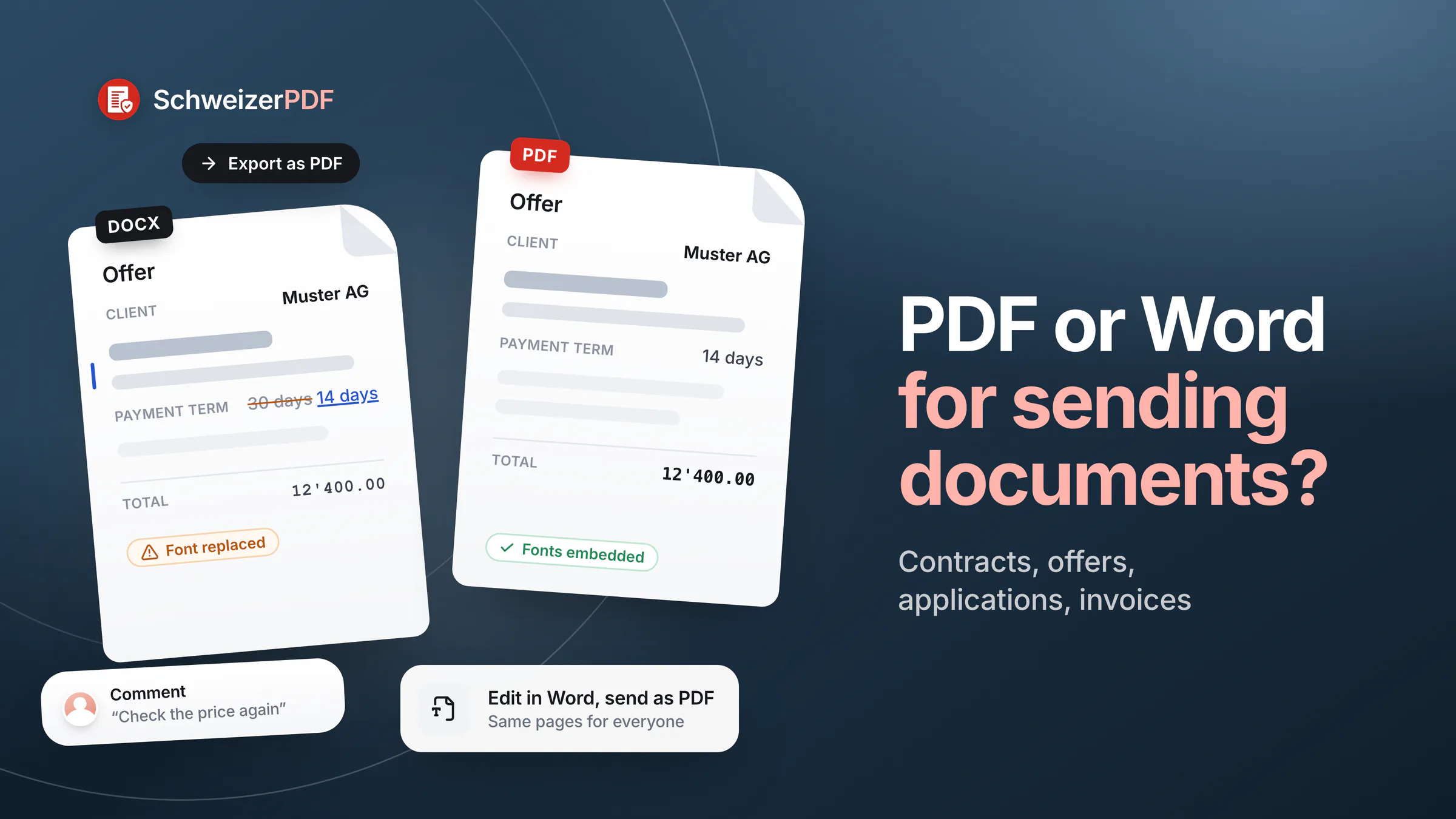
For sending a finished document — a signed contract, an offer, a job application or an invoice — PDF is usually the better choice: it looks the same on every device, it is not changed by accident, and it carries less of your editing history. A Word document (DOCX) is the better choice while a text is still being written or negotiated together. The practical rule: edit in your word processor, send and archive as PDF.
“Word” here means the editable word-processing format (DOCX), whatever program you write it in. One thing to know up front: SchweizerPDF converts neither Word to PDF nor PDF to Word — Office conversions need a server and are not offered. You export the PDF from your word processor, then use our tools on it.
PDF vs. Word at a glance
| Word (DOCX) | ||
|---|---|---|
| Layout at the recipient | Fixed: pages look as you exported them | Reflows with the recipient's program, fonts and settings |
| Editing | Meant for the final version; adding content is easy, rewriting text is not | Fully editable — by you and by the recipient |
| Review | Comments, highlights and notes on the page; versions can be compared | Tracked changes and comments in the text |
| Fonts | Usually embedded in the file | Referenced; missing fonts are replaced |
| File size | Depends mostly on images; can be compressed | Usually small for text; grows with images |
| Hidden data | Metadata, comments, attachments, layers | Tracked changes, comments, hidden text, document properties |
| Security options | Password to open and permissions | Password protection in the word processor |
| Archiving | PDF/A is an archiving standard | Not designed for long-term fixed appearance |
| Accessibility | Accessible if tagged when exported | Accessible if styles and alternative texts are used |
Layout and fonts: why a PDF looks the same everywhere
A Word document describes text and formatting; the recipient's program lays the pages out again. If a font is missing, it is replaced, lines break differently, and a table or a signature block can slip onto the next page. On a phone, the document may look different again.
A PDF describes finished pages. The fonts it uses are normally embedded, so a contract, an offer or a CV shows the same line breaks and page breaks for everyone. PDF details lists the fonts in a file and whether each one is embedded — worth a look before sending an important document (info tools).
Editing and review: tracked changes vs. PDF comments
While a contract is being negotiated, tracked changes in Word are hard to beat: every insertion and deletion is visible, and each one can be accepted or rejected. A PDF is not made for that kind of back-and-forth.
PDF review works differently. With Edit PDF you add notes, highlights, text, stamps or a signature image to the pages, either as part of the page or as annotations that other PDF apps can still edit. It adds content; it does not rewrite text already in the document. To see what changed between two PDF versions, Compare PDFs marks changed words, moved text and layout differences. Which plans include Compare PDFs is shown on the pricing page.
Hidden data in Word and PDF files
Both formats carry more than the visible text. A Word document can contain tracked changes nobody accepted yet, reviewers' comments, text formatted as hidden, and document properties such as the author and the company. Sending the DOCX sends all of that.
Exporting to PDF leaves much of it behind — but not automatically all of it. Depending on the export settings, comments or markup can be printed into the PDF, and the document properties usually travel along as PDF metadata. What a PDF can hide, and how to remove it, is covered in hidden data in PDFs; Remove hidden data and Edit title and author do the clean-up in your browser.
Which format for contracts, offers, applications and invoices?
| Document | Send as | Why |
|---|---|---|
| Contract draft to negotiate | Word, if both sides agree | Tracked changes show every proposal |
| Contract for signature | Fixed wording and layout; everyone signs the same pages | |
| Offer or quote | Prices and terms cannot shift or be edited by accident | |
| Job application | One PDF, unless the portal asks otherwise | CV, letter and references in one file, same layout everywhere |
| Invoice | Totals and payment details stay as issued | |
| Template for others to fill in | Word, or a PDF form | The recipient has to type into it |
For applications, how to turn several documents into one tidy file is shown in one PDF for a job application. Whether a signature image in a PDF is enough for a given contract is a separate question, covered in electronic signatures in Switzerland.
From Word to a finished PDF: a practical workflow
- 1
Finish the text in your word processor
Accept or reject all tracked changes, delete the comments and check the document properties (author, company, title).
- 2
Export to PDF there
Use your word processor's export or “save as PDF”. Choose the option that creates an accessible (tagged) PDF if it offers one, and leave comments and markup out of the export.
- 3
Check the PDF
Open PDF details: are all fonts embedded, is the file tagged for accessibility, what do the properties say?
- 4
Clean and shrink it
Run Remove hidden data or set the few properties you want with Edit title and author. If the file is too large for e-mail, Compress PDF makes it smaller (compress a PDF).
- 5
Combine or protect it if needed
Merge several files with Merge PDF (merge and split). For a confidential file, add a password to open it with Protect PDF and send the password another way (protect a PDF).
Every step after the export runs in your browser: the file is not uploaded, and per run our server receives only the tool id and the outcome. The tools are grouped in the list of tools.
Security, archiving and accessibility
Security. Both formats can be password-protected. A password to open the PDF, with AES 256-bit encryption, is widely supported by PDF readers; permissions such as “no printing” or “no copying” depend on the reader respecting them. Neither format protects content that is visible to whoever has the password.
Archiving. PDF/A, standardised as ISO 19005, restricts PDF so that a file can be displayed the same way in many years. Many word processors can export PDF/A directly; SchweizerPDF does not convert to PDF/A, and changing a PDF/A file can mean the result no longer conforms. Retention rules for business documents are in archiving PDFs in Switzerland.
Accessibility. Neither format is accessible by itself. A Word document with real headings, lists and alternative texts for images, exported as a tagged PDF, can be read well with a screen reader. Be aware that merging, splitting or reorganising pages may not keep a PDF's accessibility tags, and content added later is not tagged.
Frequently asked questions
Should I send a contract as PDF or Word?
As Word while both sides are still editing it, as PDF once the wording is final and it goes out for signature. That way everyone signs exactly the same pages.
Can the recipient still edit a PDF?
Yes, with the right software — a PDF is harder to change, not impossible. Permissions in Protect PDF ask readers not to allow changes, but they depend on the reader respecting them. For proof of what you sent, keep your own copy.
Does SchweizerPDF convert Word to PDF or PDF to Word?
No. Reliable Office conversion needs software on a server, which would mean receiving your file, so it is not offered. Export the PDF from your word processor; why the server never sees your files is explained in browser vs. upload.
Is a PDF safer than a Word document?
It usually carries less editing history. But a PDF can hold metadata, comments, attachments and even scripts too — check it with PDF details before sending, and clean it if needed.
Edit in your word processor, send and archive as PDF, and check the PDF before it leaves your desk. Firms that send contracts and offers every day, such as fiduciaries, can create a free account and do the checks in the browser.
General information
This comparison describes file formats in general terms, not named products, and is not legal advice. Word processors and PDF readers differ in what they export and support — check the result in your own setup, and ask a qualified professional where the form of a contract or an archive is legally prescribed.